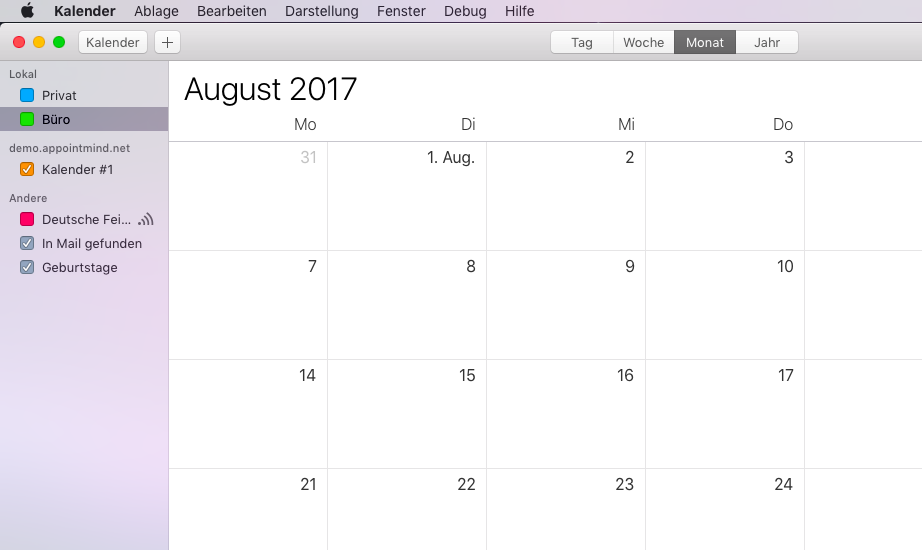
Sync your calendar with Apple Calendar
- Select Apple Calendar under Synchronization.
- Activate the appointment sync at Appointmind and then select your calendar.
- In the Calendar menu, choose Add Account.
- Select Other CalDAV Account and click Continue.
- In the Account Type menu, choose Advanced.
- Copy the user name (a number) at Appointmind.
- Paste the user name into Apple Calendar.
- Think up a password and enter it at Appointmind.
- Enter the same password in Apple Calendar.
- Copy the server address at Appointmind.
- Paste the server address into Apple Calendar.
- Copy the server path at Appointmind.
- Paste the server path into Apple Calendar.
- Enter 443 as the port, then select SSL and Kerberos v5.
- Finally click Sign In.
- If the connection was successful, the Appointmind calendar appears in the sidebar.
Screenshots
Select Apple Calendar under Synchronization
1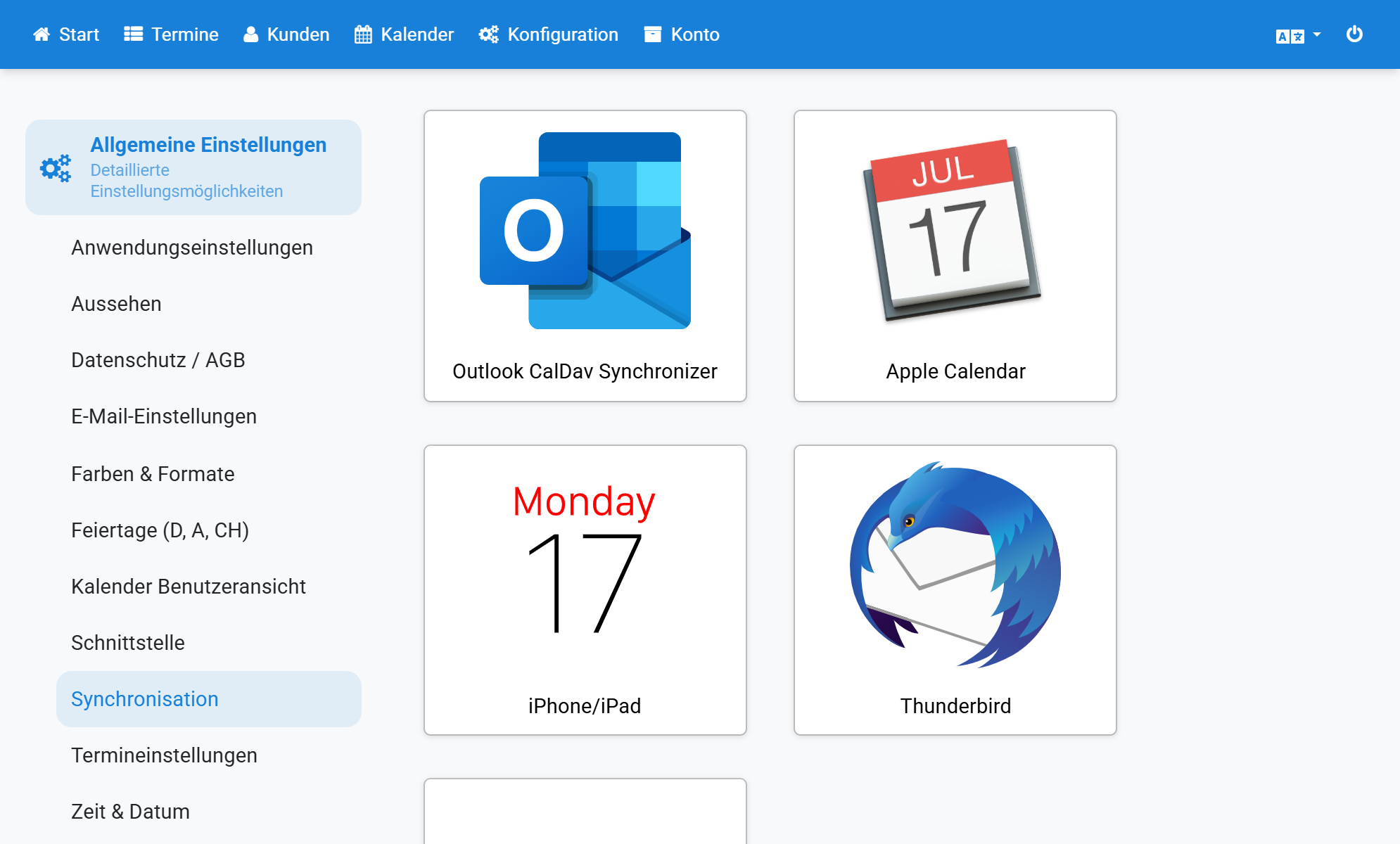
Activate the appointment sync at Appointmind and then select your calendar
2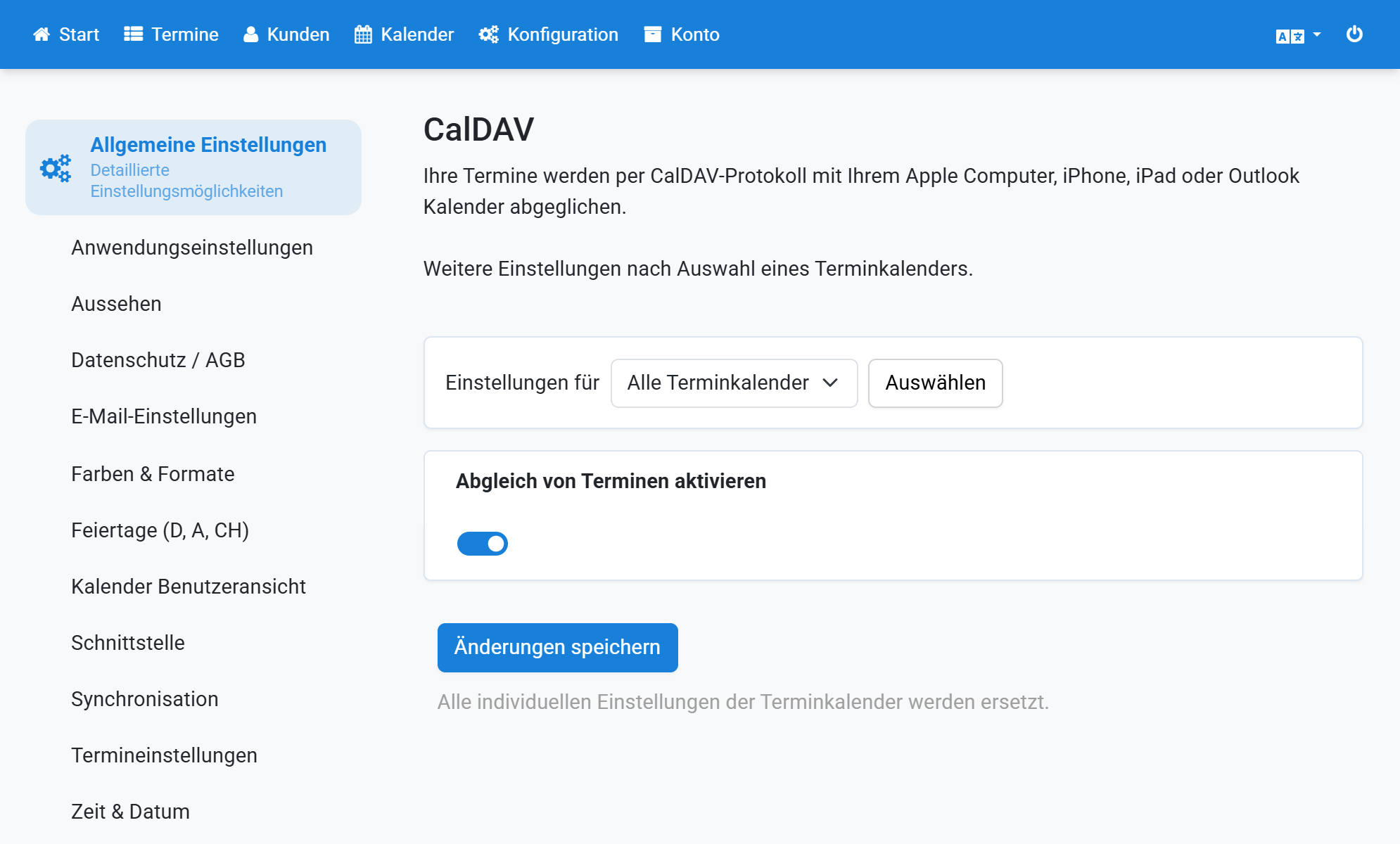
In the Calendar menu, choose Add Account
3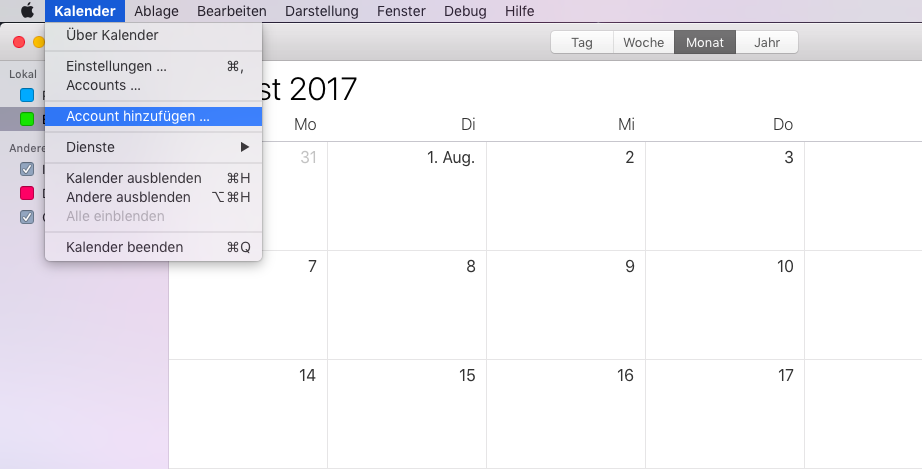
Select Other CalDAV Account and click Continue
4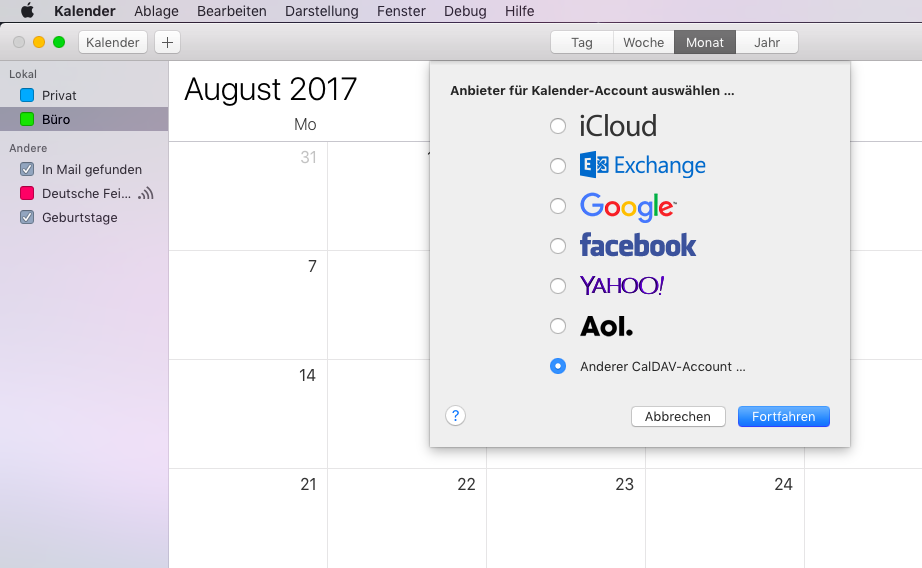
In the Account Type menu, choose Advanced
5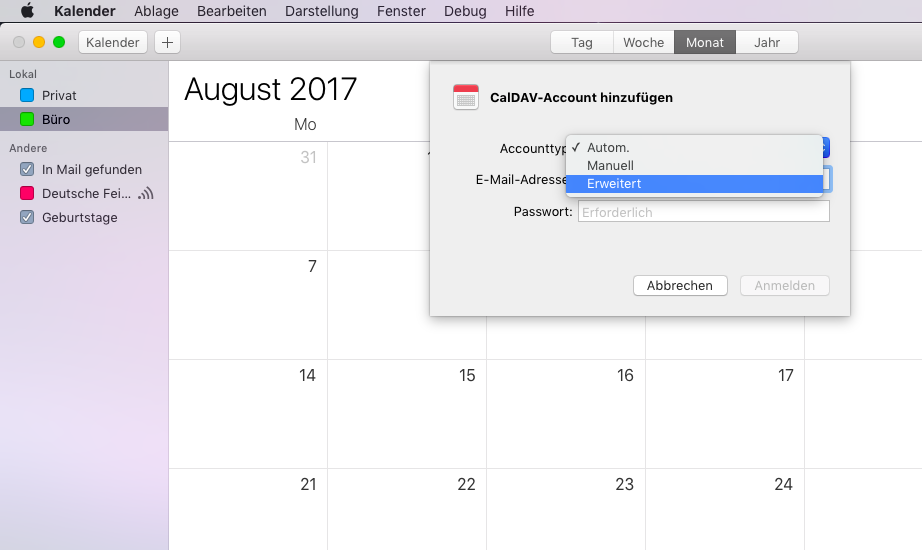
Copy the user name (a number) at Appointmind
6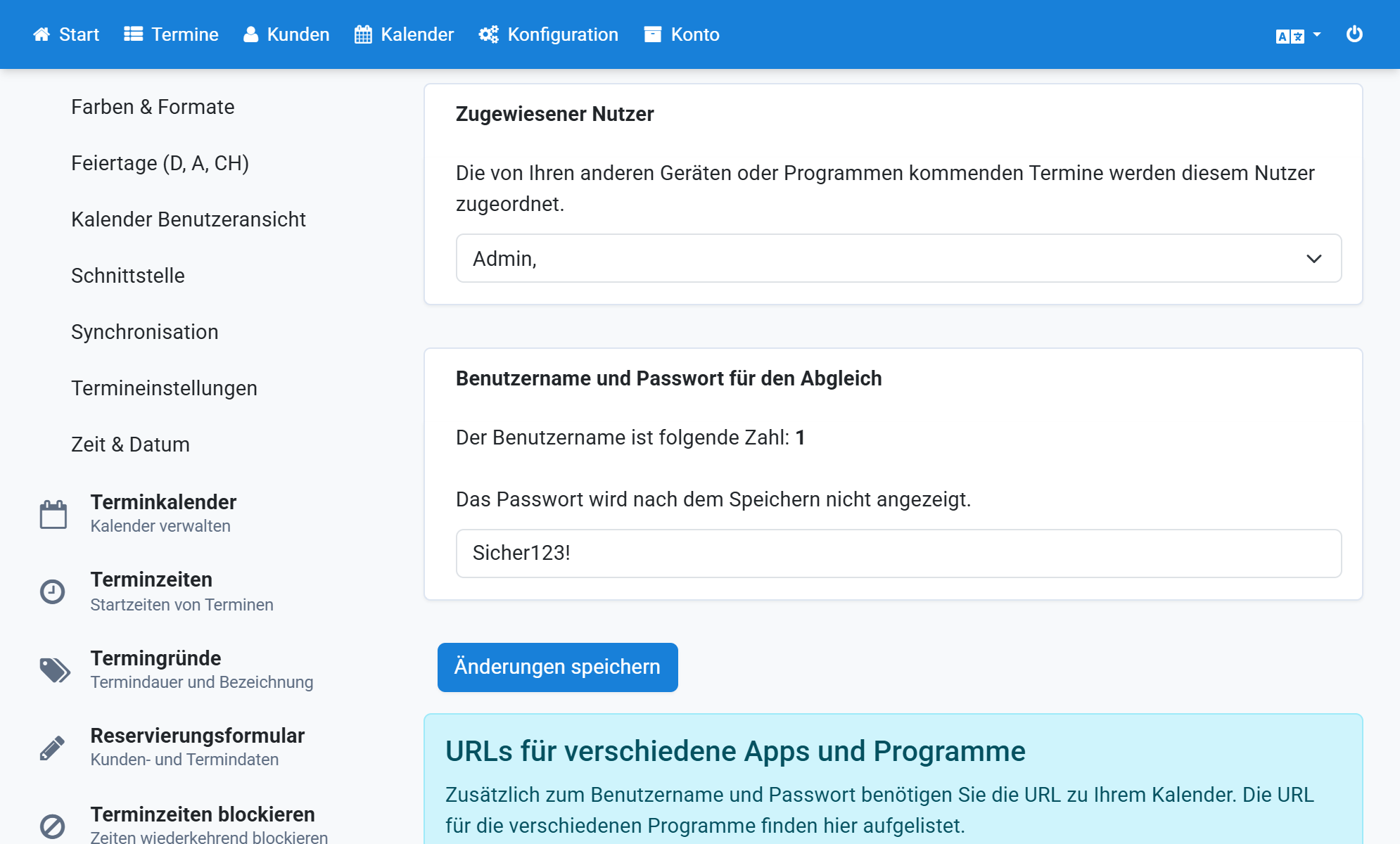
Paste the user name into Apple Calendar
7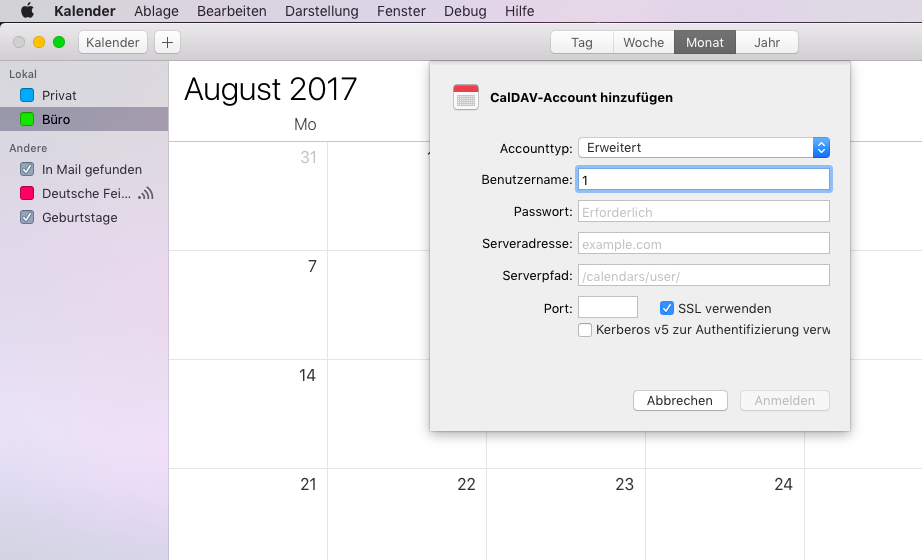
Think up a password and enter it at Appointmind
8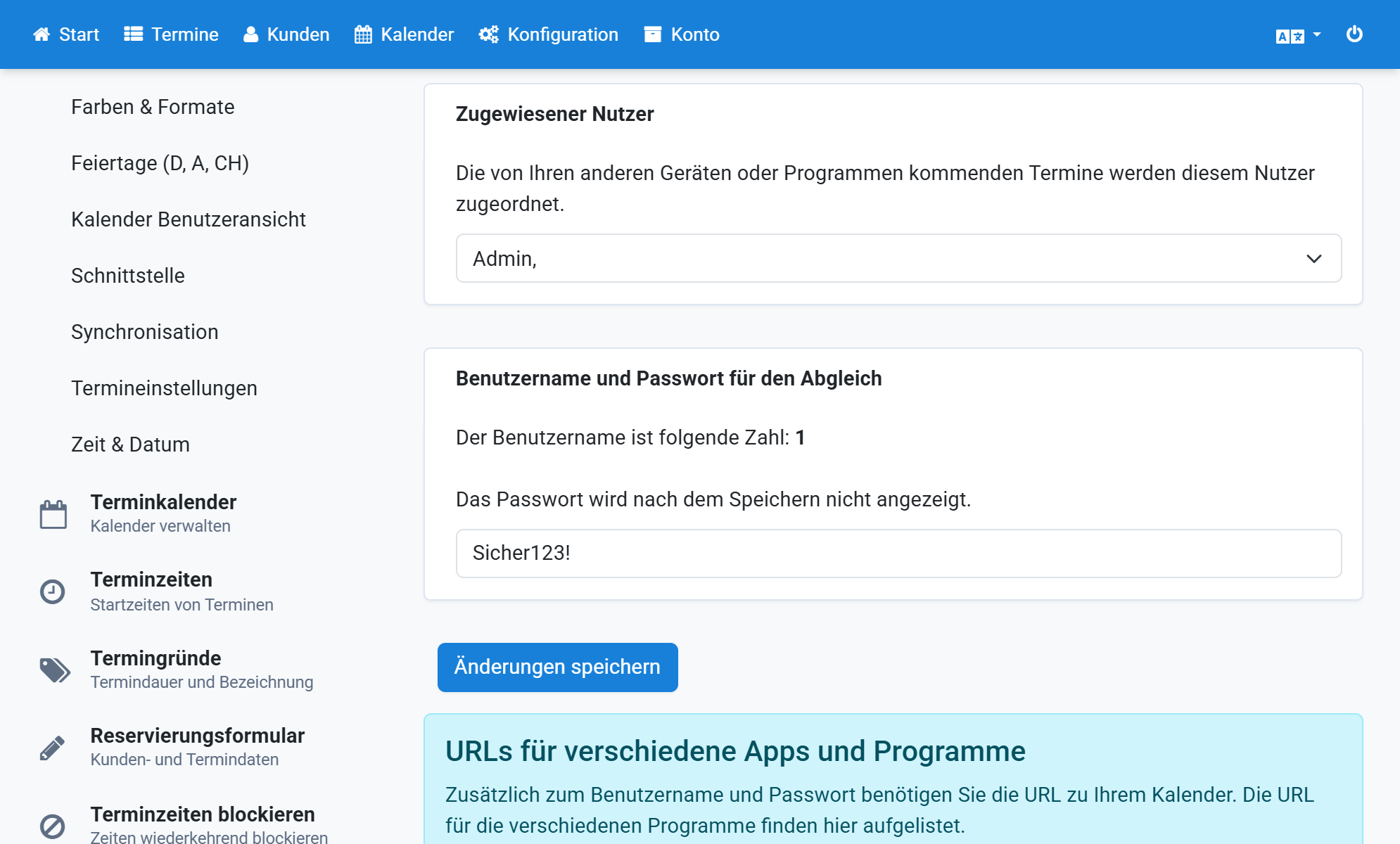
Enter the same password in Apple Calendar
9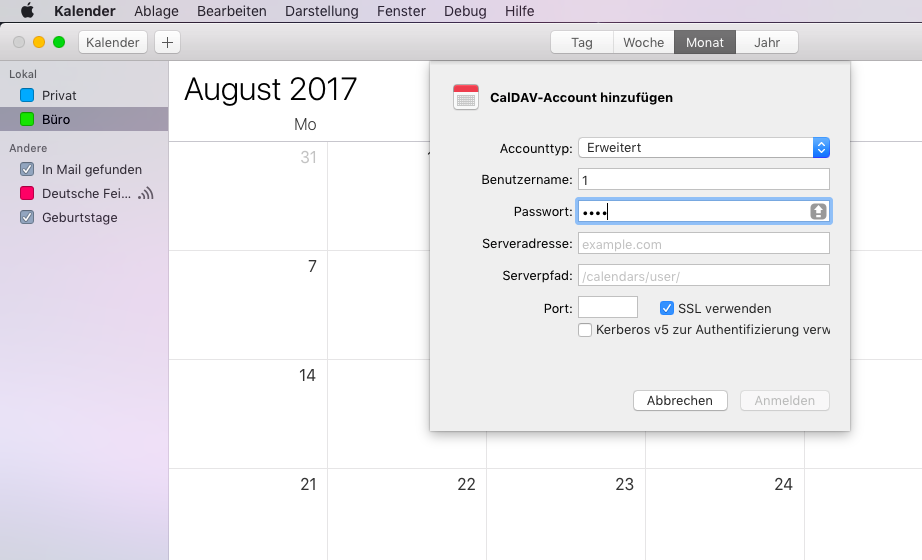
Copy the server address at Appointmind
10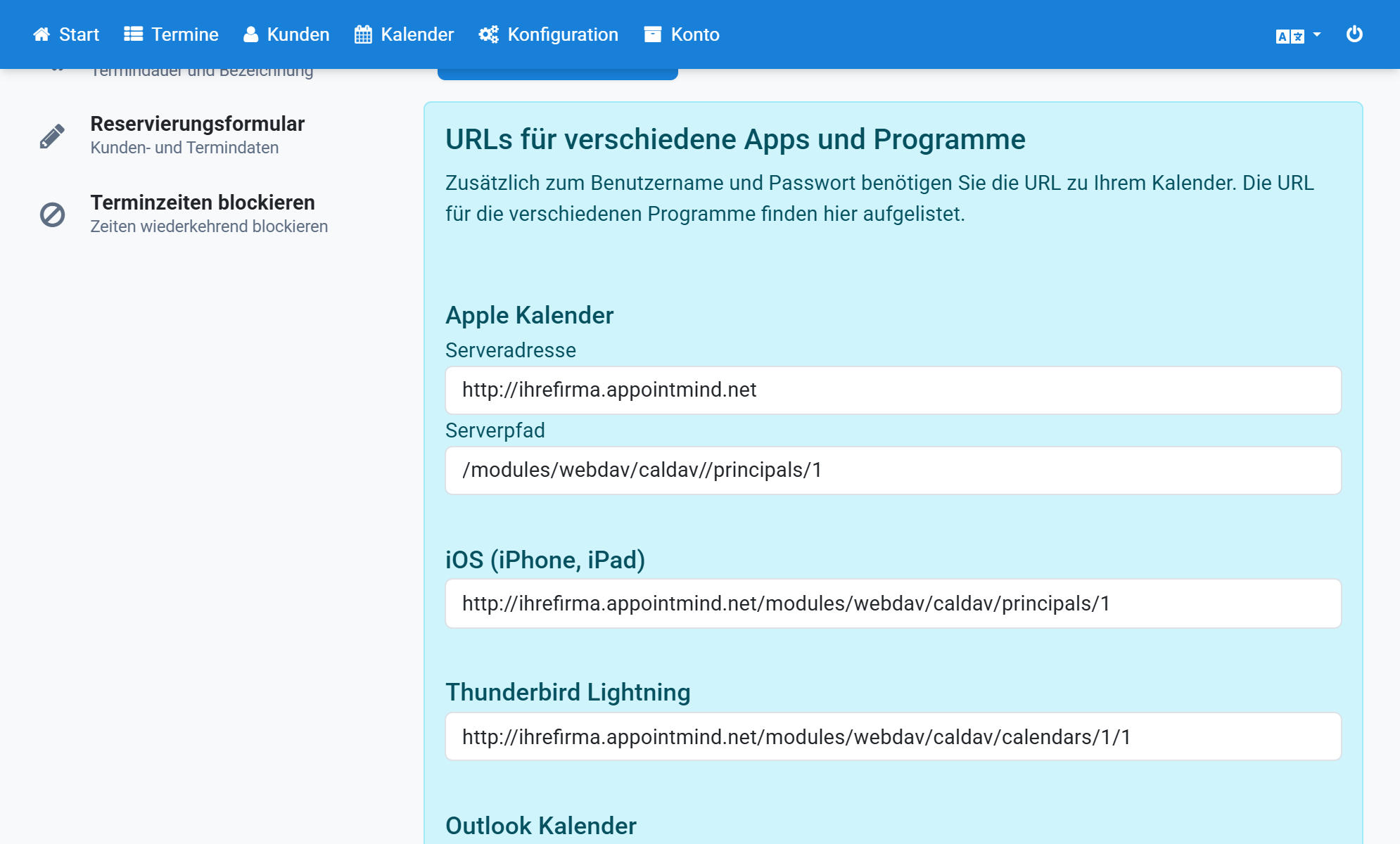
Paste the server address into Apple Calendar
11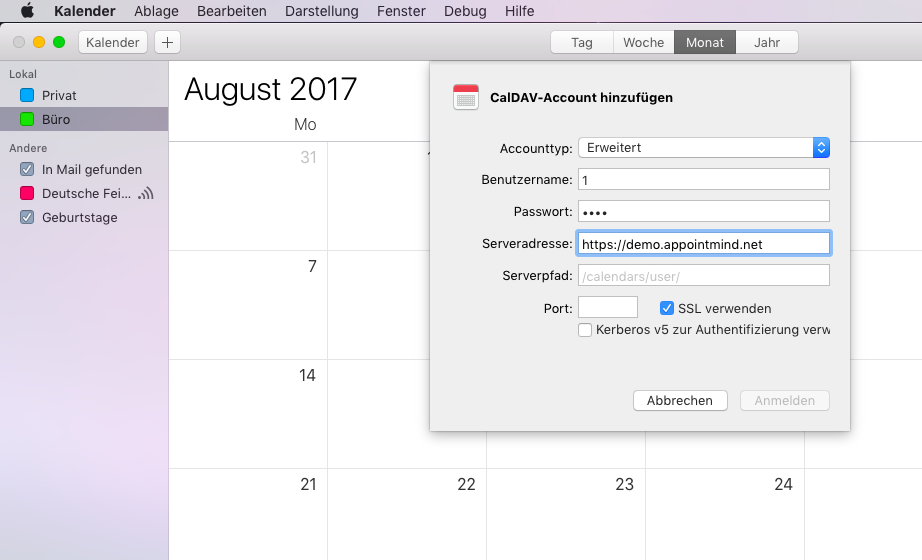
Copy the server path at Appointmind
12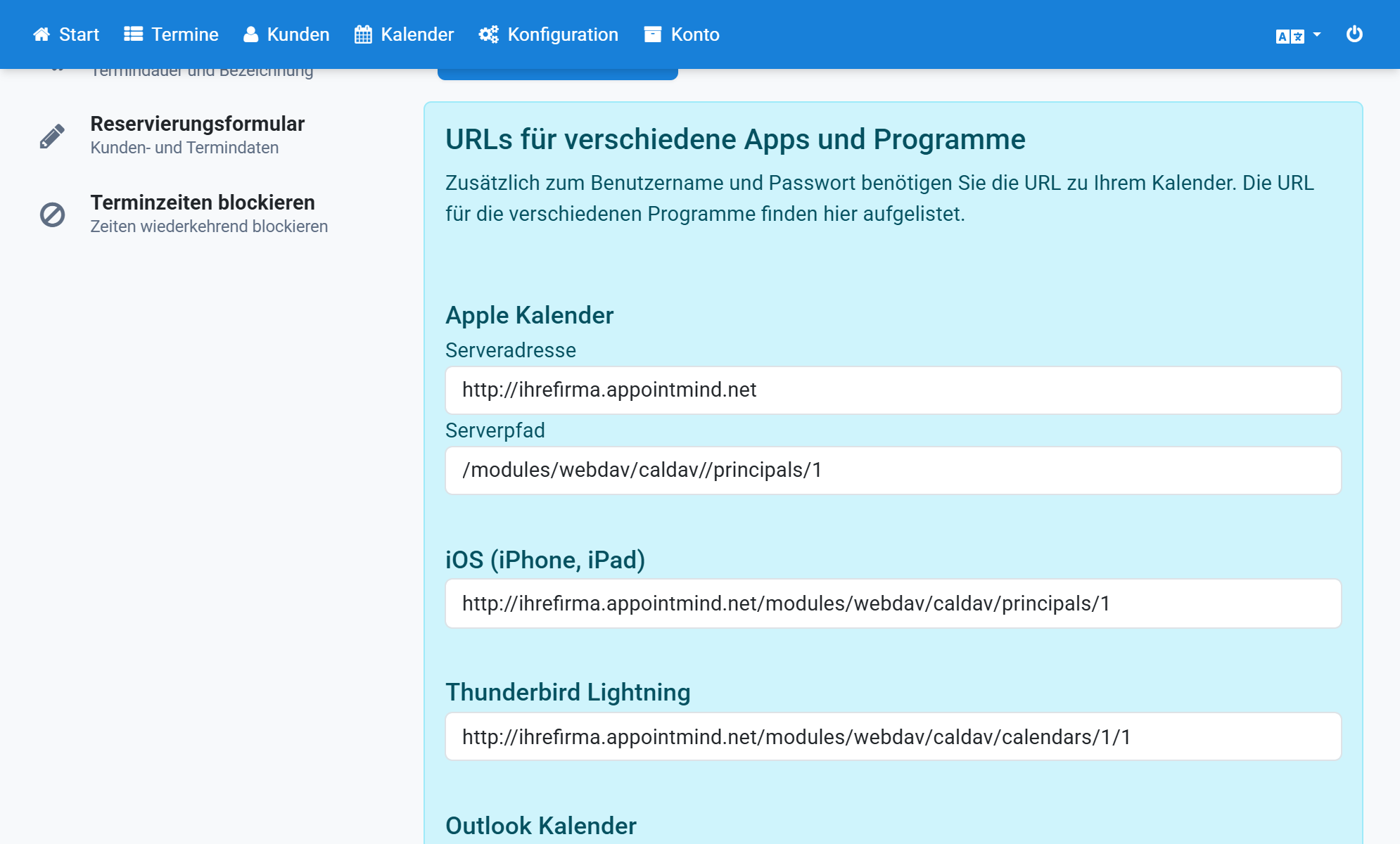
Paste the server path into Apple Calendar
13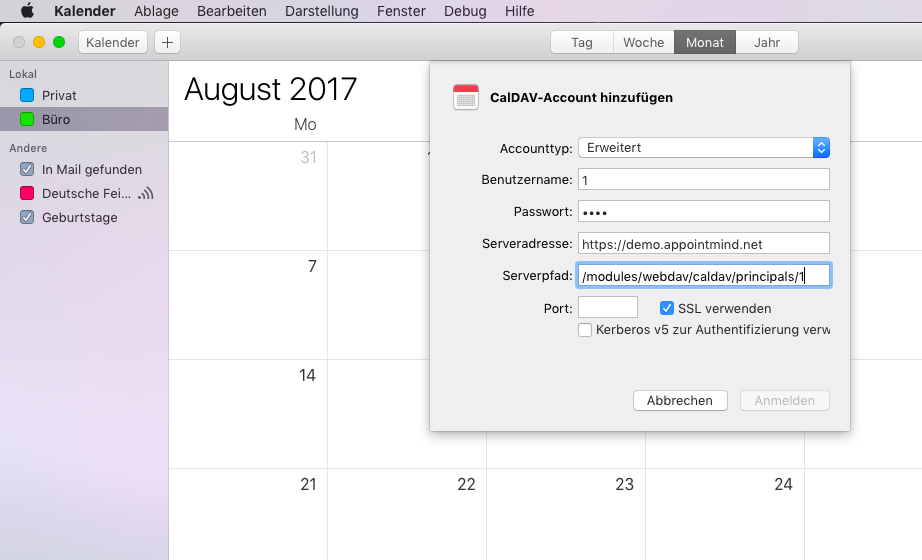
Enter 443 as the port, then select SSL and Kerberos v5
14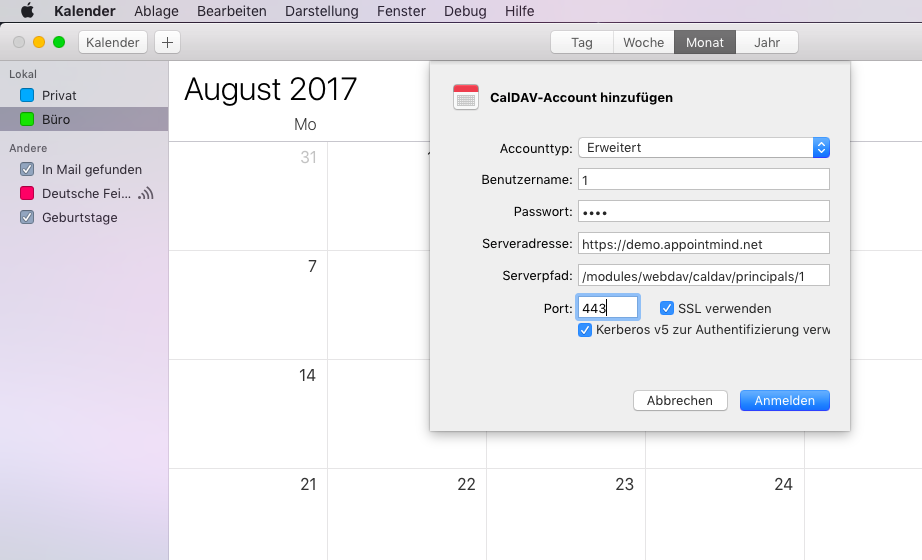
Finally click Sign In
15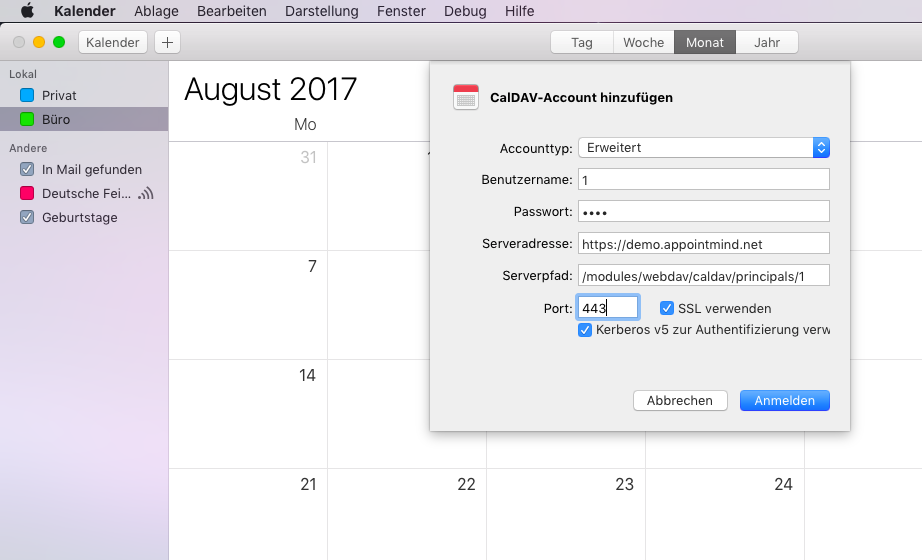
If the connection was successful, the Appointmind calendar appears in the sidebar
16