Sync your calendar with iPhone and iPad via CalDAV
To set up a calendar account on your iPhone or iPad you need your user ID, the password you have chosen and the calendar address (URL). You find all three in the admin area of your Appointmind calendar under Configuration » General settings » Synchronization.
- At Appointmind, select iPhone/iPad under Synchronization.
- Activate the appointment sync at Appointmind, save the changes and then select your calendar.
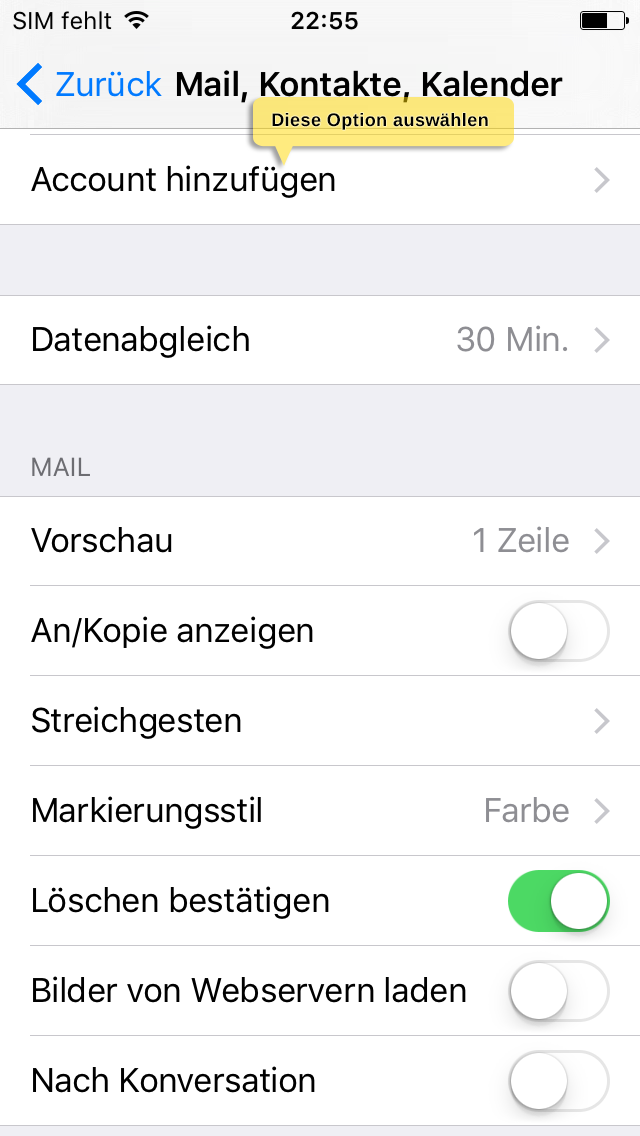
- Select Mail, Contacts, Calendars in the settings.
- Select Add Account.
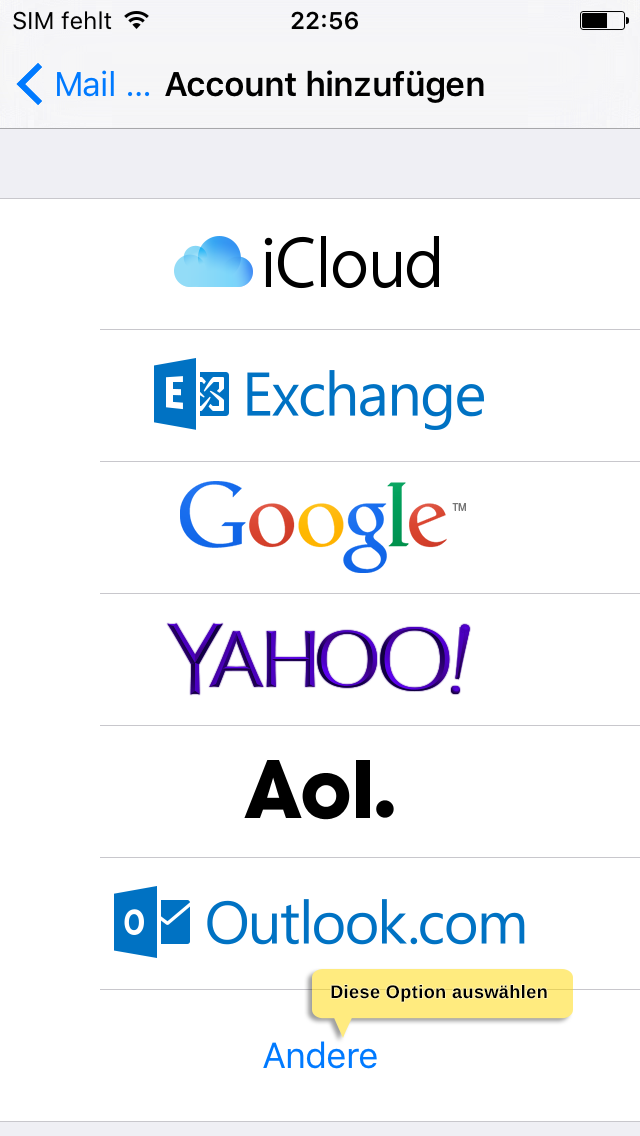
- Select Other.
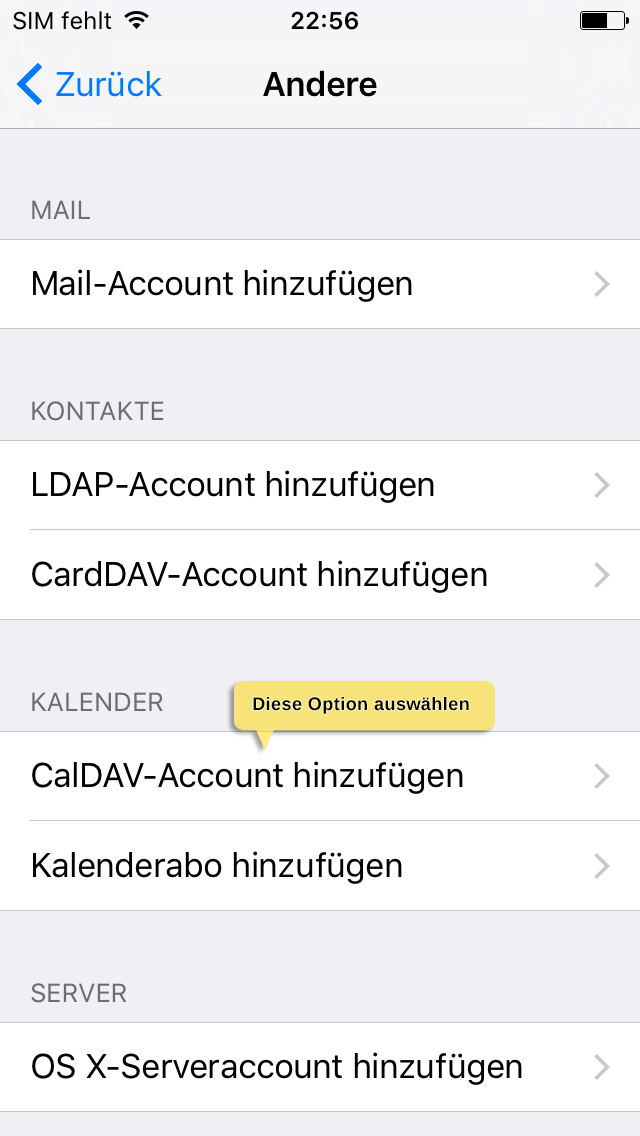
- Select Add CalDAV Account.
- Copy the iOS URL at Appointmind.
- Copy the user name (a number) at Appointmind.
- Think up a password, enter it at Appointmind and save the changes.
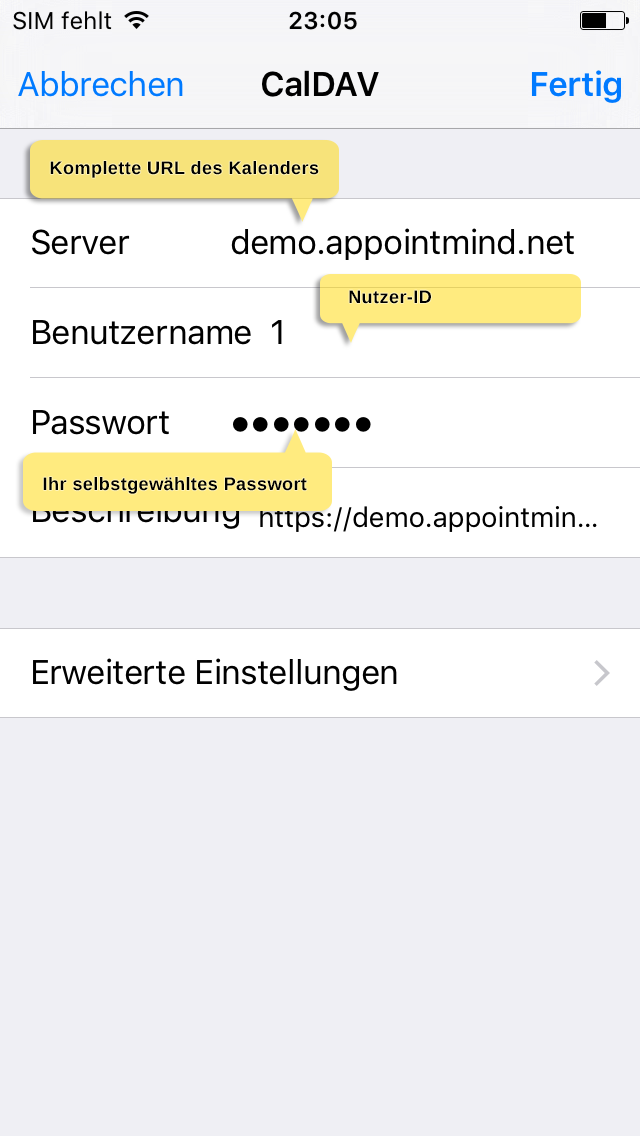
- Enter the access data and select Done.
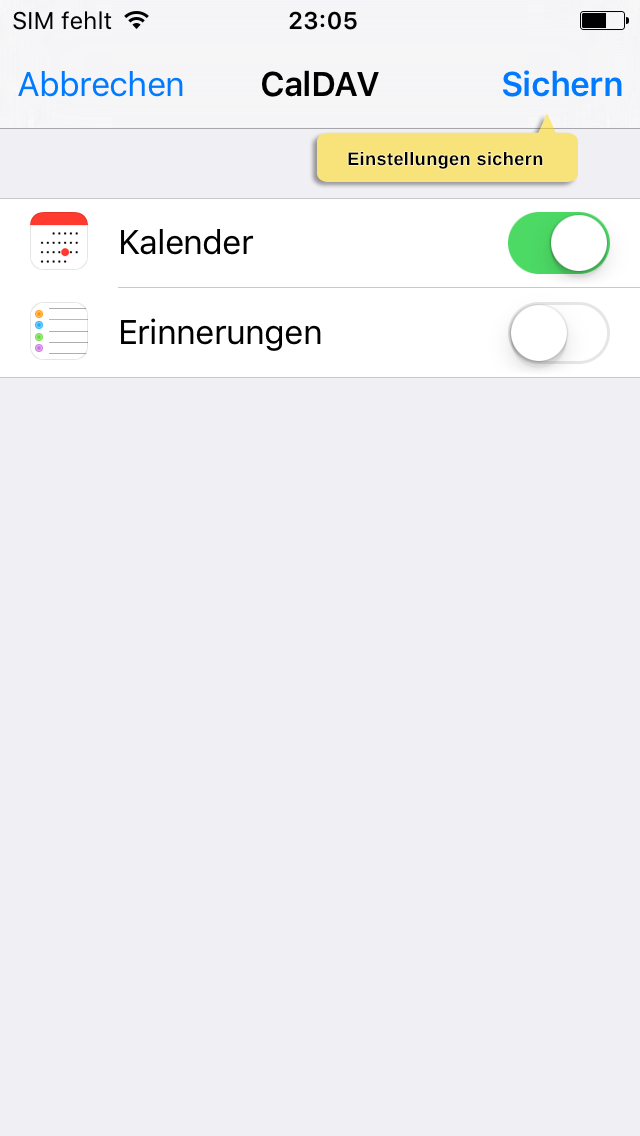
- Select Save.
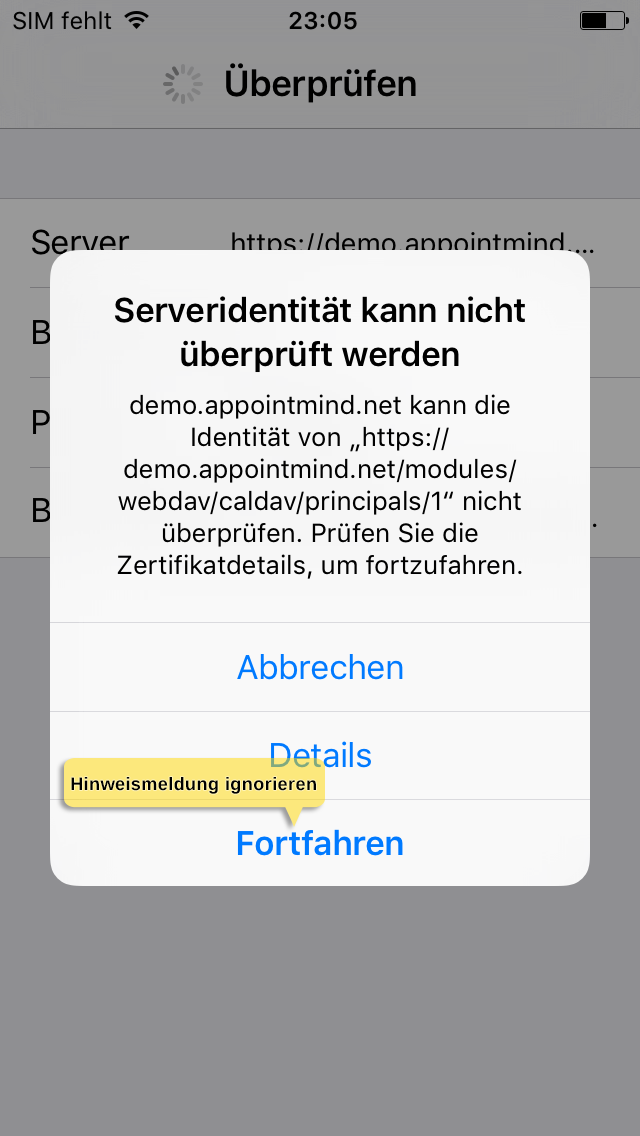
- Select Continue.
Screenshots
At Appointmind, select iPhone/iPad under Synchronization
1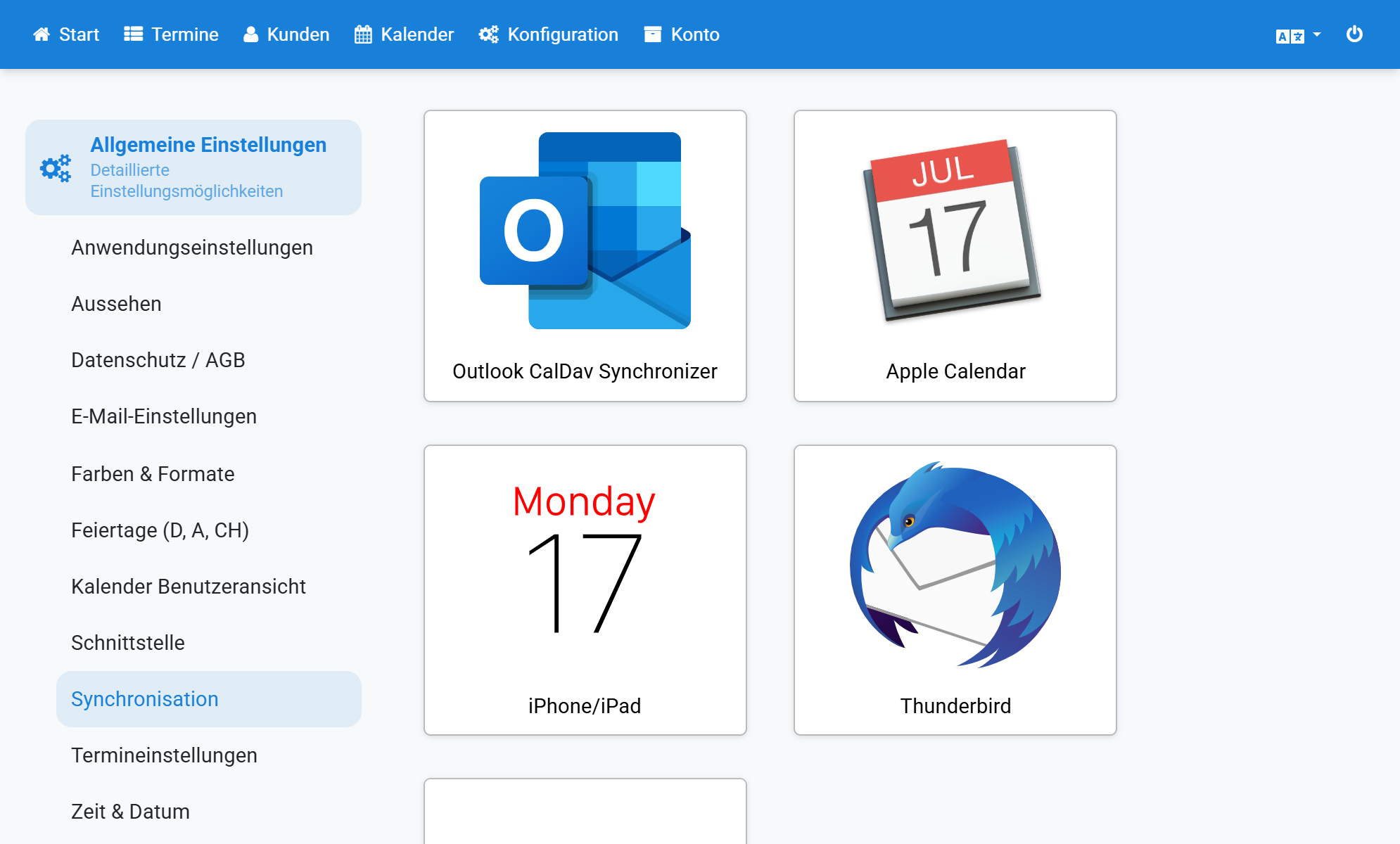
Activate the appointment sync at Appointmind, save the changes and then select your calendar
2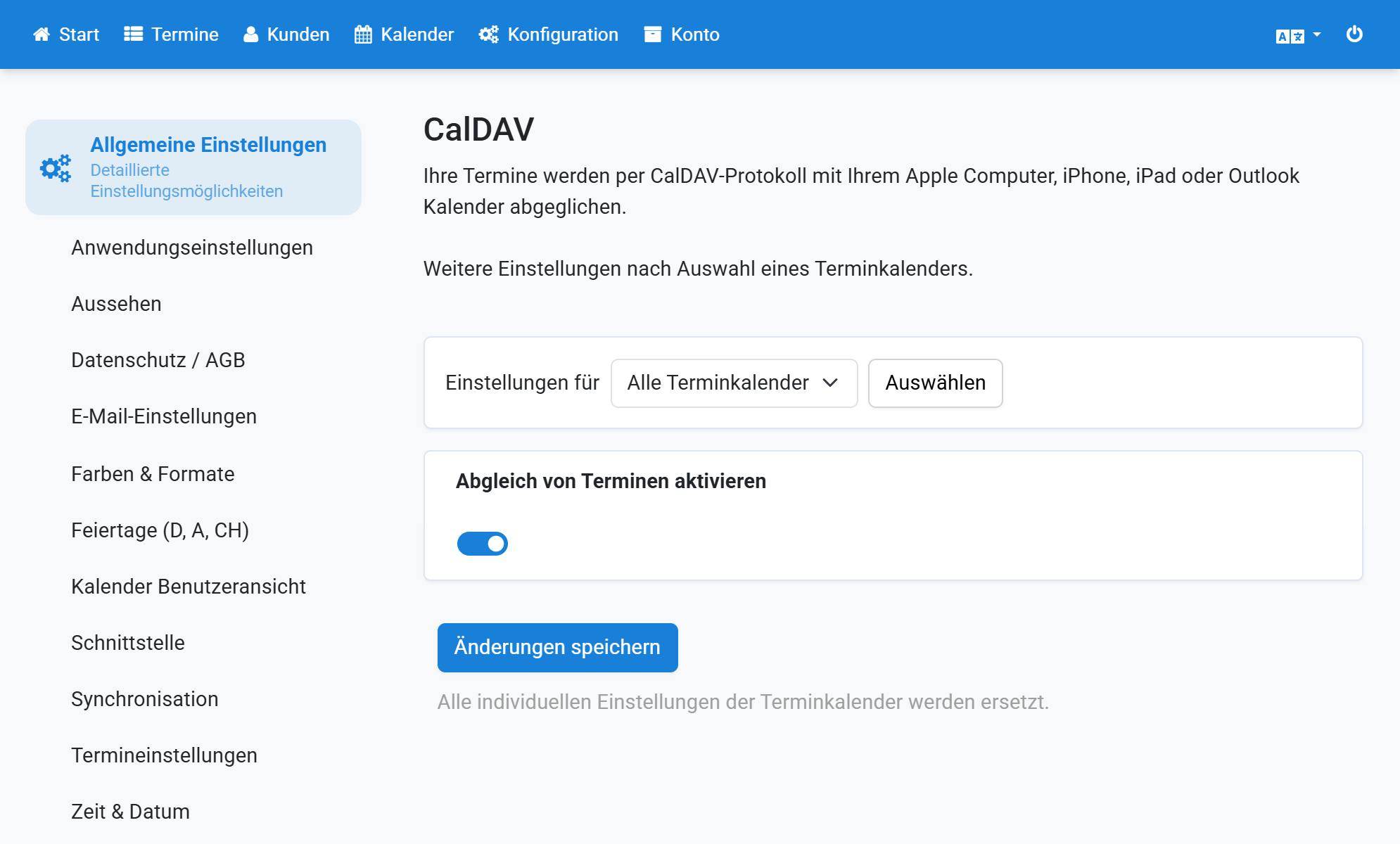
Select Mail, Contacts, Calendars in the settings
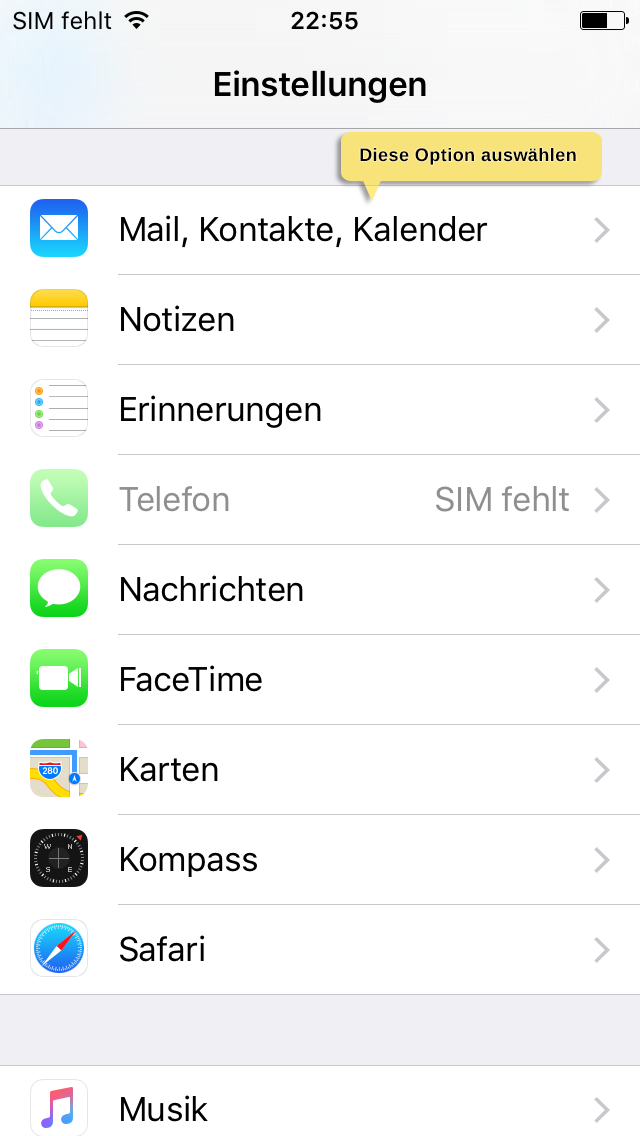
Select Add Account
Select Other
Select Add CalDAV Account
Copy the iOS URL at Appointmind
7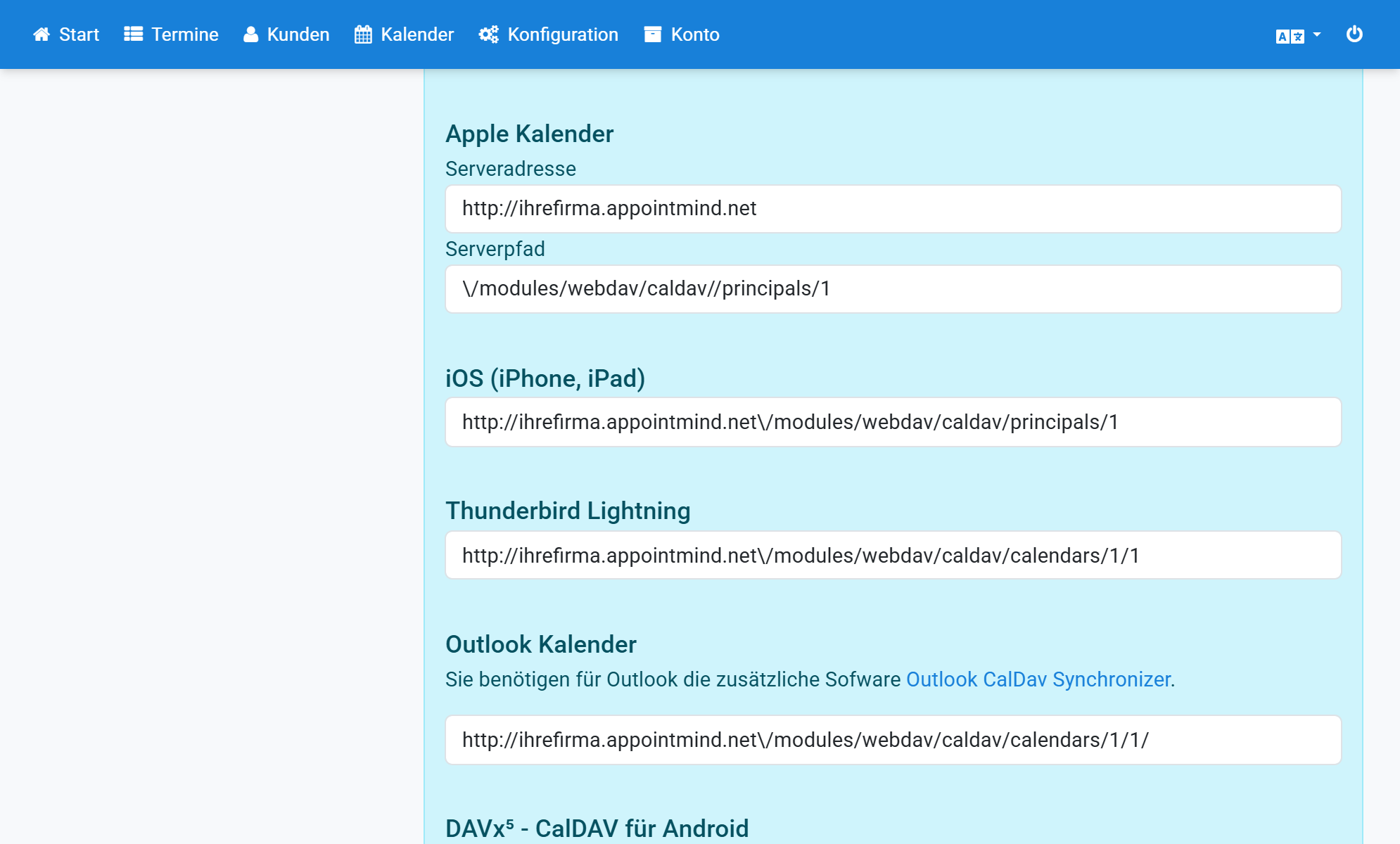
Copy the user name (a number) at Appointmind
8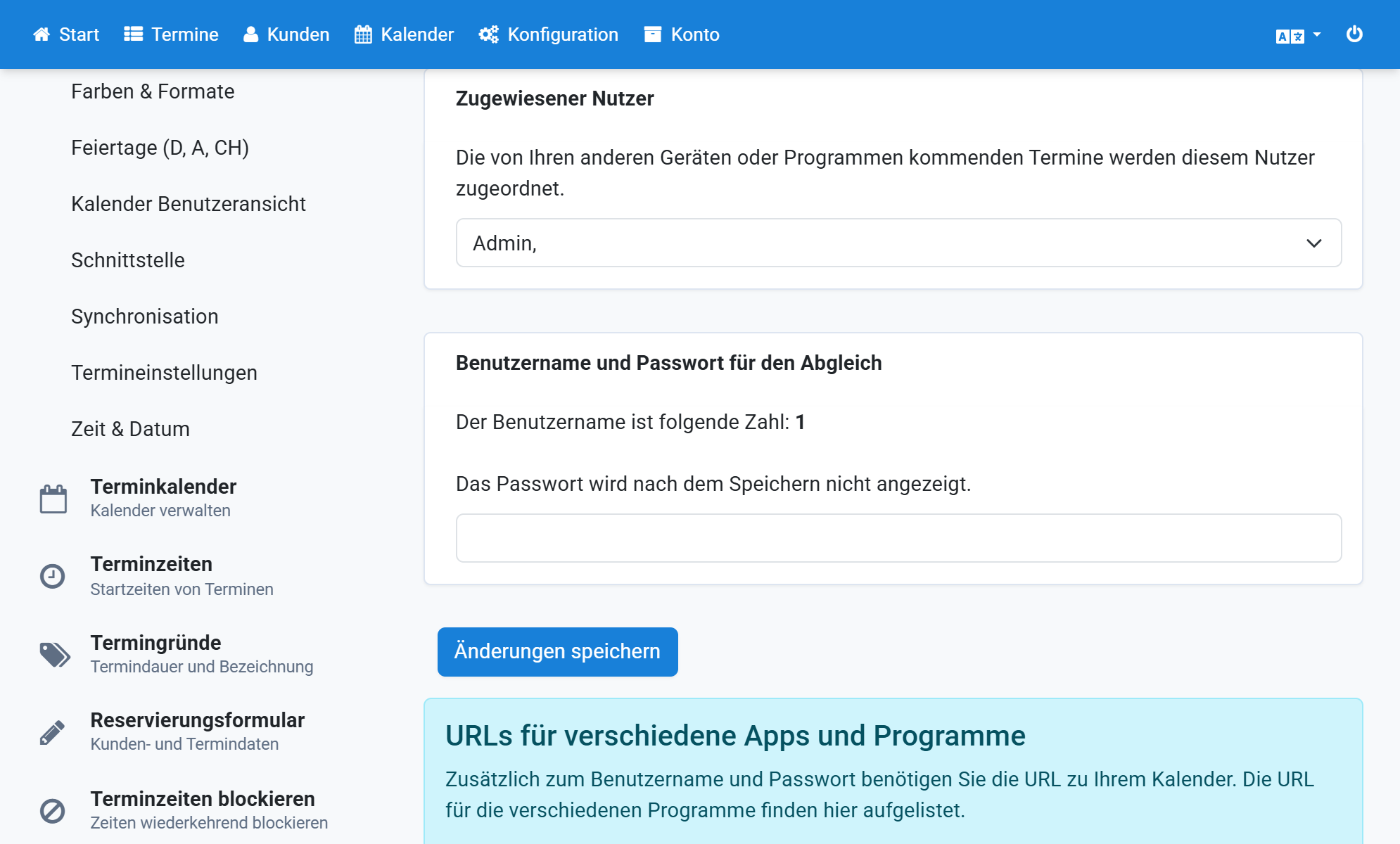
Think up a password, enter it at Appointmind and save the changes
9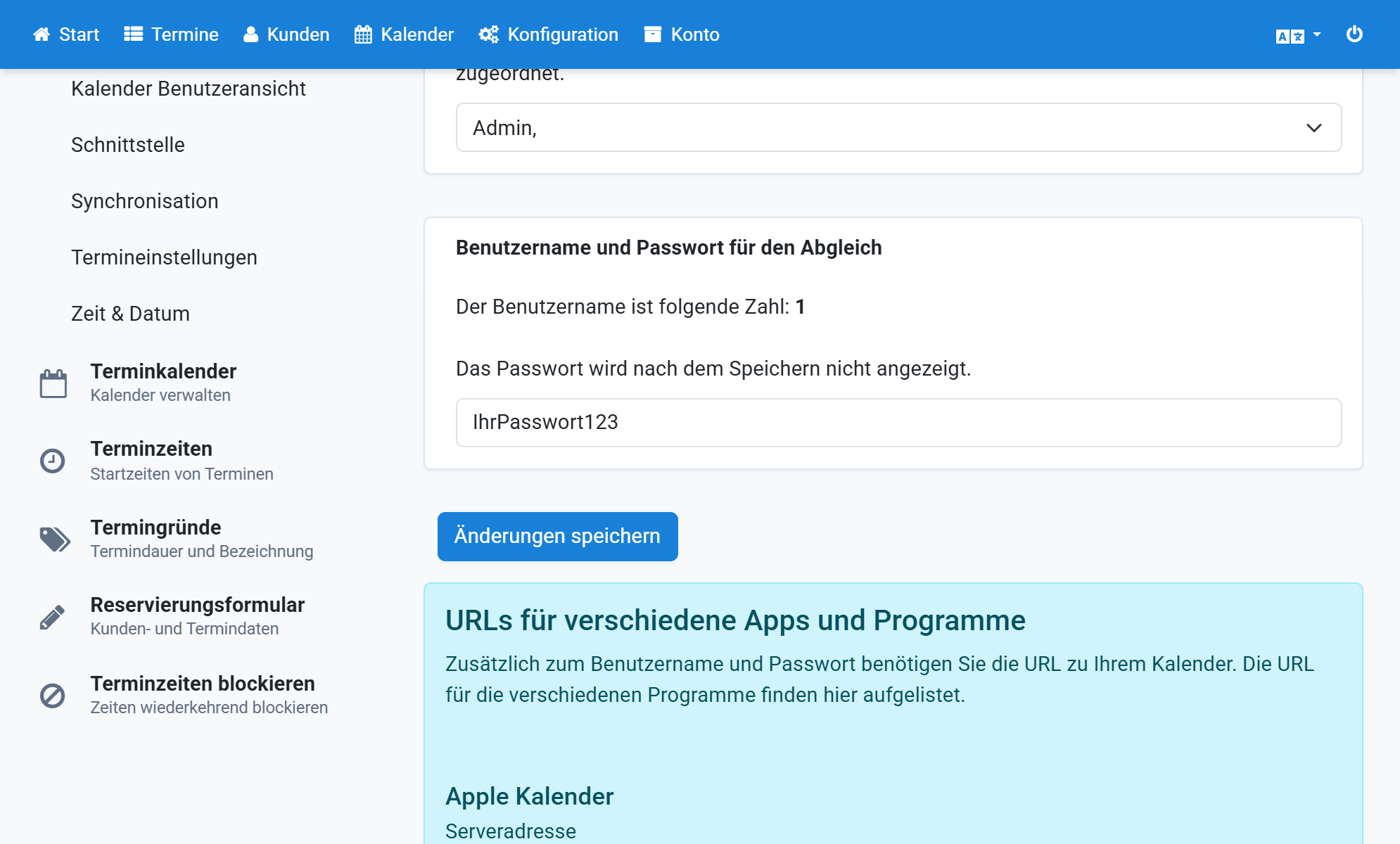
Enter the access data and select Done
Select Save
Select Continue