Change Colors
- Click Configuration in the navigation bar.
- Click General settings.
- Click Colors & Formats.
- Click the checkered box next to one of the options.
- Select a color.
- You can also modify the color.
- Click OK to apply the selected color.
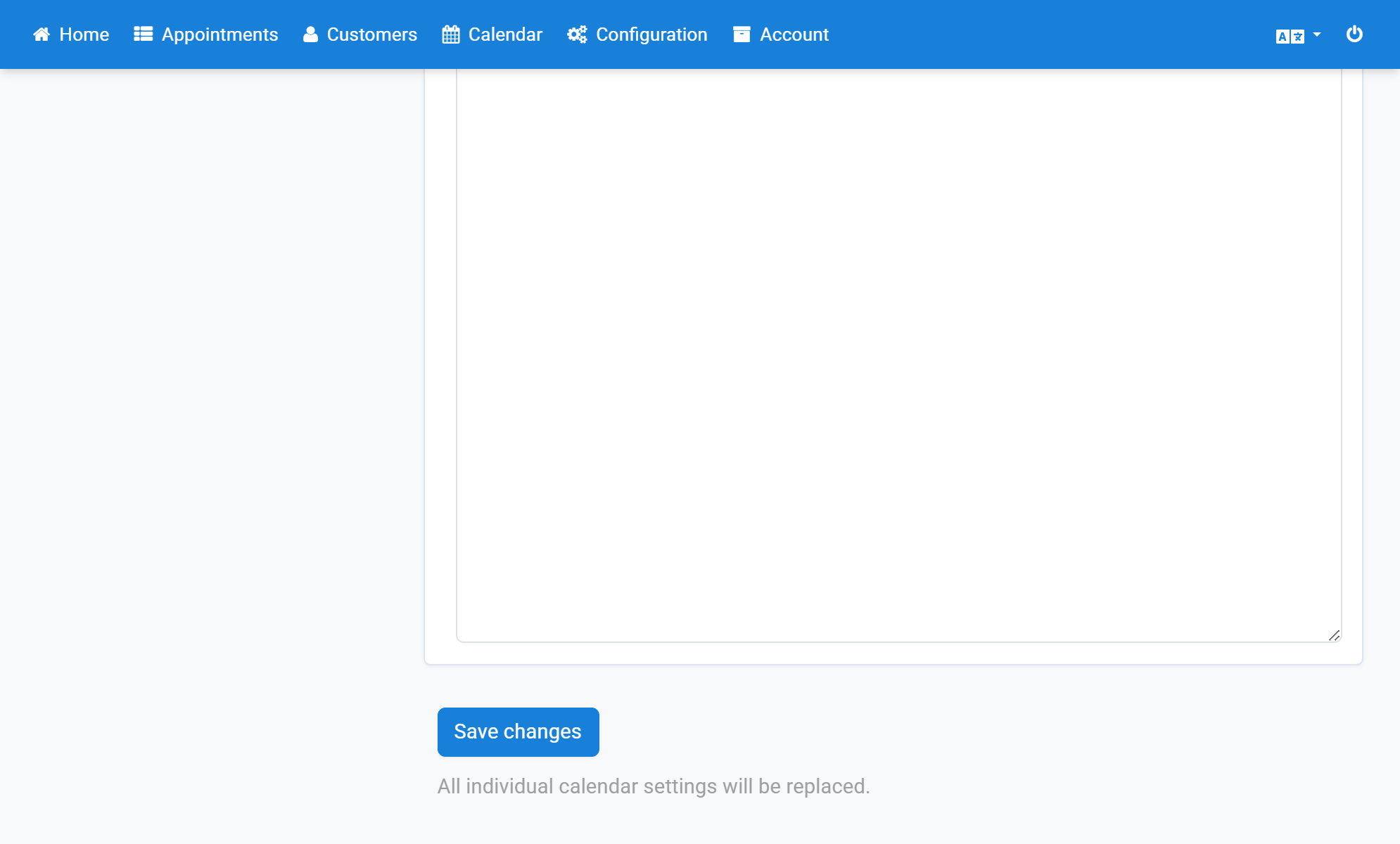
- Finally click Save changes.
Screenshots
Click Configuration in the navigation bar
1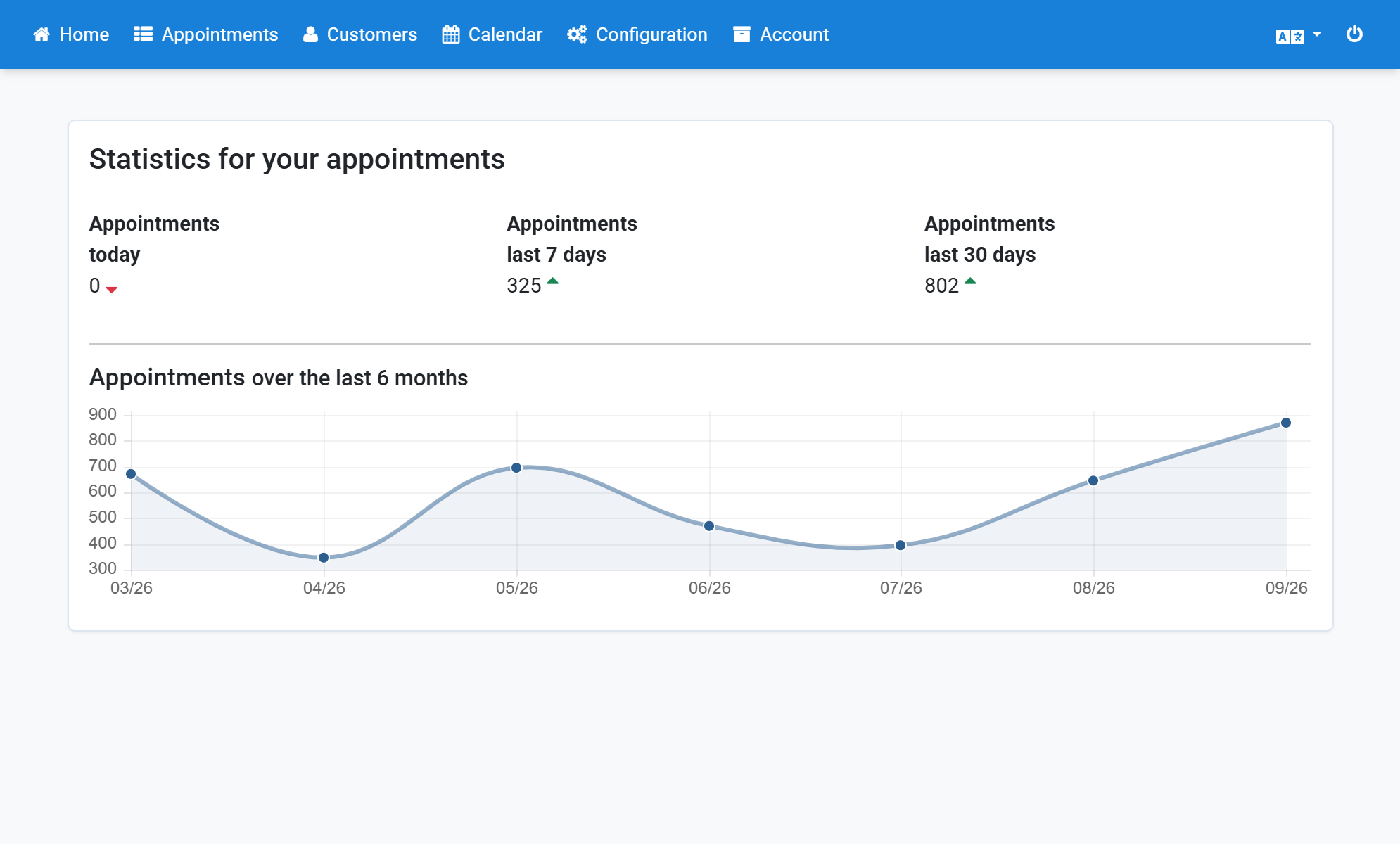
Click General settings
2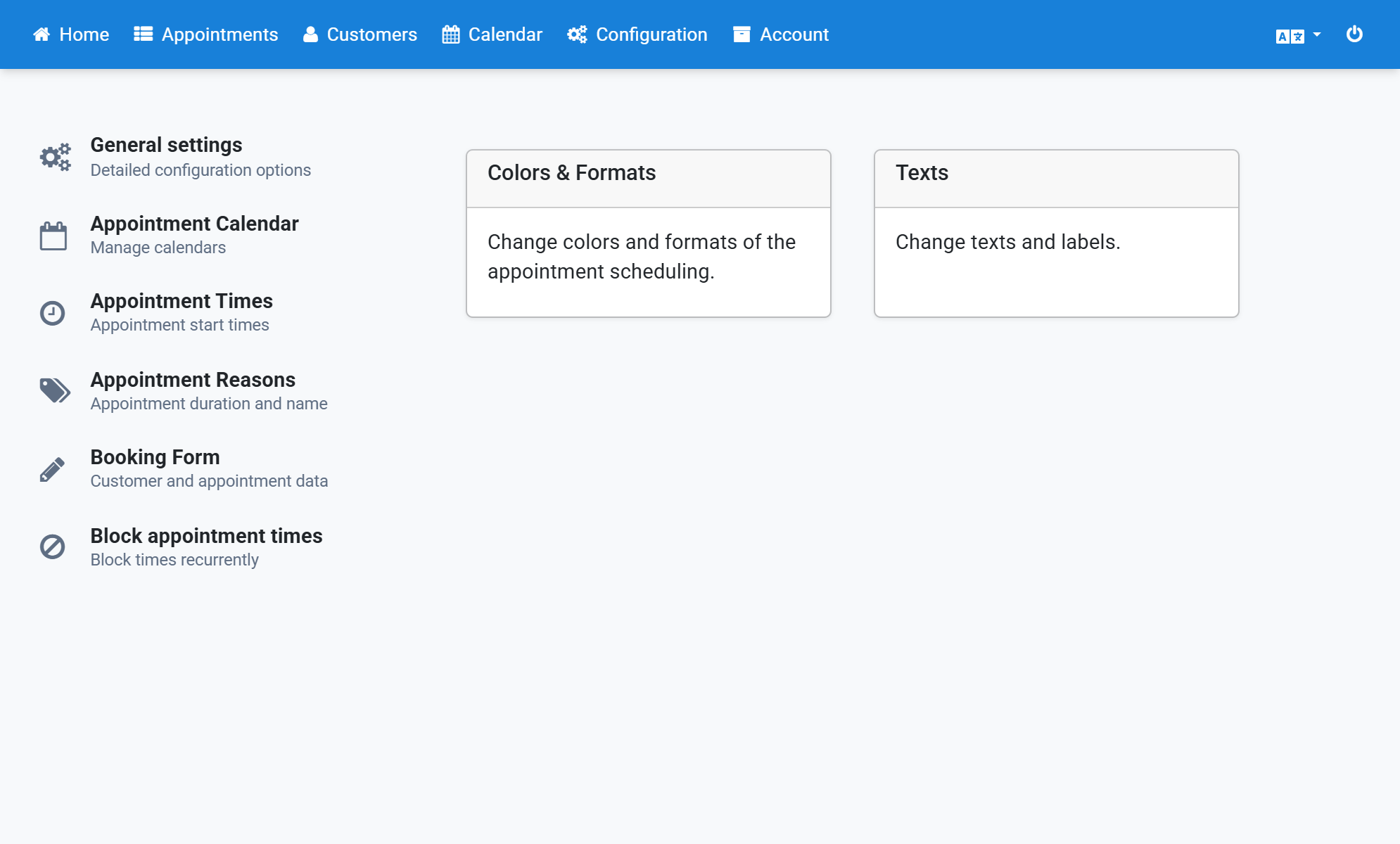
Click Colors & Formats
3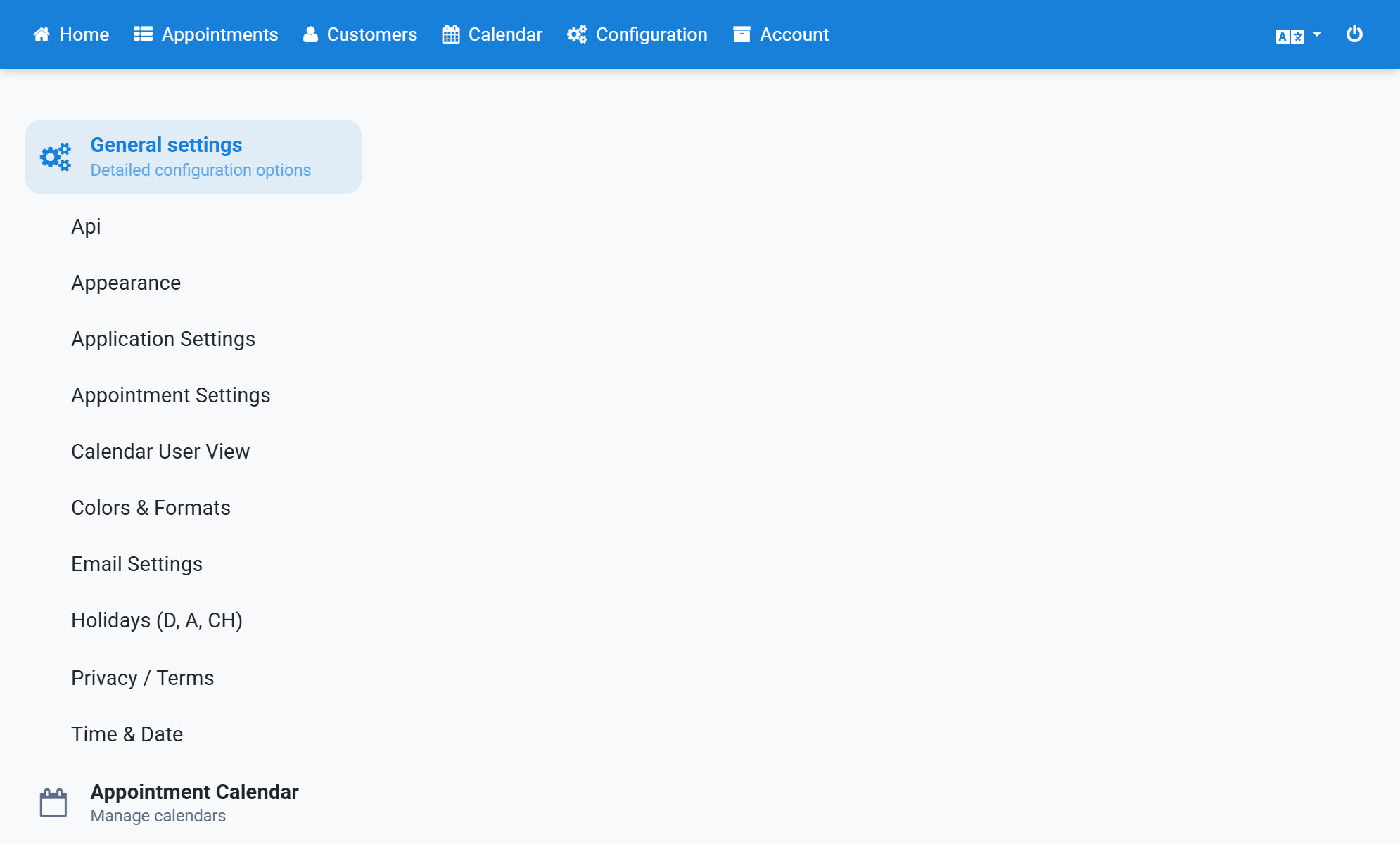
Click the checkered box next to one of the options
4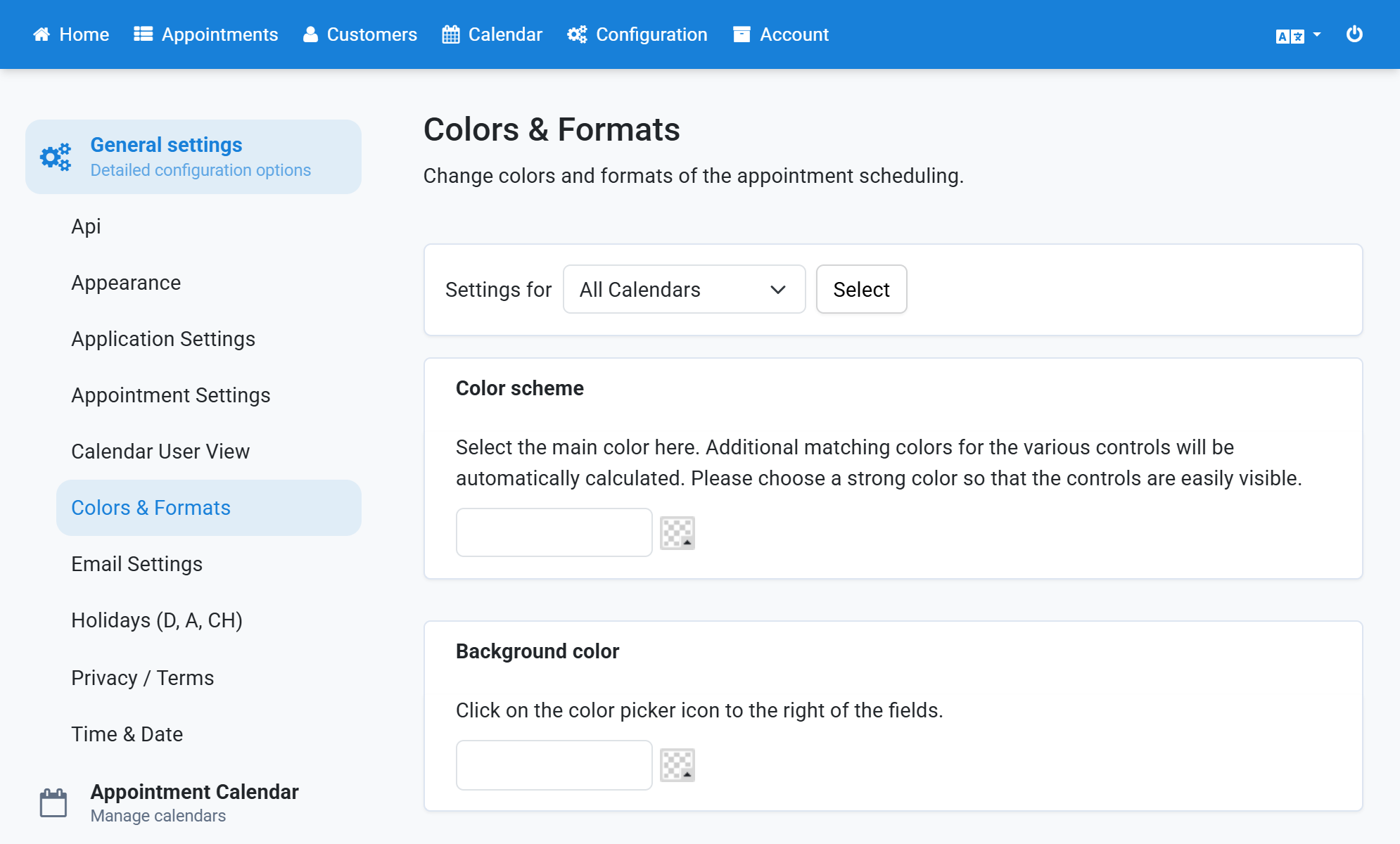
Select a color
5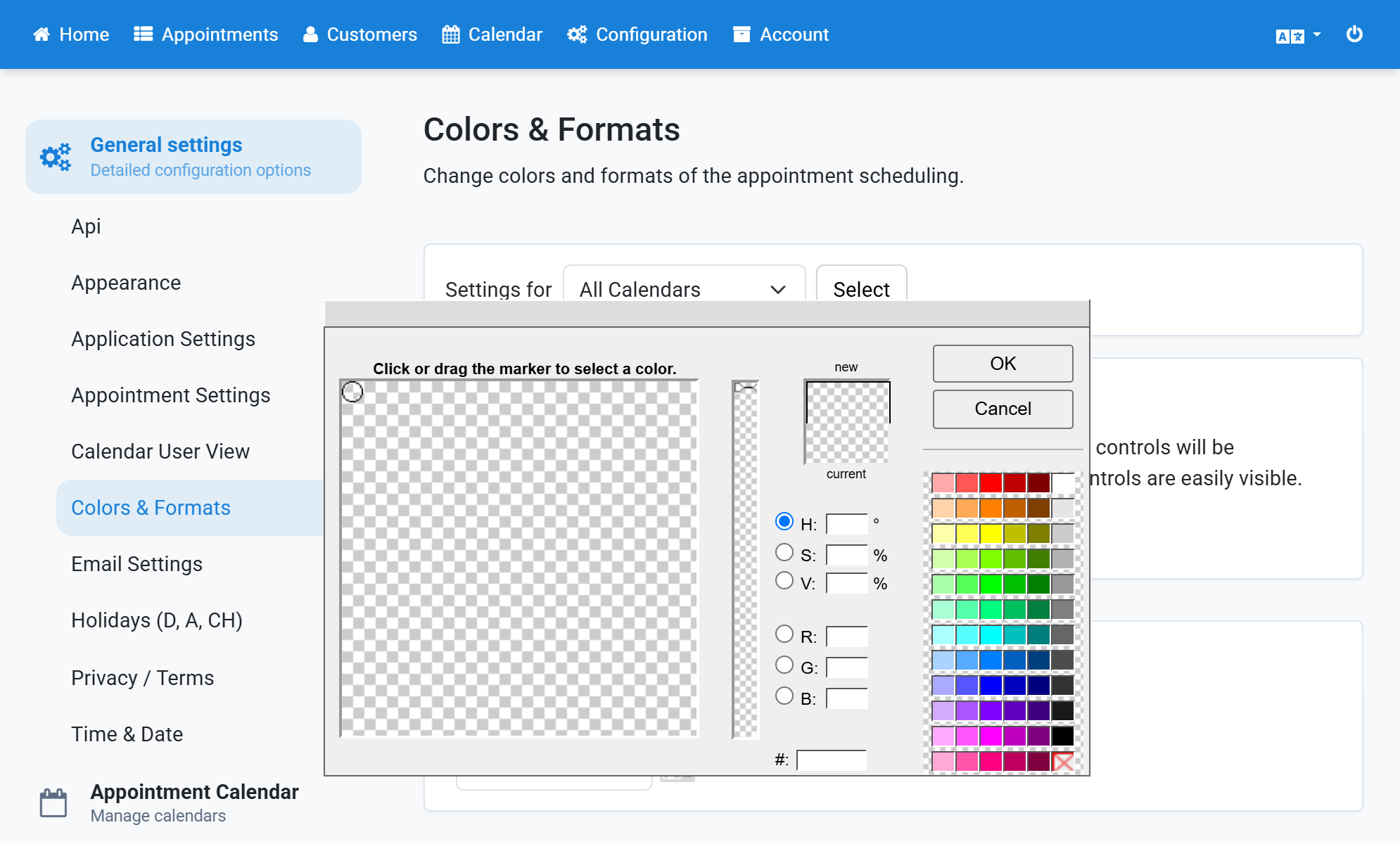
You can also modify the color
6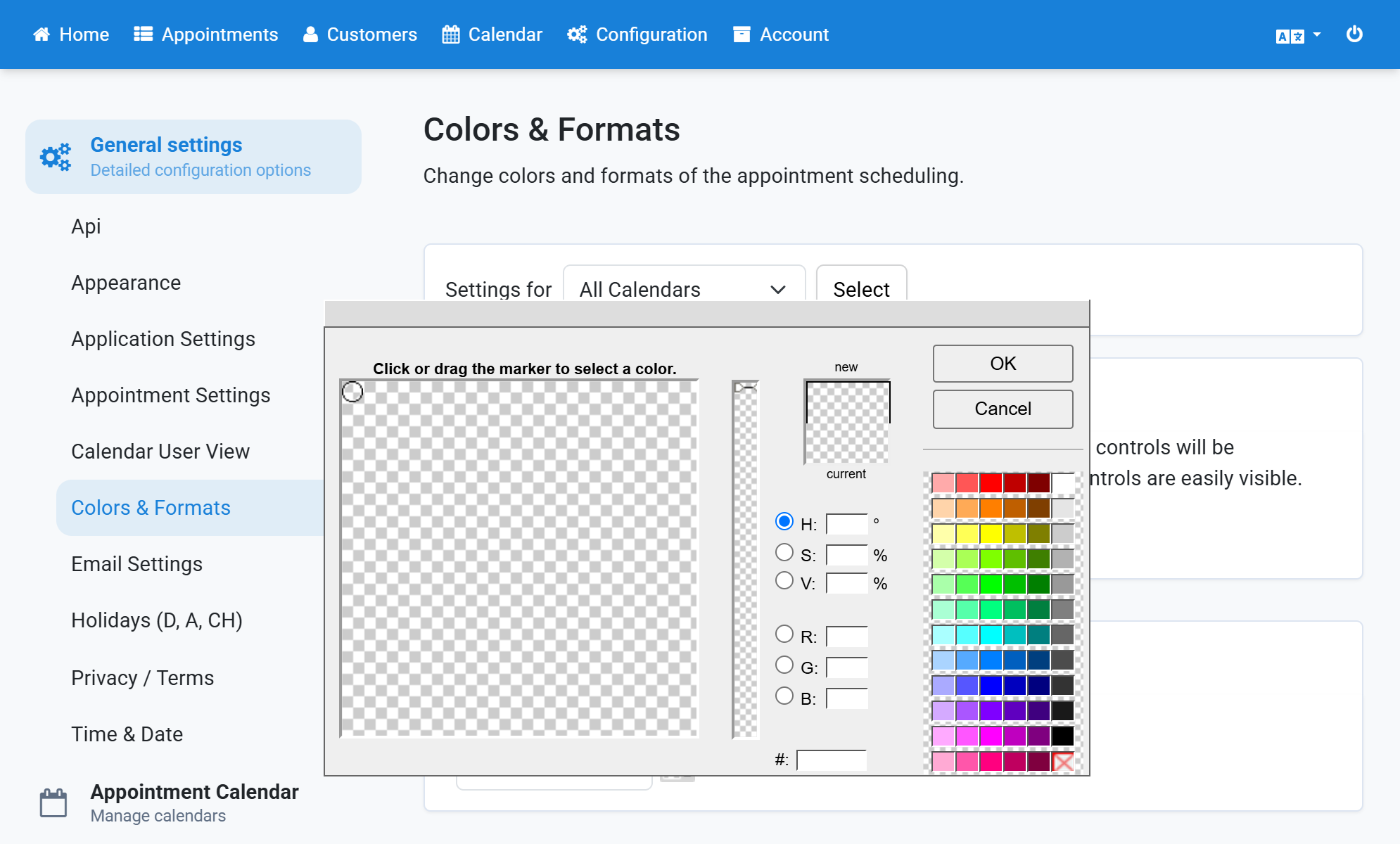
Click OK to apply the selected color
7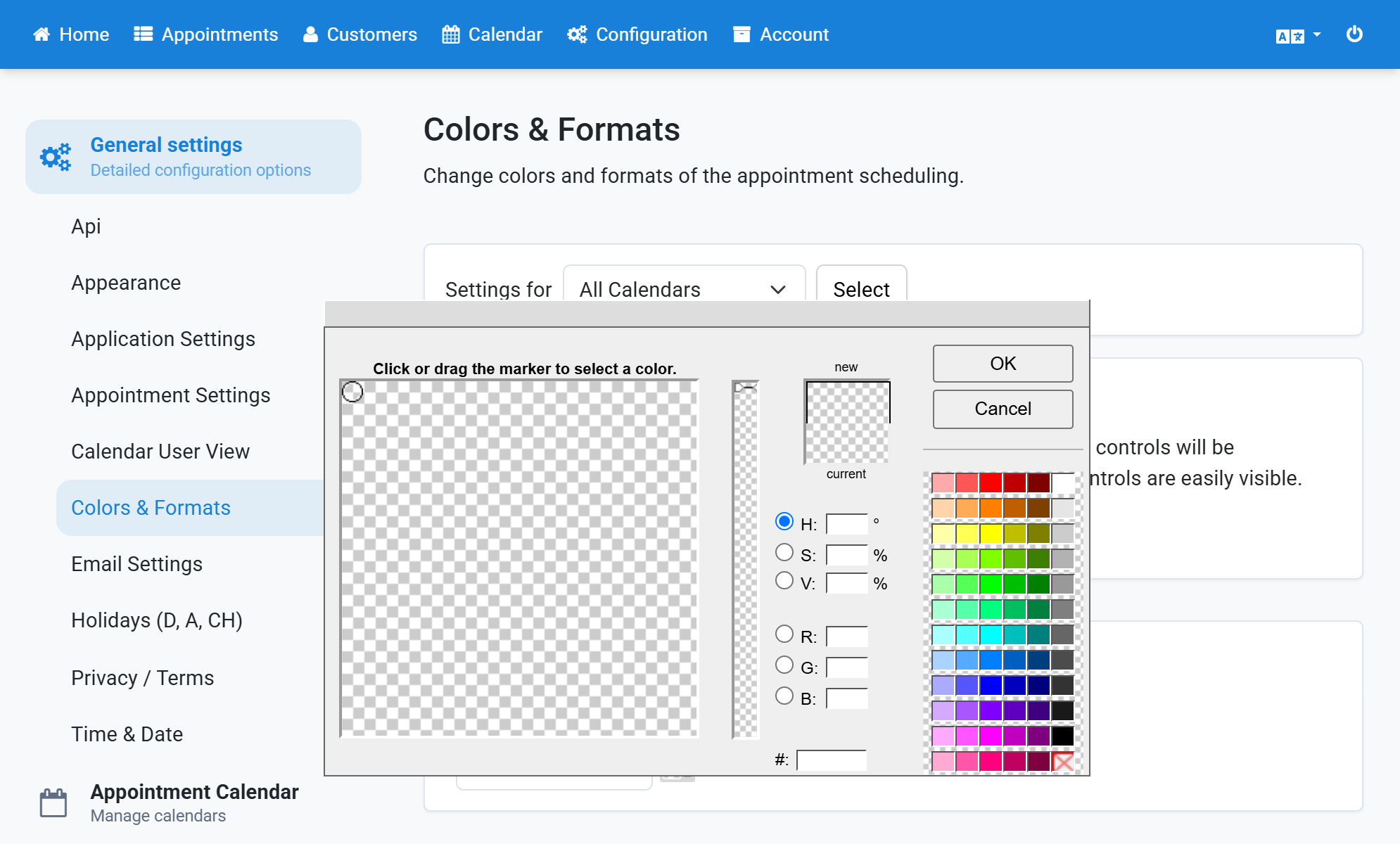
Finally click Save changes
8