Change Form Field Label
- Click Configuration in the navigation bar.
- Click Booking Form in the subnavigation bar.
- Look for the field you want to translate.
- Replace the name with a placeholder and save the change.
- Copy the placeholder into the clipboard.
- Click Configuration in the navigation bar.
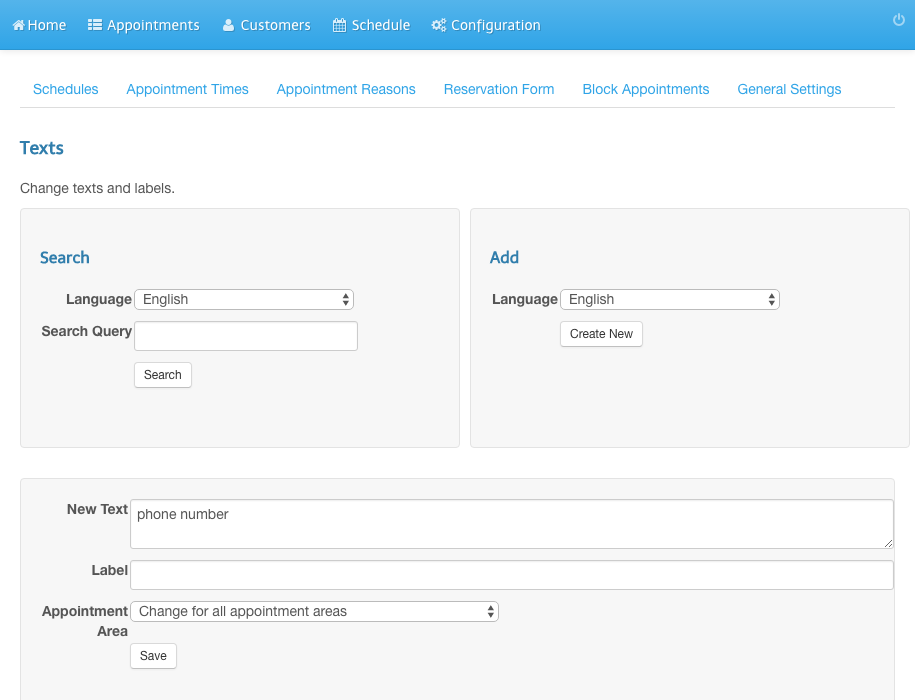
- Click Texts (Change texts and labels).
- Select English in the right box and click Create New.
- Enter the translation in New Text.
- Paste the placeholder in Label.
- Click Save.
Screenshots
Click Configuration in the navigation bar
1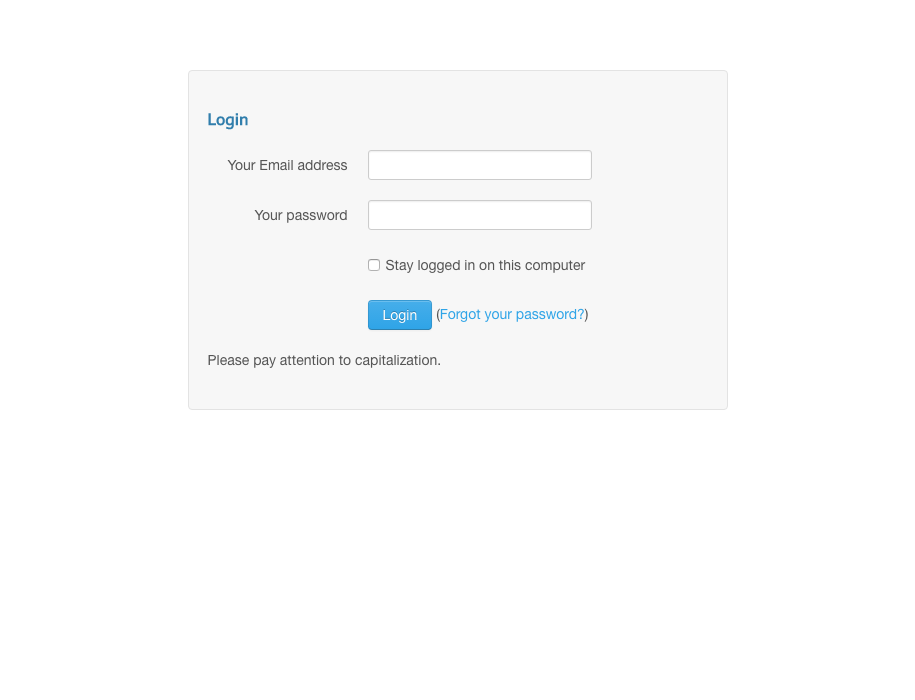
Click Booking Form in the subnavigation bar
2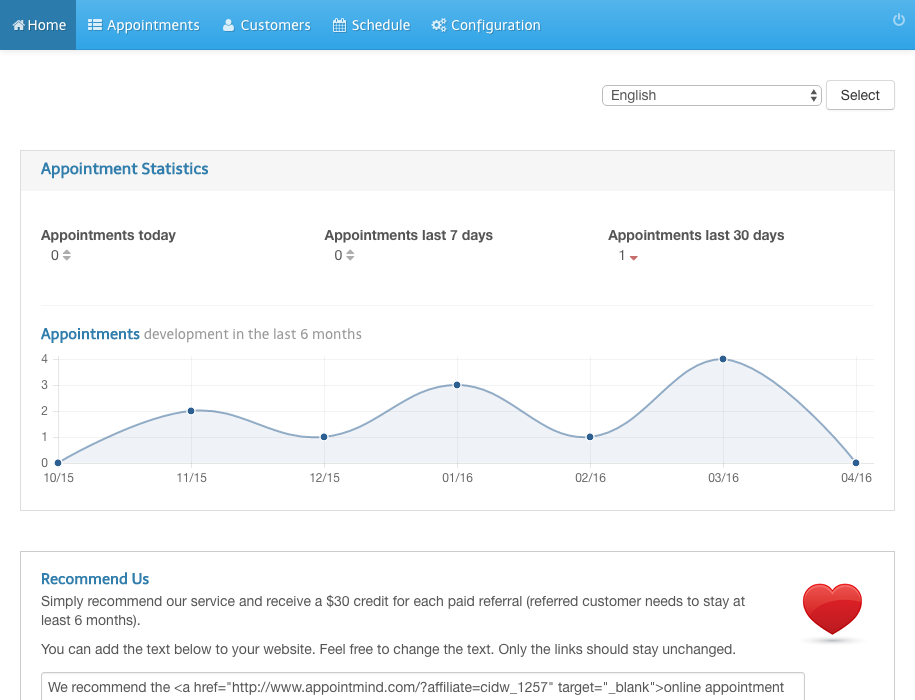
Look for the field you want to translate
3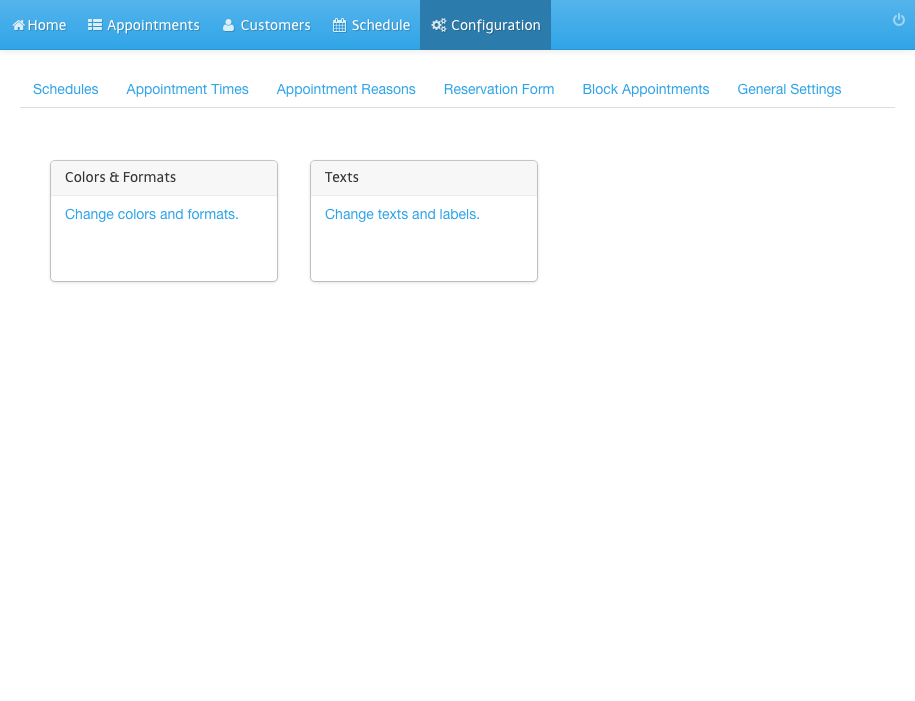
Replace the name with a placeholder and save the change
4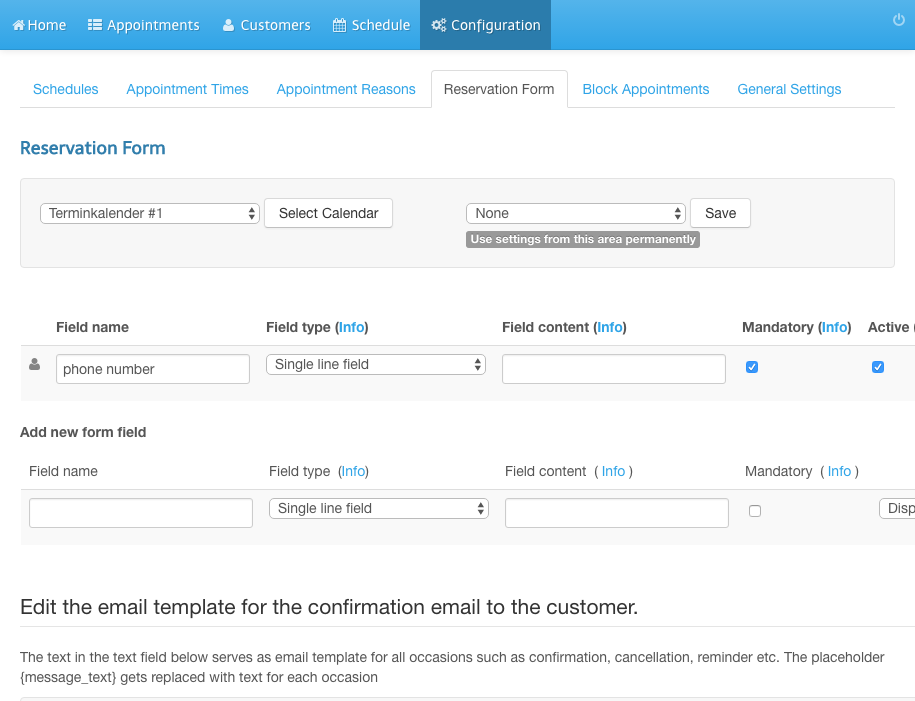
Copy the placeholder into the clipboard
5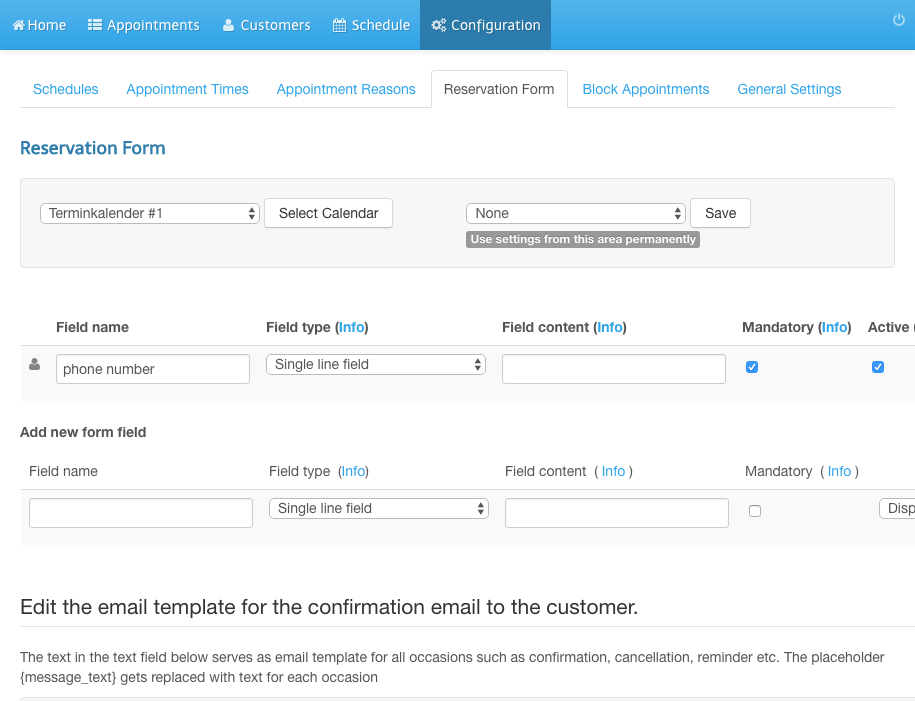
Click Configuration in the navigation bar
6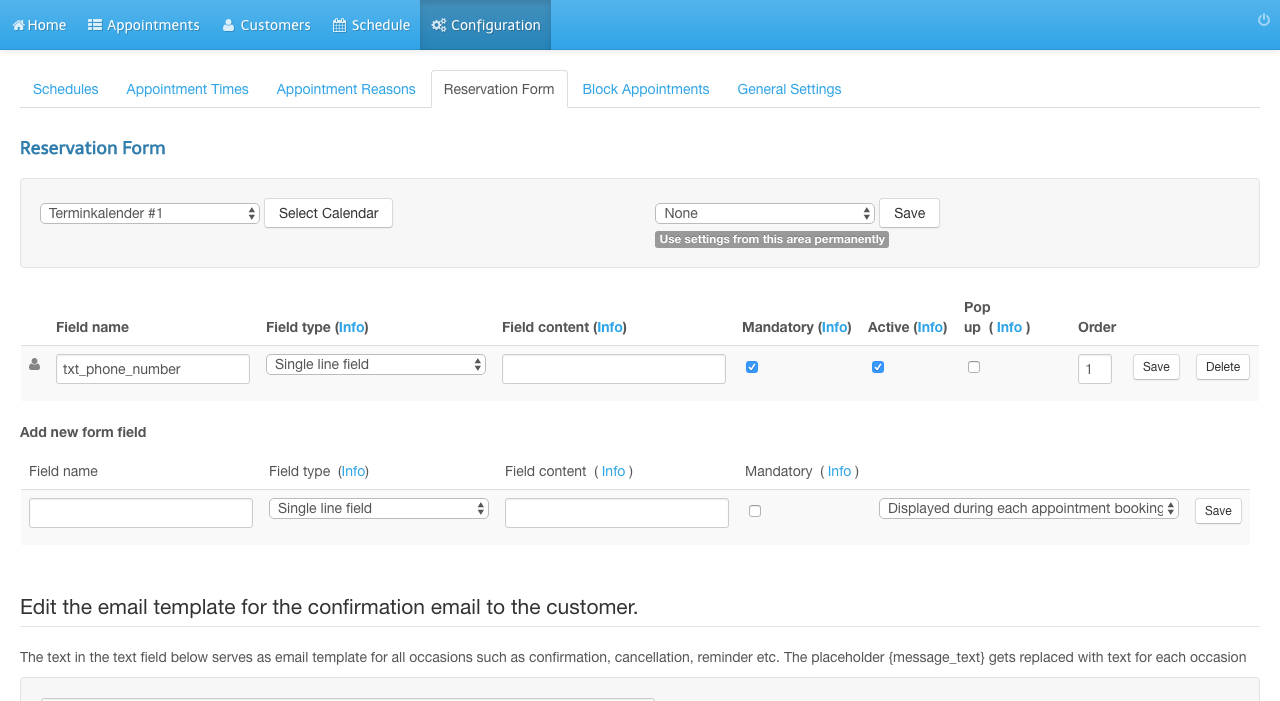
Click Texts (Change texts and labels)
7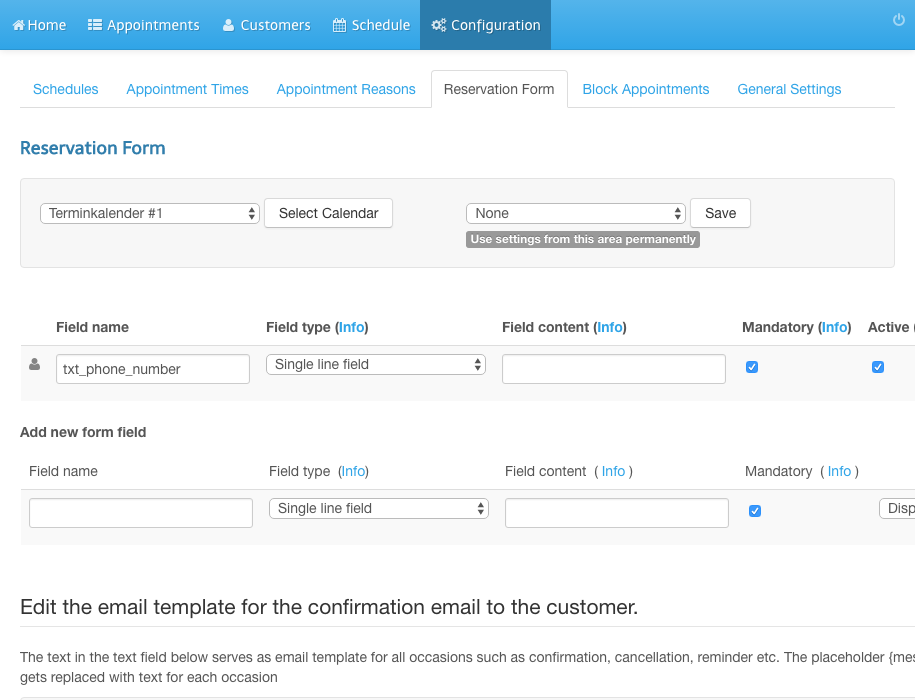
Select English in the right box and click Create New
8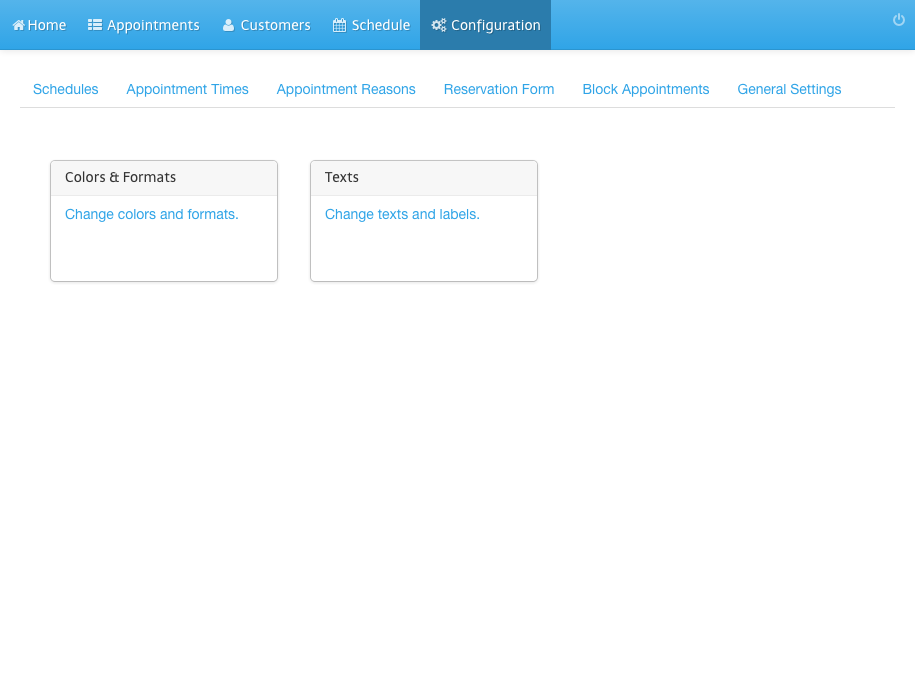
Enter the translation in New Text
9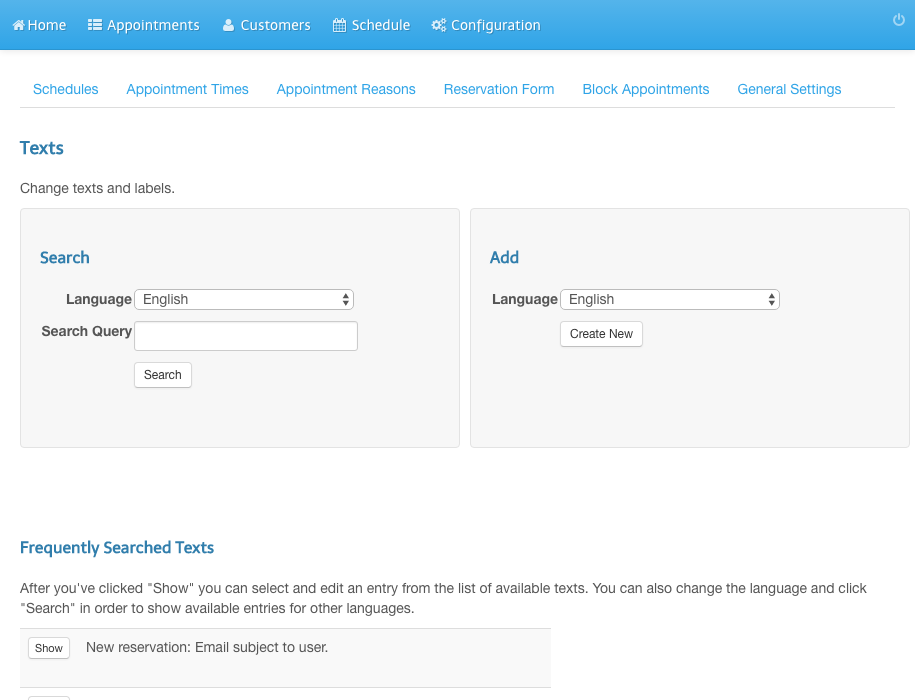
Paste the placeholder in Label
10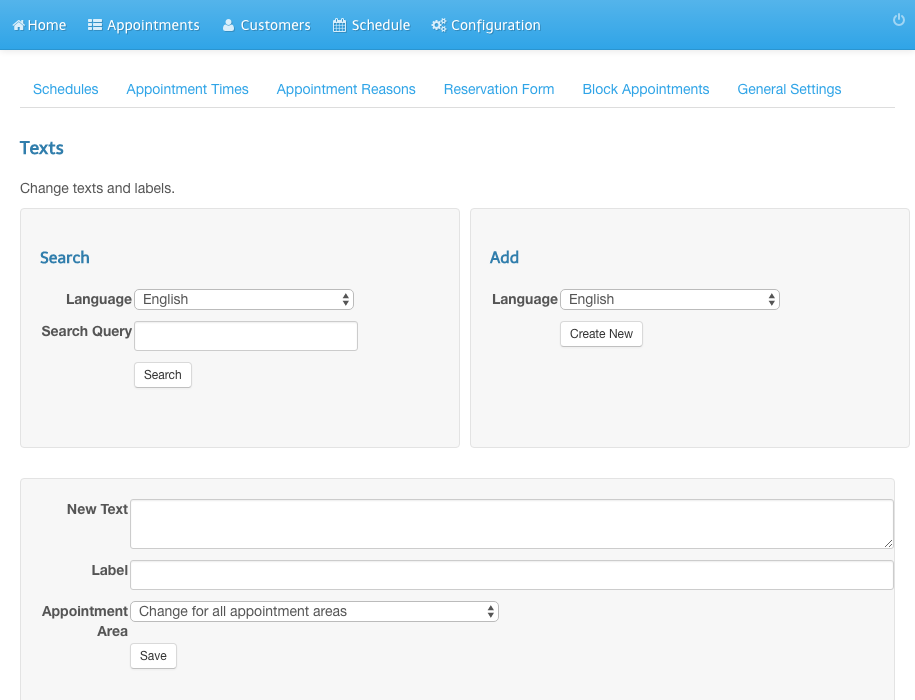
Click Save
11