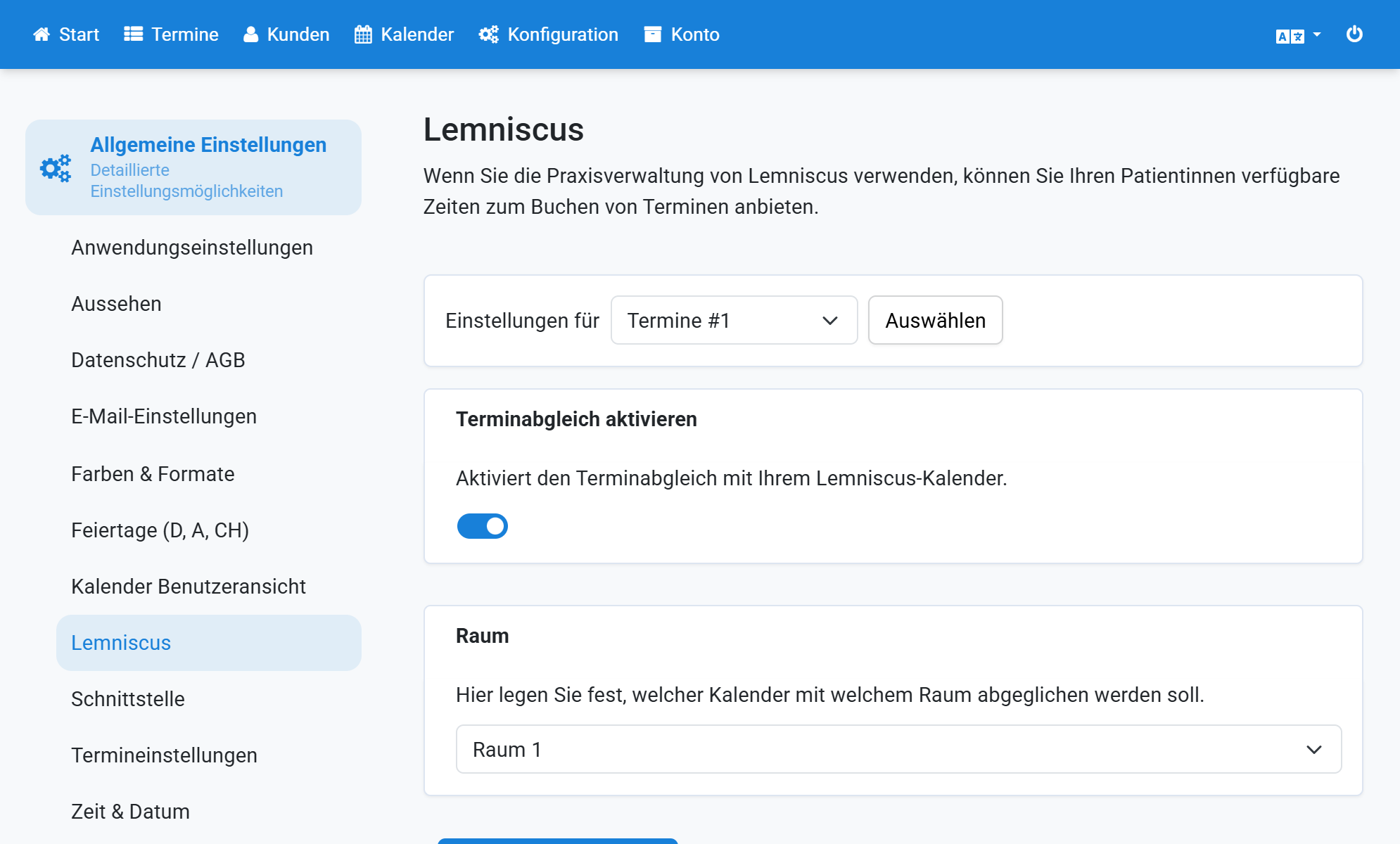
Connect Lemniscus
Synchronize appointments with Lemniscus
This guide shows you how to synchronize your Lemniscus practice calendar with Appointmind.
- Click the logo in your Lemniscus account.
- Click the gear icon to open settings.
- Click Tokens.
- Select Appointmind.
- Copy the token.
- Select Lemniscus in Appointmind General settings.
- Paste the token and save.
- Select an appointment calendar.
- Enable synchronization for this calendar.
- Select the room to synchronize and save.
Screenshots
Click the logo in your Lemniscus account
1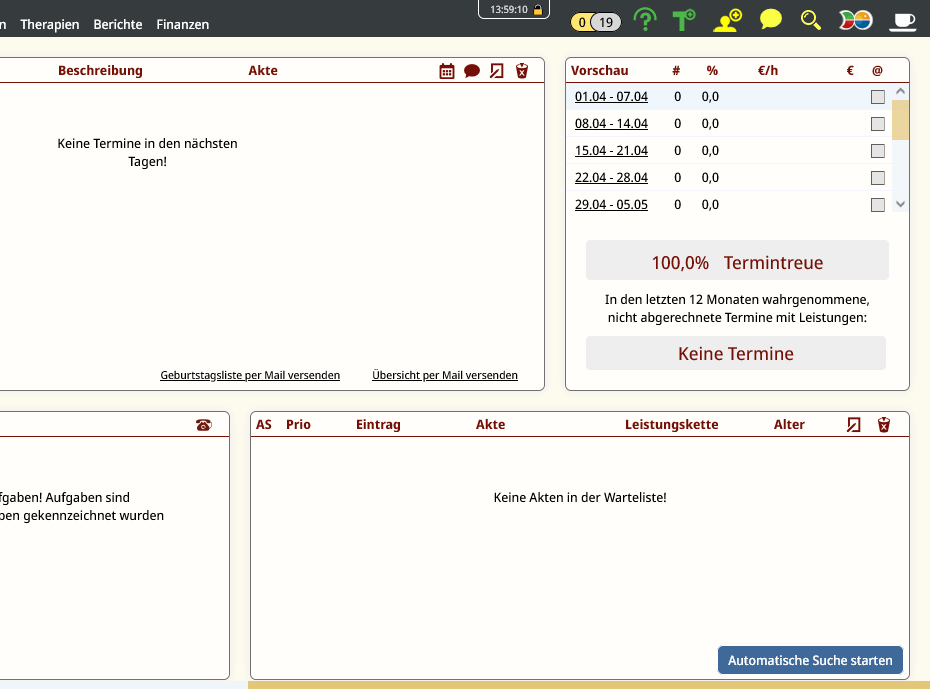
Click the gear icon to open settings
2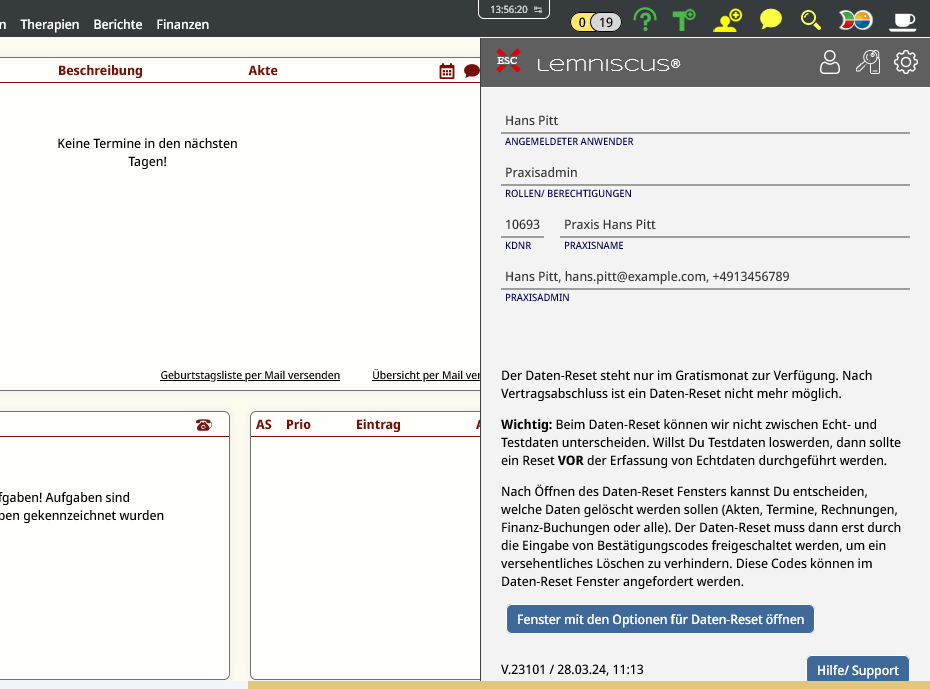
Click Tokens
3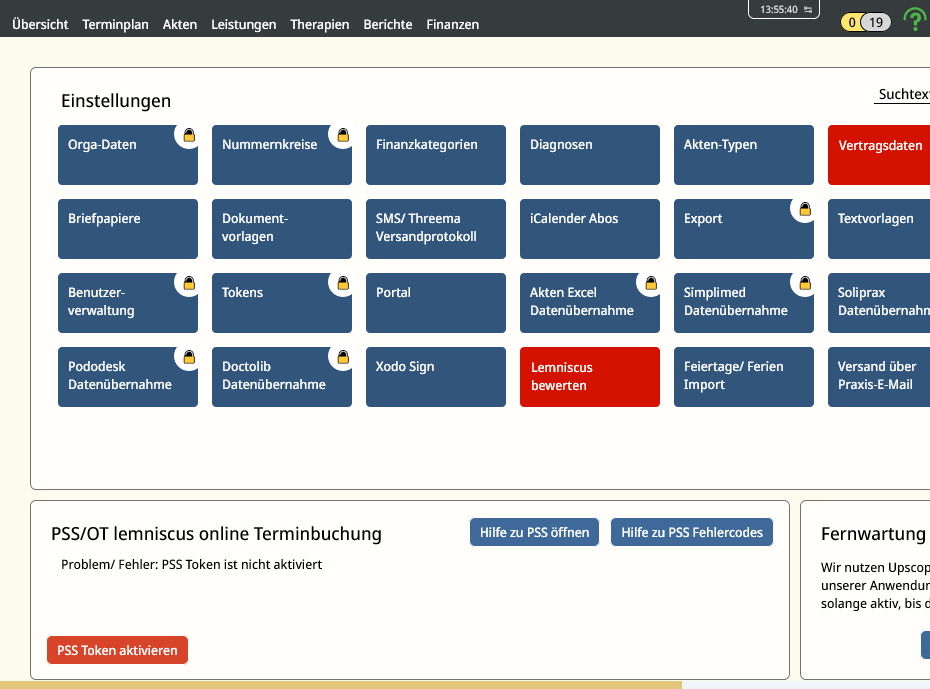
Select Appointmind
4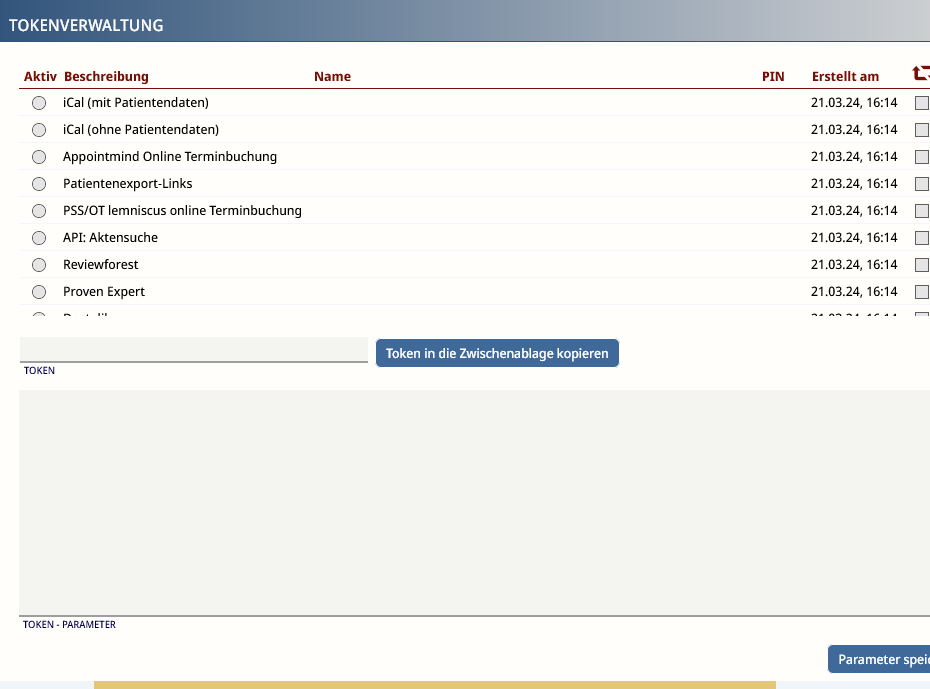
Copy the token
5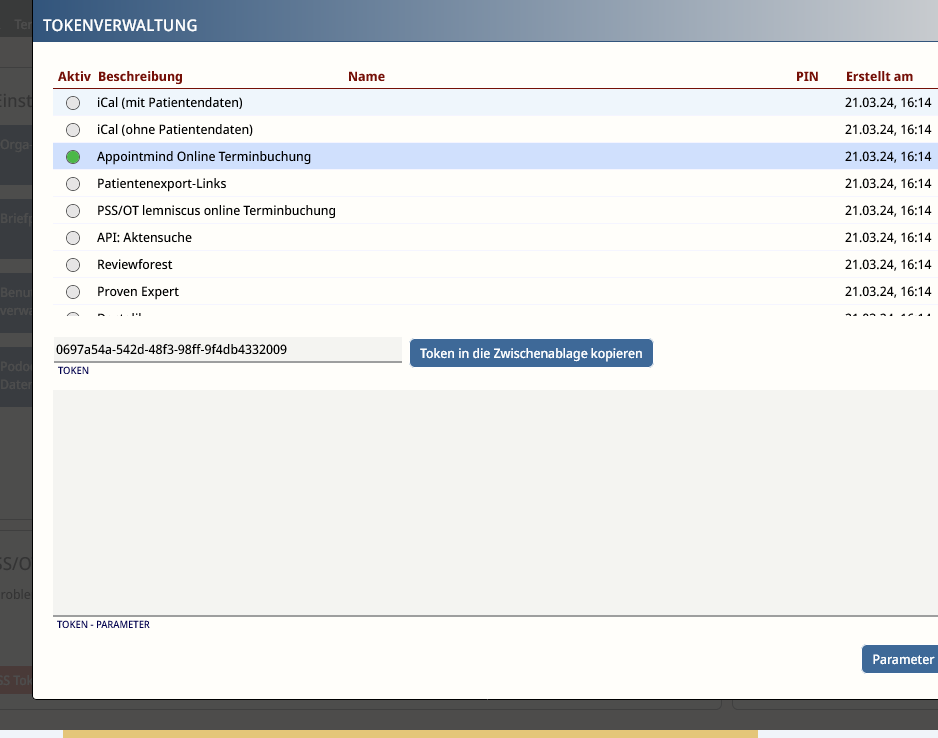
Select Lemniscus in Appointmind General settings
6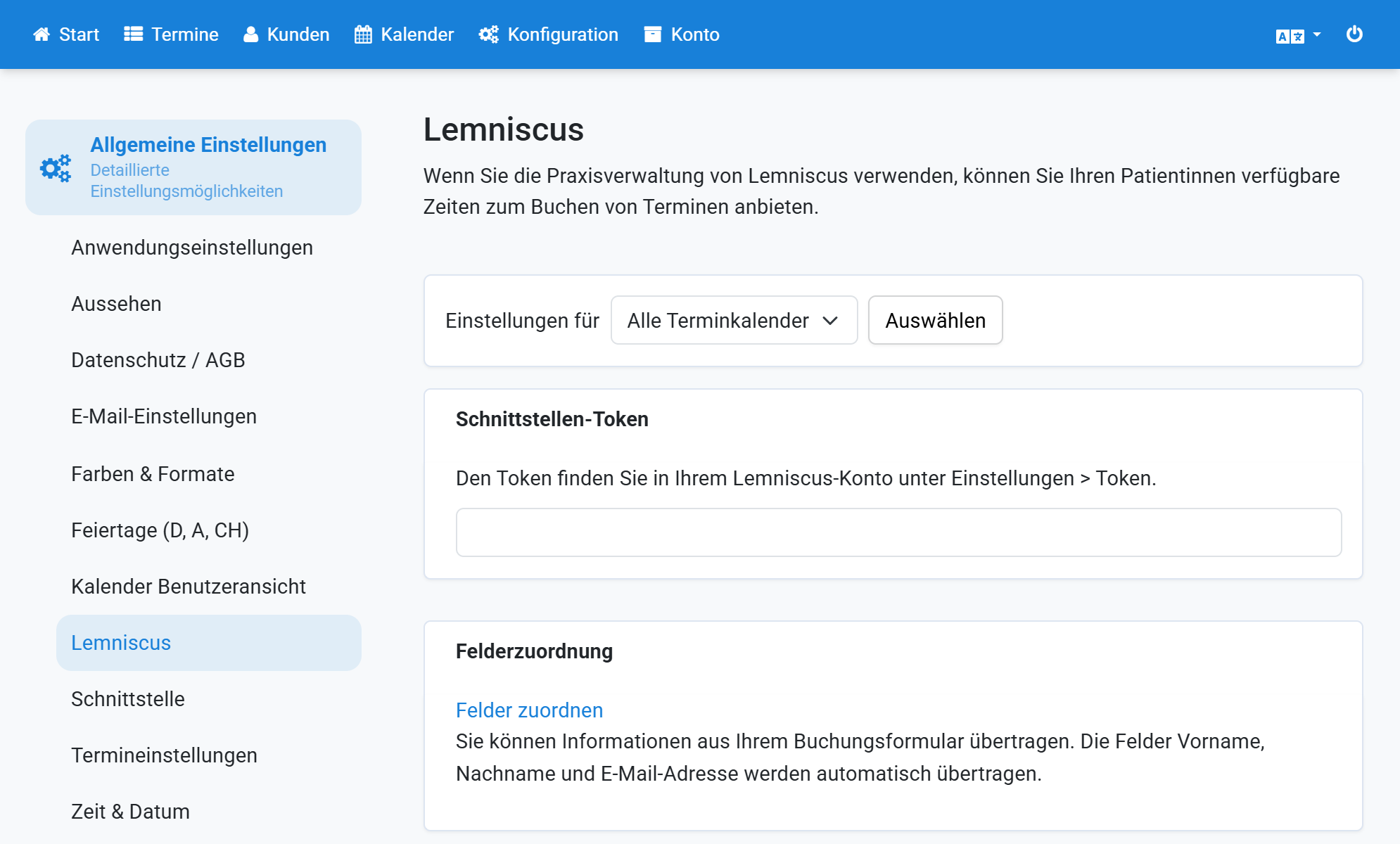
Paste the token and save
7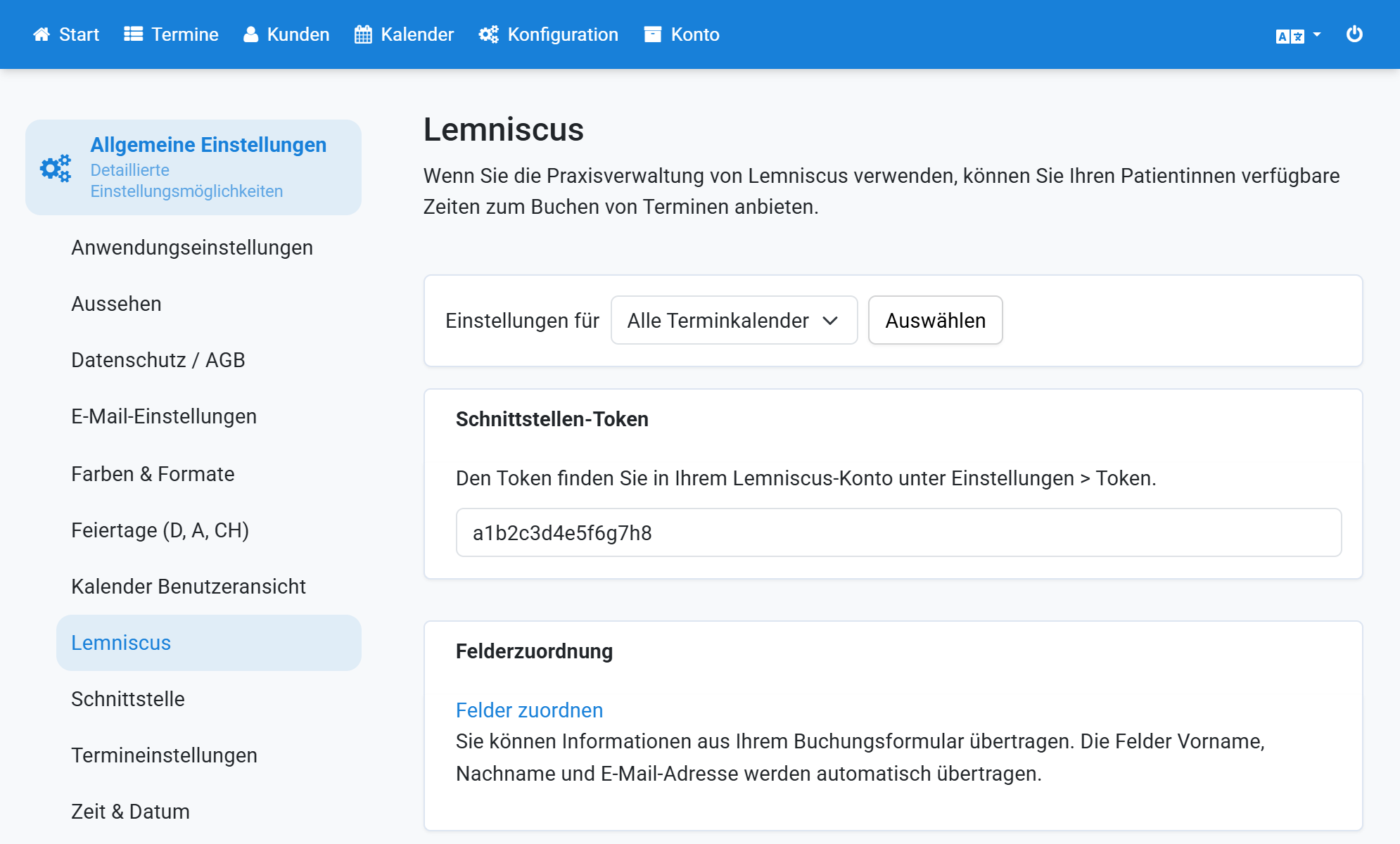
Select an appointment calendar
8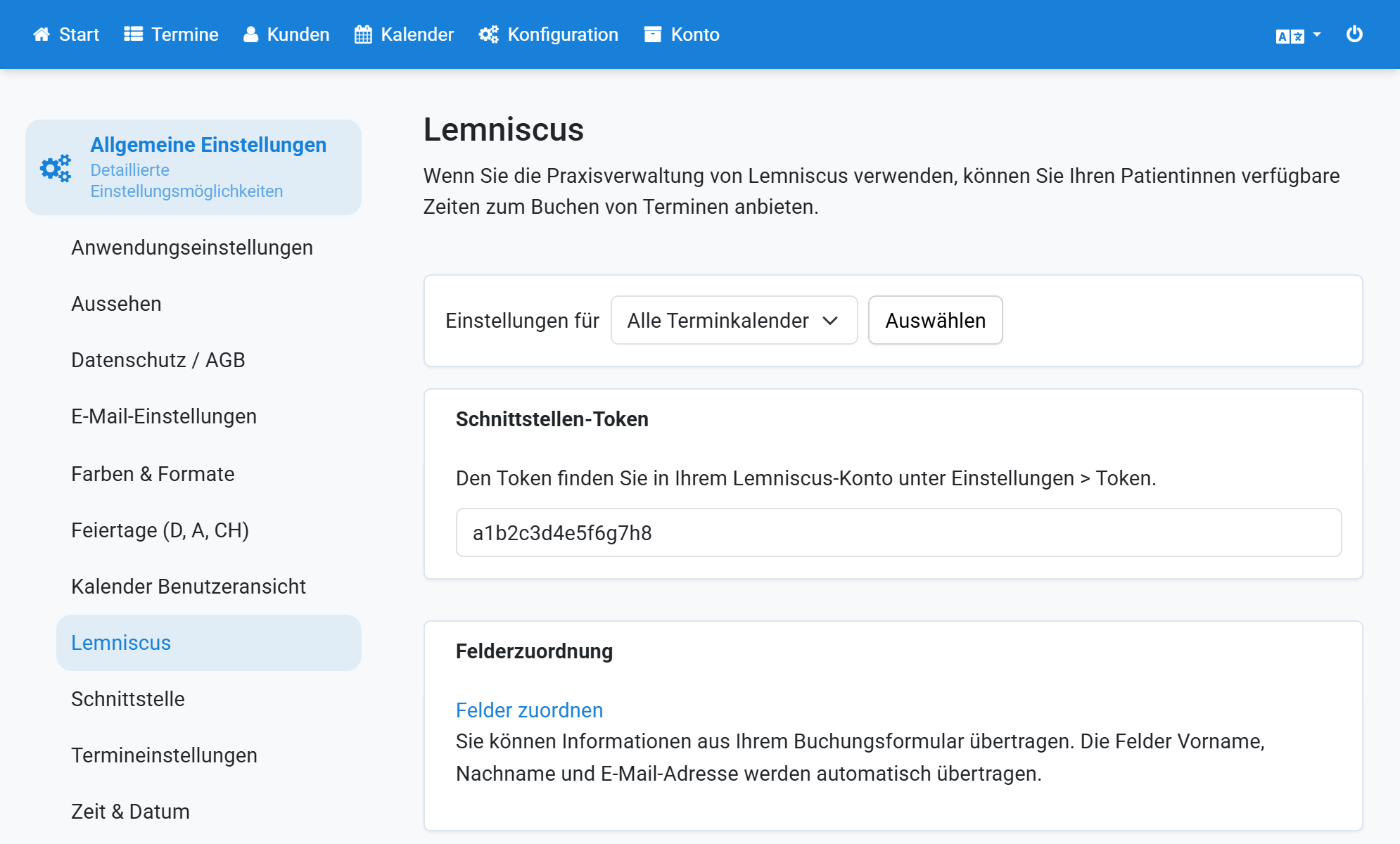
Enable synchronization for this calendar
9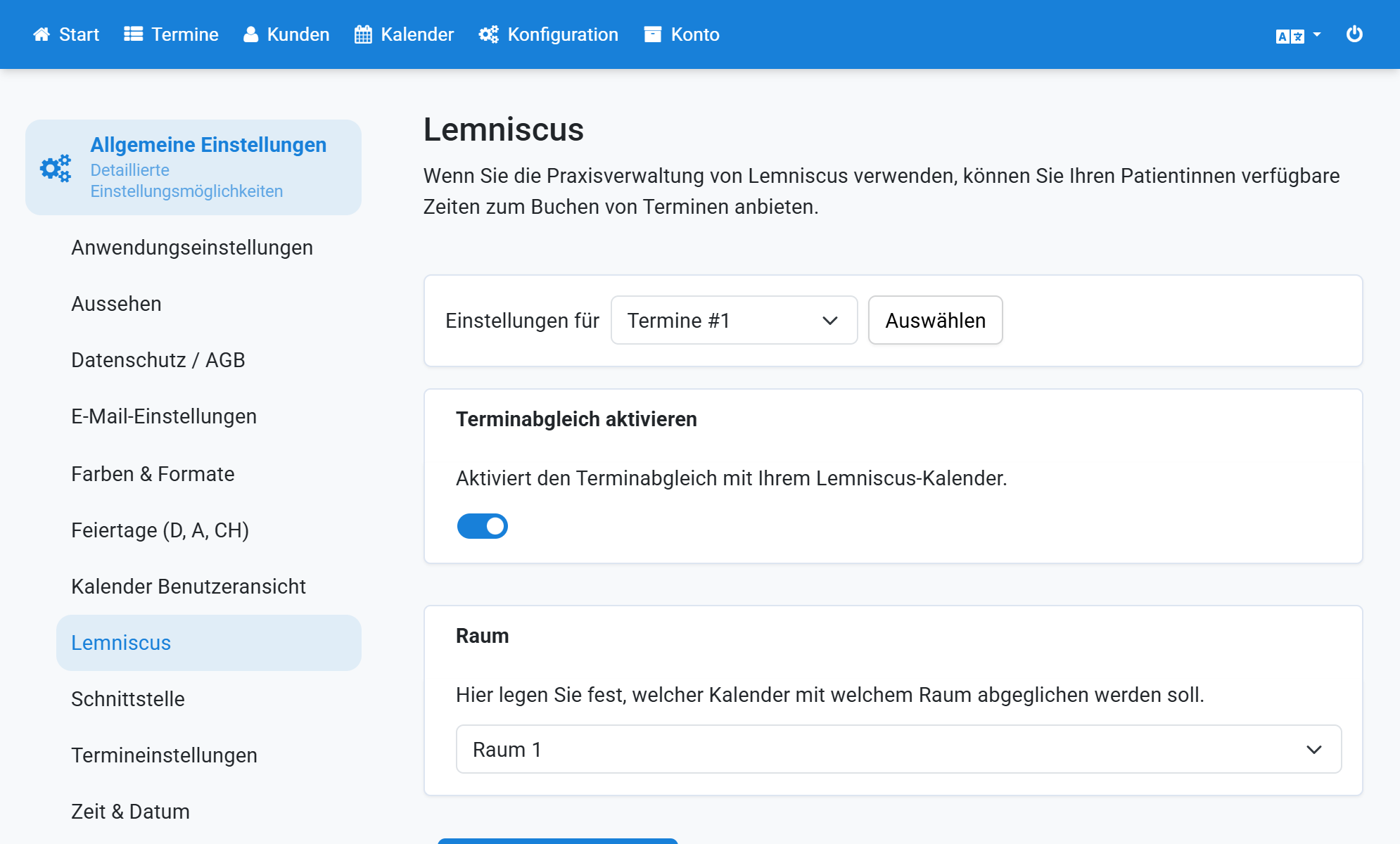
Select the room to synchronize and save
10