Multilingual Email Texts
Your customers receive emails in their own language. Store the texts for every language you offer.
- Click Configuration in the navigation bar.
- Click Booking Form.
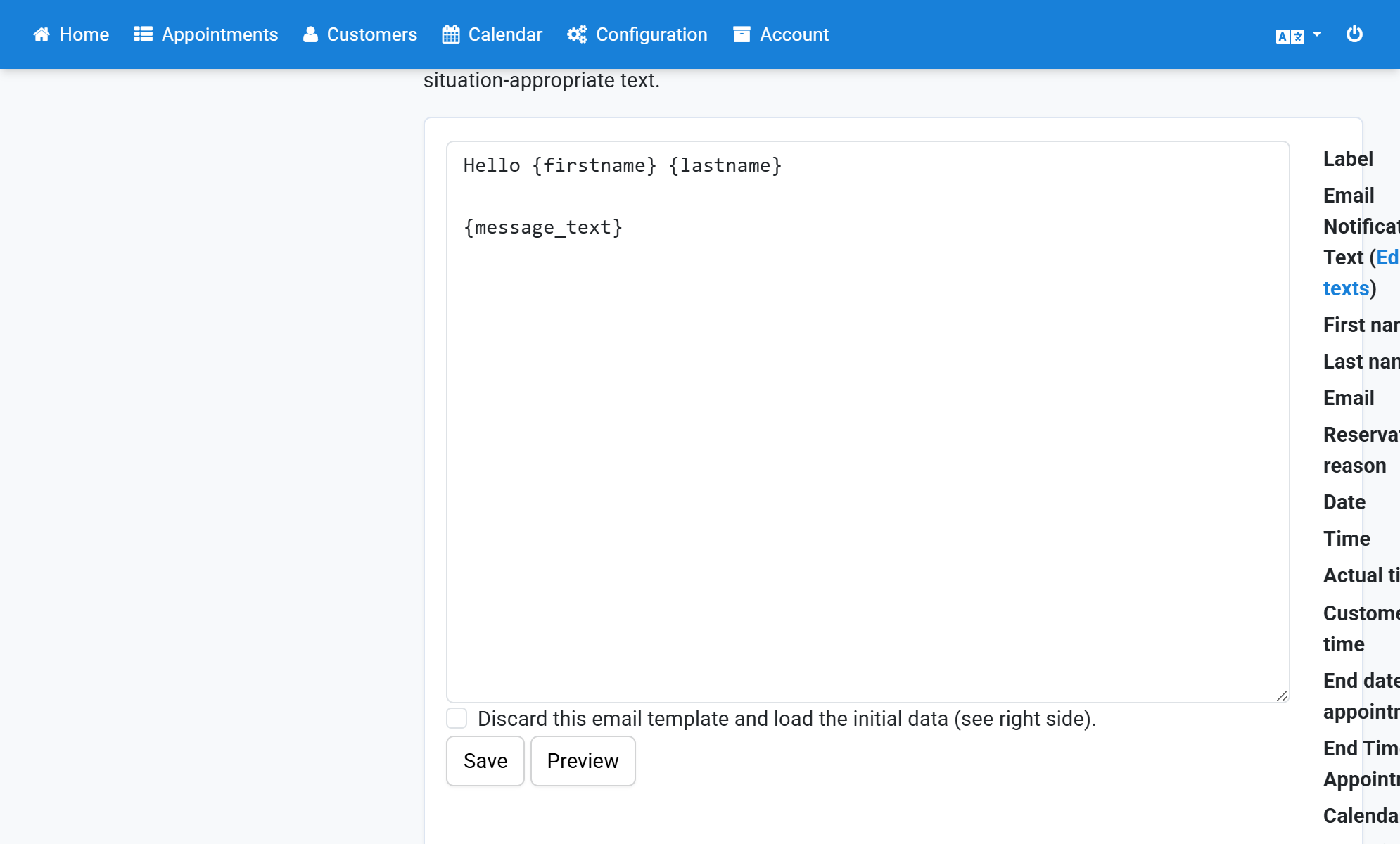
- Enter the placeholder
{message_text}in the email template for emails to the customer and save. - Click Configuration in the navigation bar.
- Click Texts (Change texts and labels).
- Under New Appointment click Show next to Text of the email to the user.
- To change the text for another language, select the Language and click Search.
- Change the text and save.
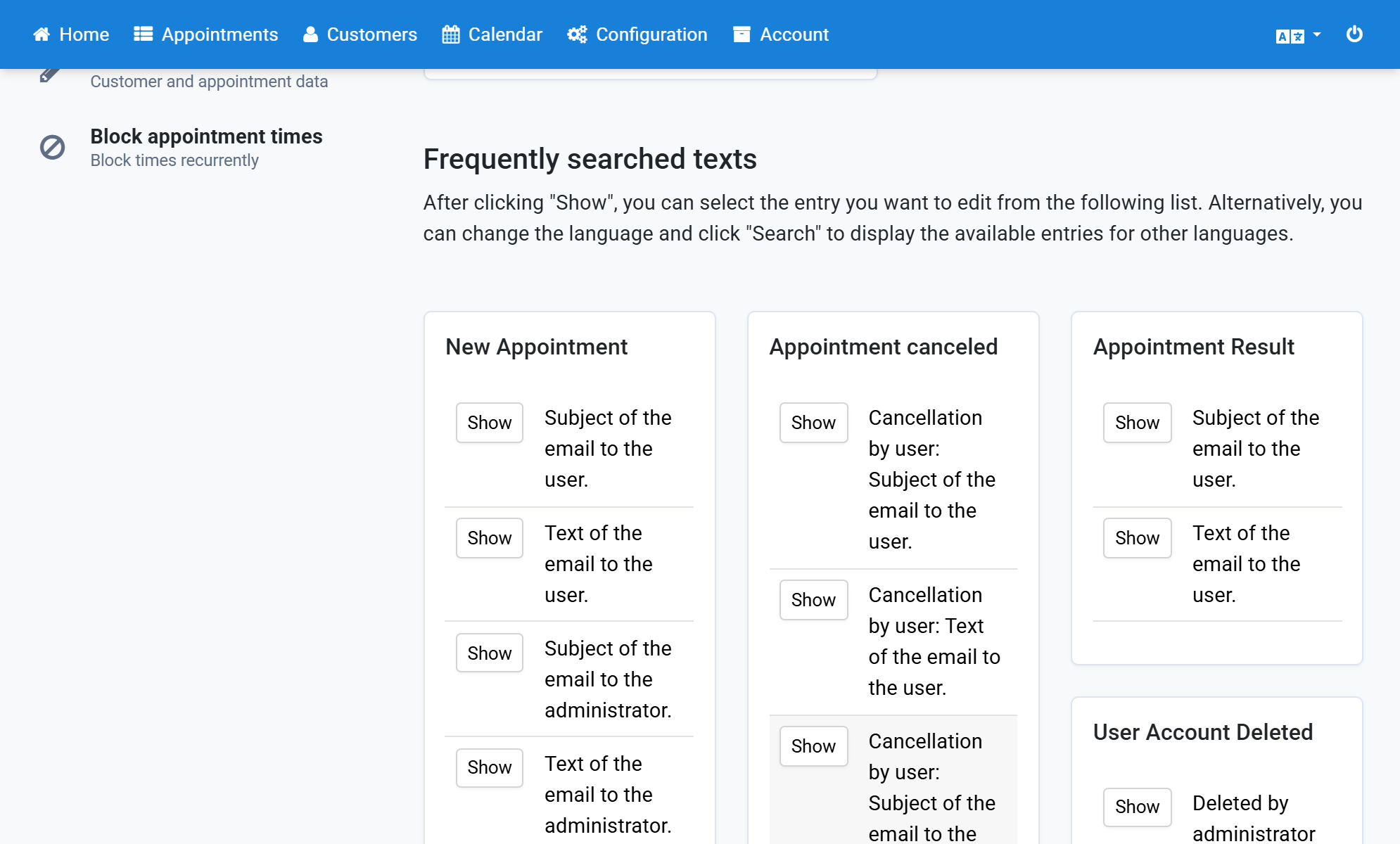
- This way you can edit all email texts and email subjects. Pick the matching entries from the list of Frequently searched texts.
Screenshots
Click Configuration in the navigation bar
1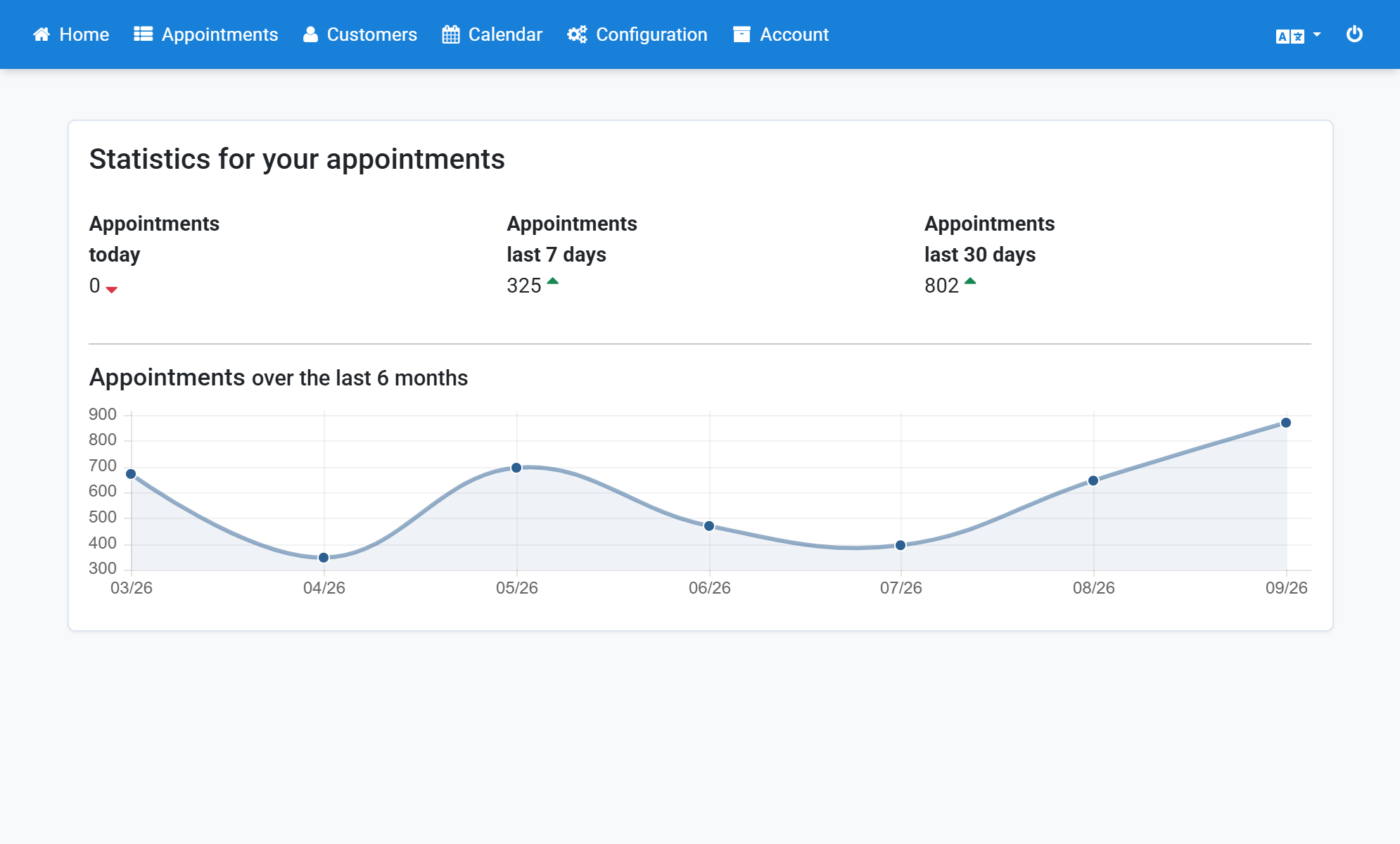
Click Booking Form
2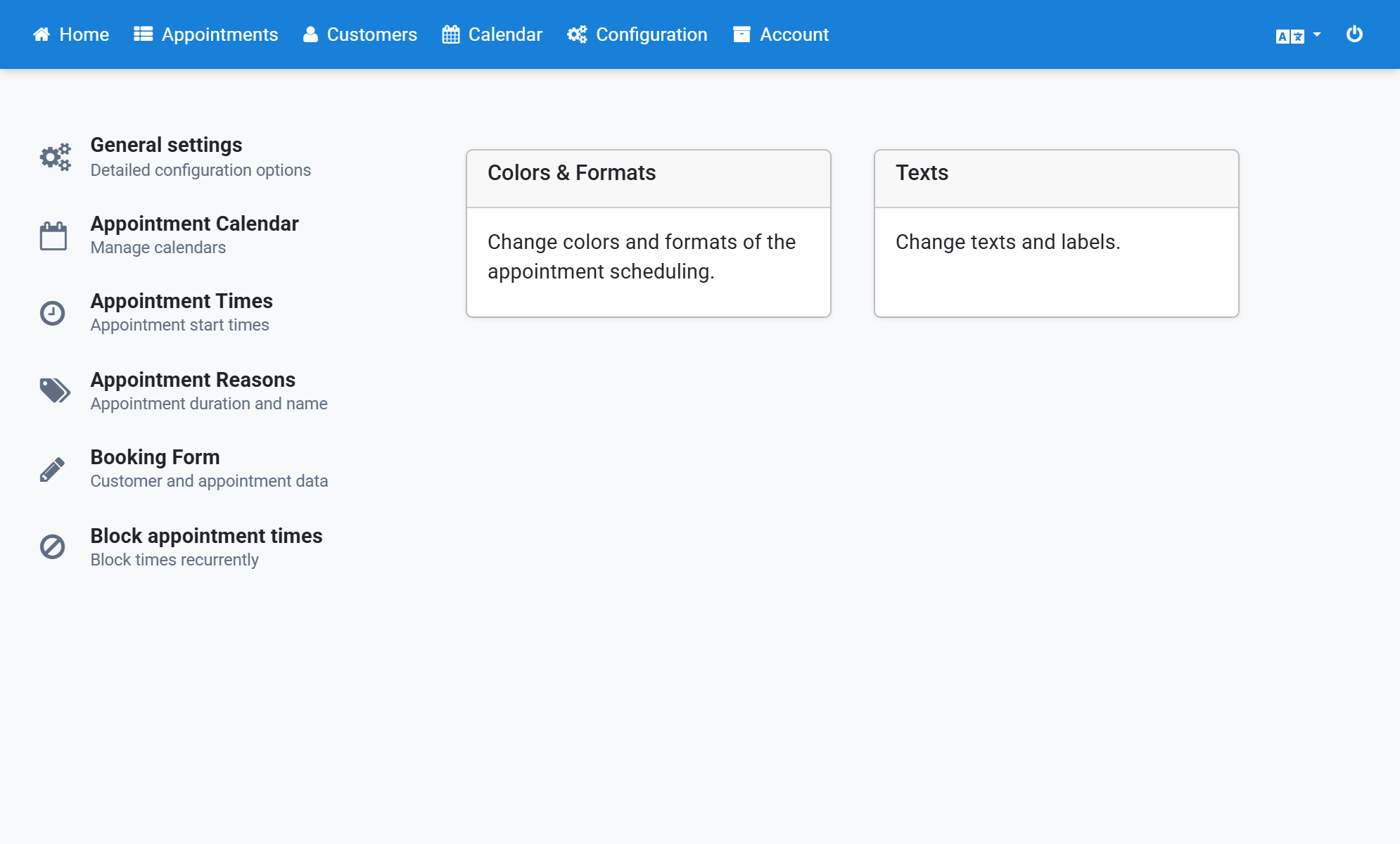
Enter the placeholder {message_text} in the email template for emails to the customer and save
3
Click Configuration in the navigation bar
4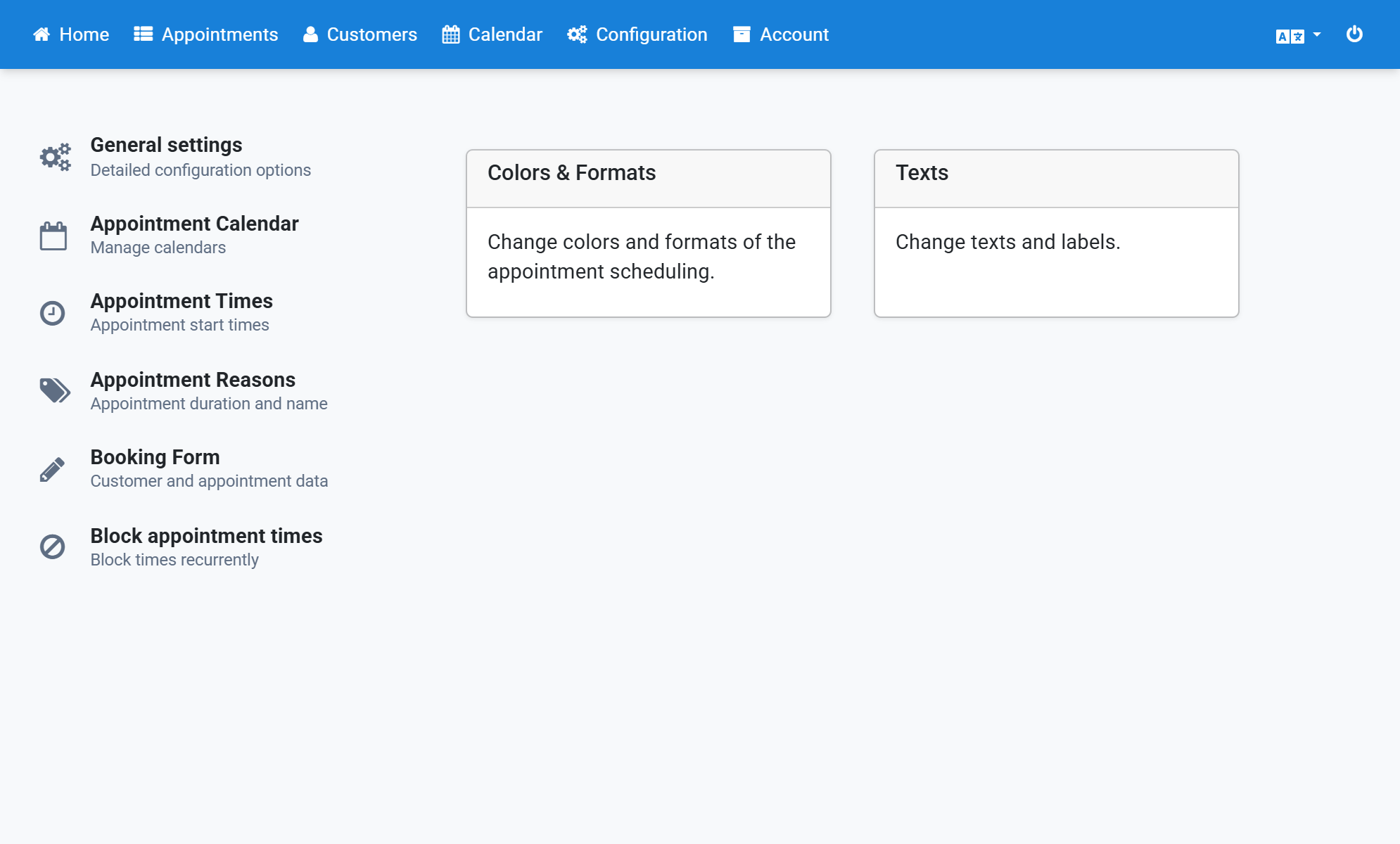
Click Texts (Change texts and labels)
5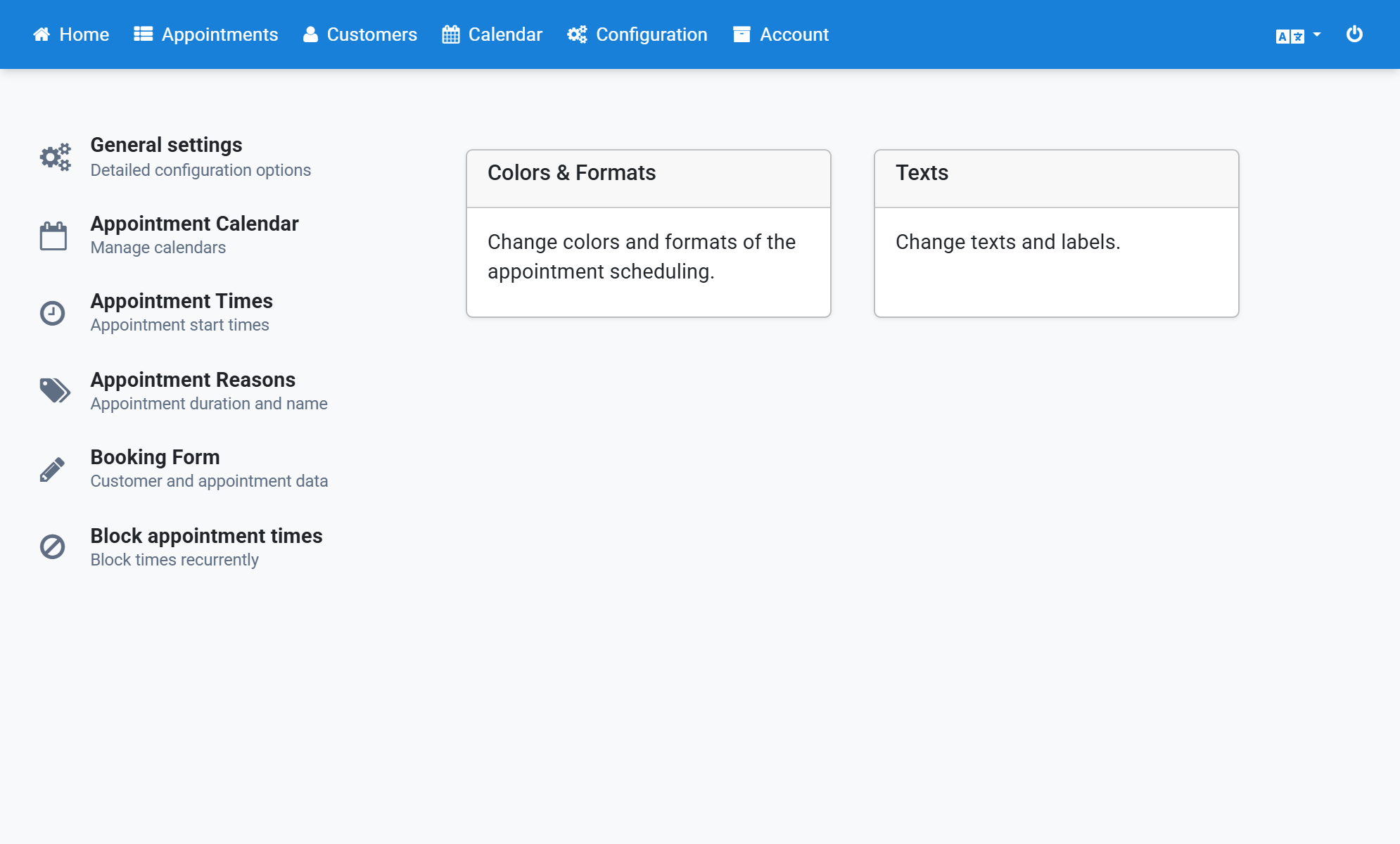
Under New Appointment click Show next to Text of the email to the user
6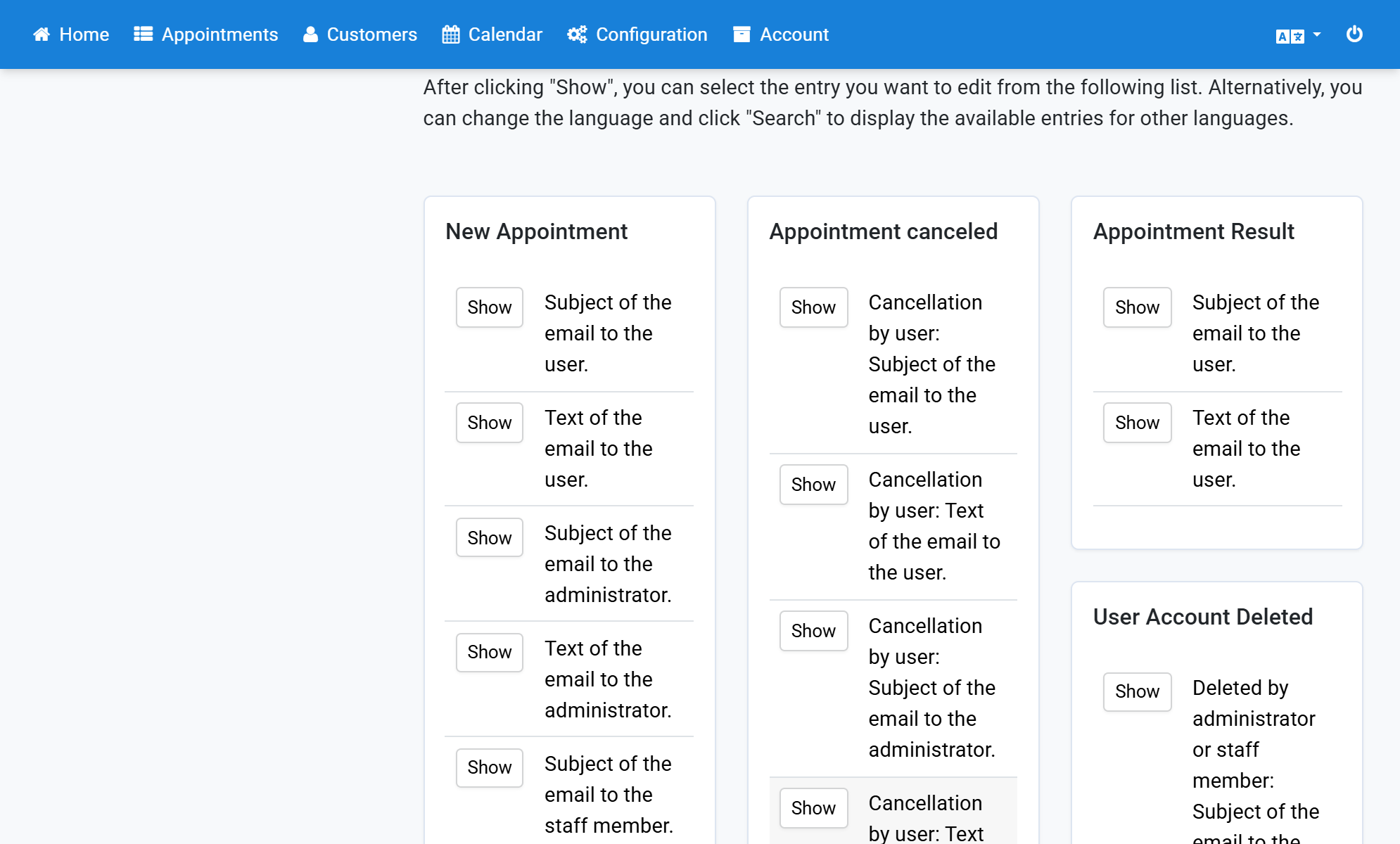
To change the text for another language, select the Language and click Search
7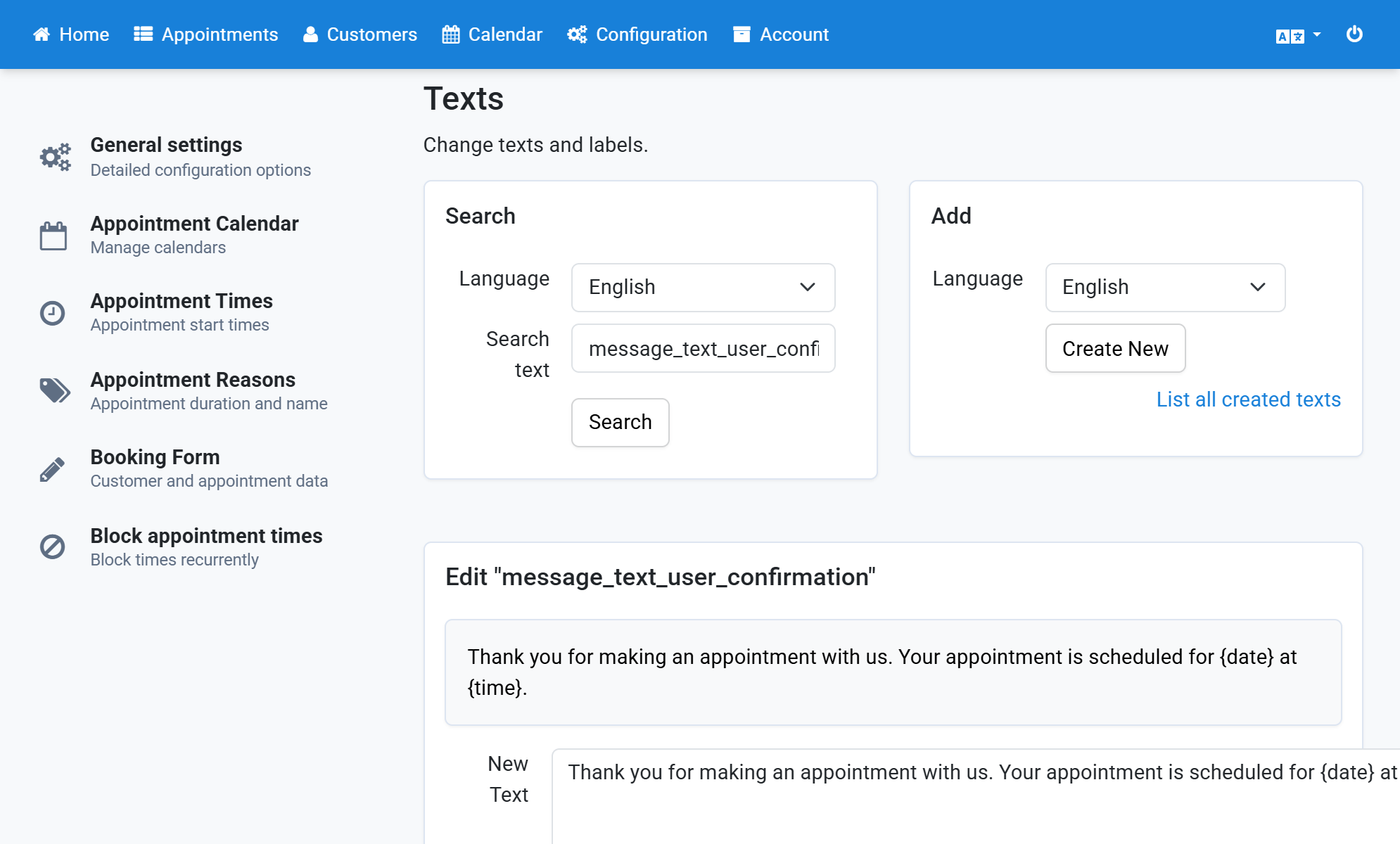
Change the text and save
8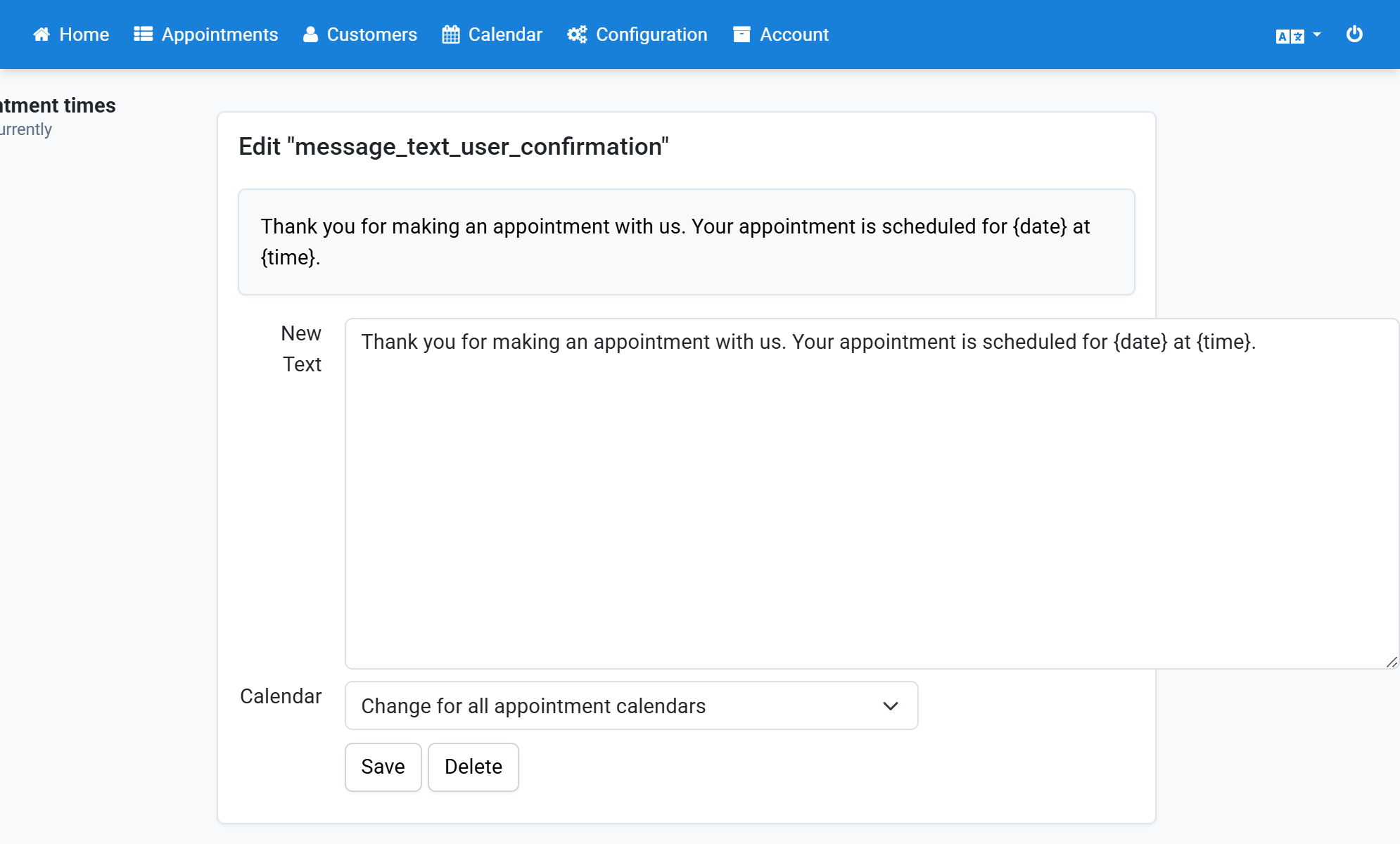
This way you can edit all email texts and email subjects. Pick the matching entries from the list of Frequently searched texts
9