Price Categories for Appointments
- Go to Configuration / General settings / Price categories.
- Switch on Activate price categories.
- Click Save changes.
- Click Configure price categories.
- Enter a Name and an optional description and pick an optional colour.
- After you have saved, the categories are listed.
- Under Select action choose the option Set prices.
- Enter a price for the appointment reasons.
- You can then use Assign price categories.
- Select an appointment calendar.
- Select a price category for an appointment time.
- You can also set a price category for all days of the week.
- After you have set all price categories you can see the result under Calendar as well.
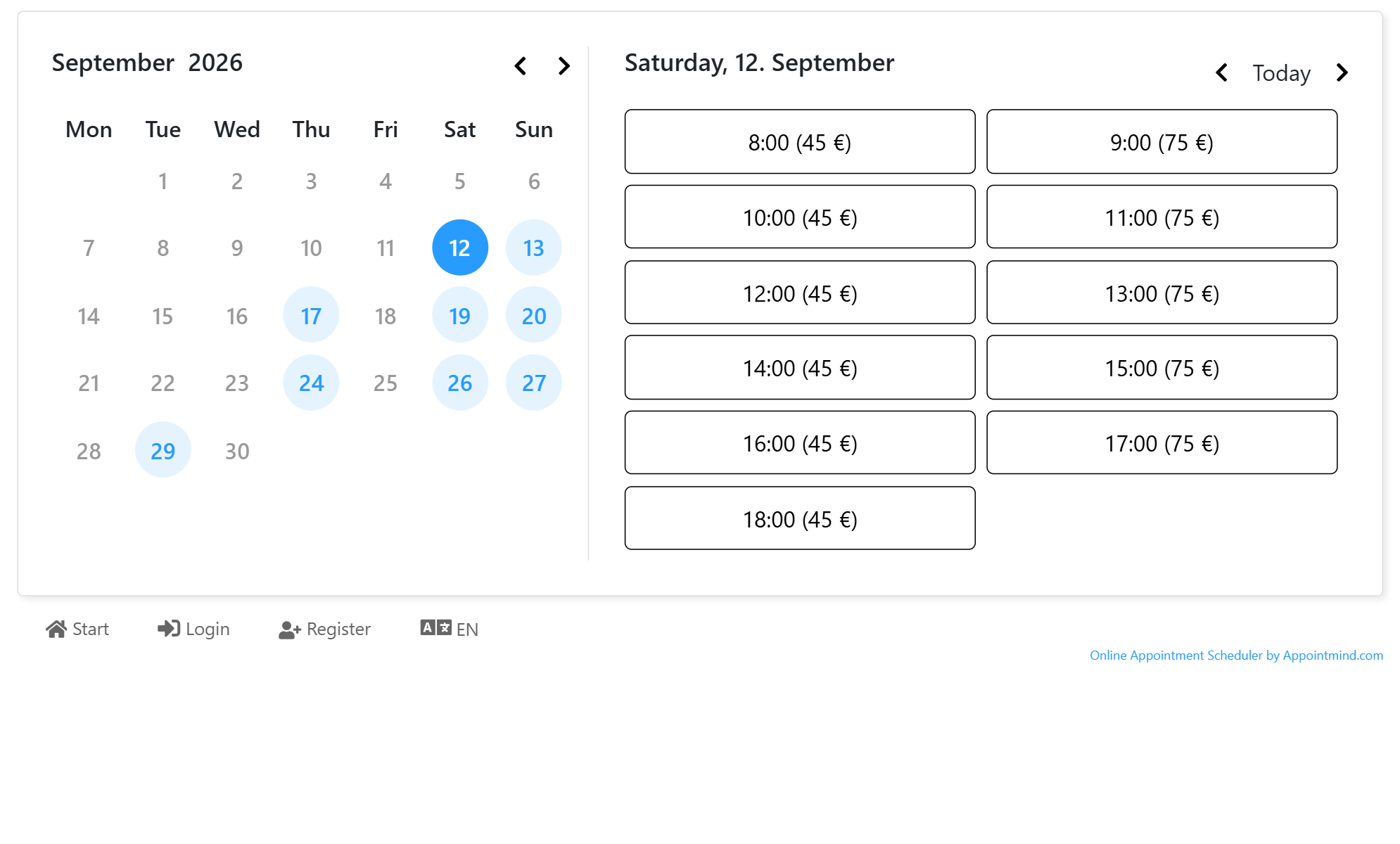
- In the user view the prices are shown next to the appointment time.
Screenshots
Go to Configuration / General settings / Price categories
1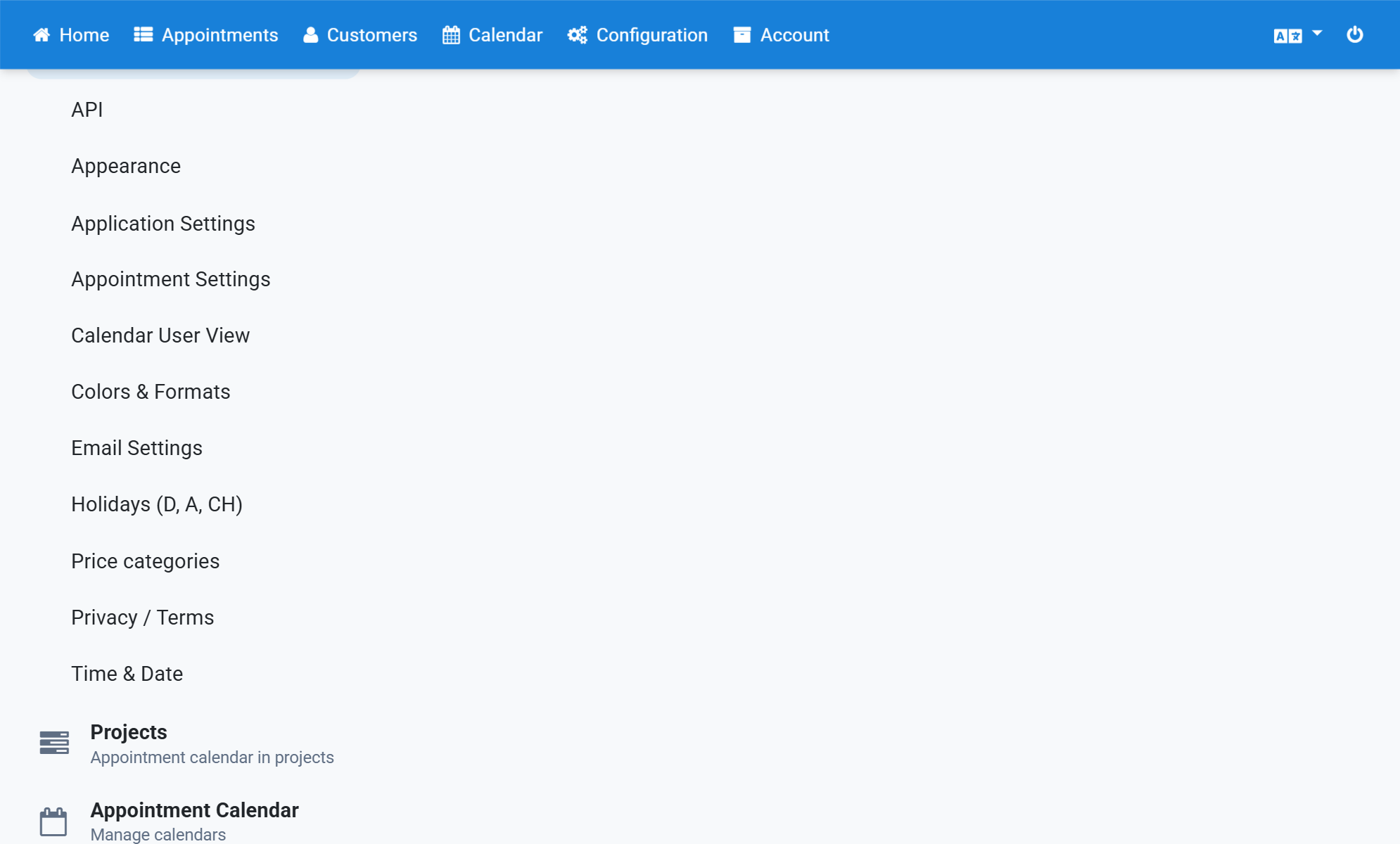
Switch on Activate price categories
2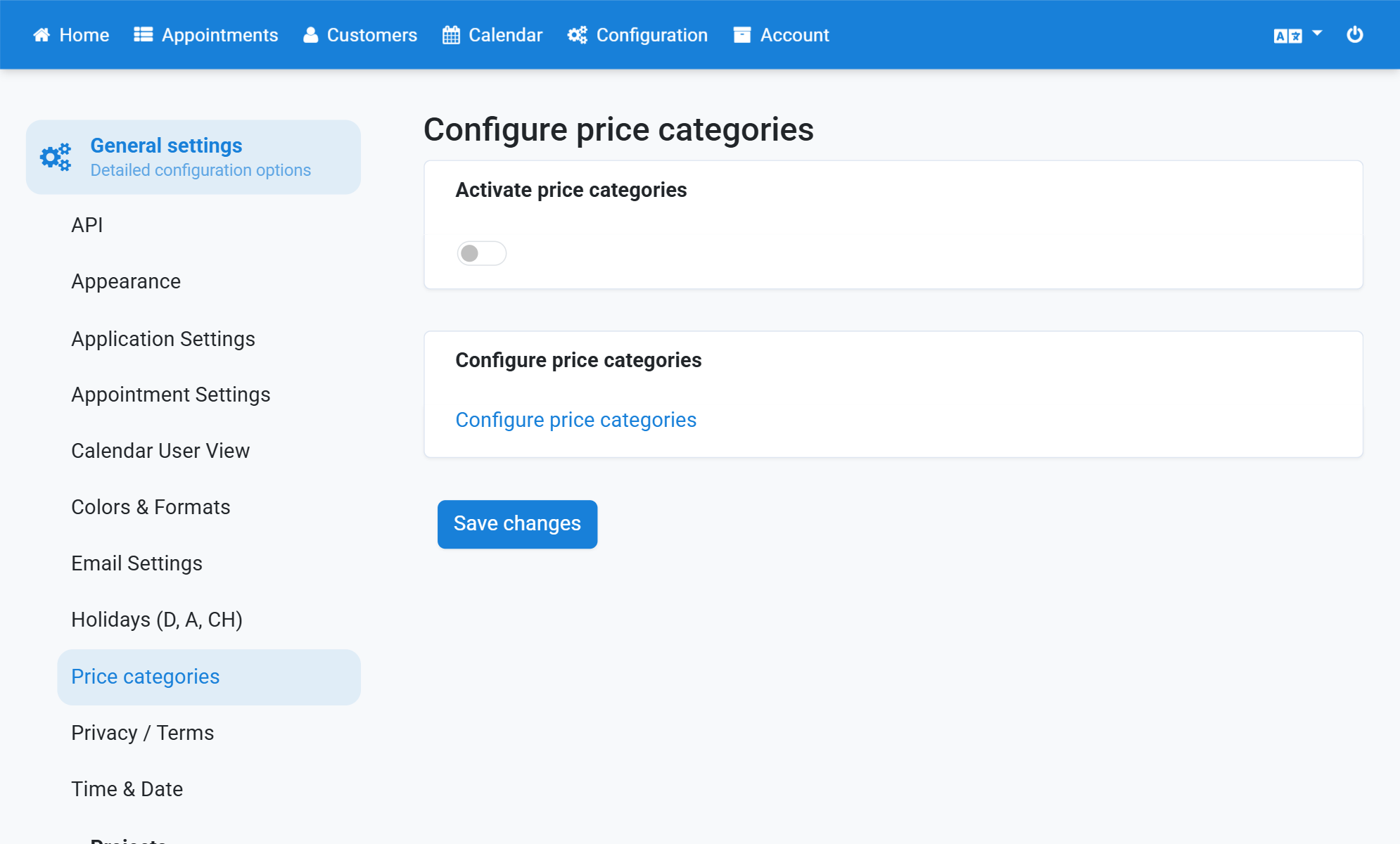
Click Save changes
3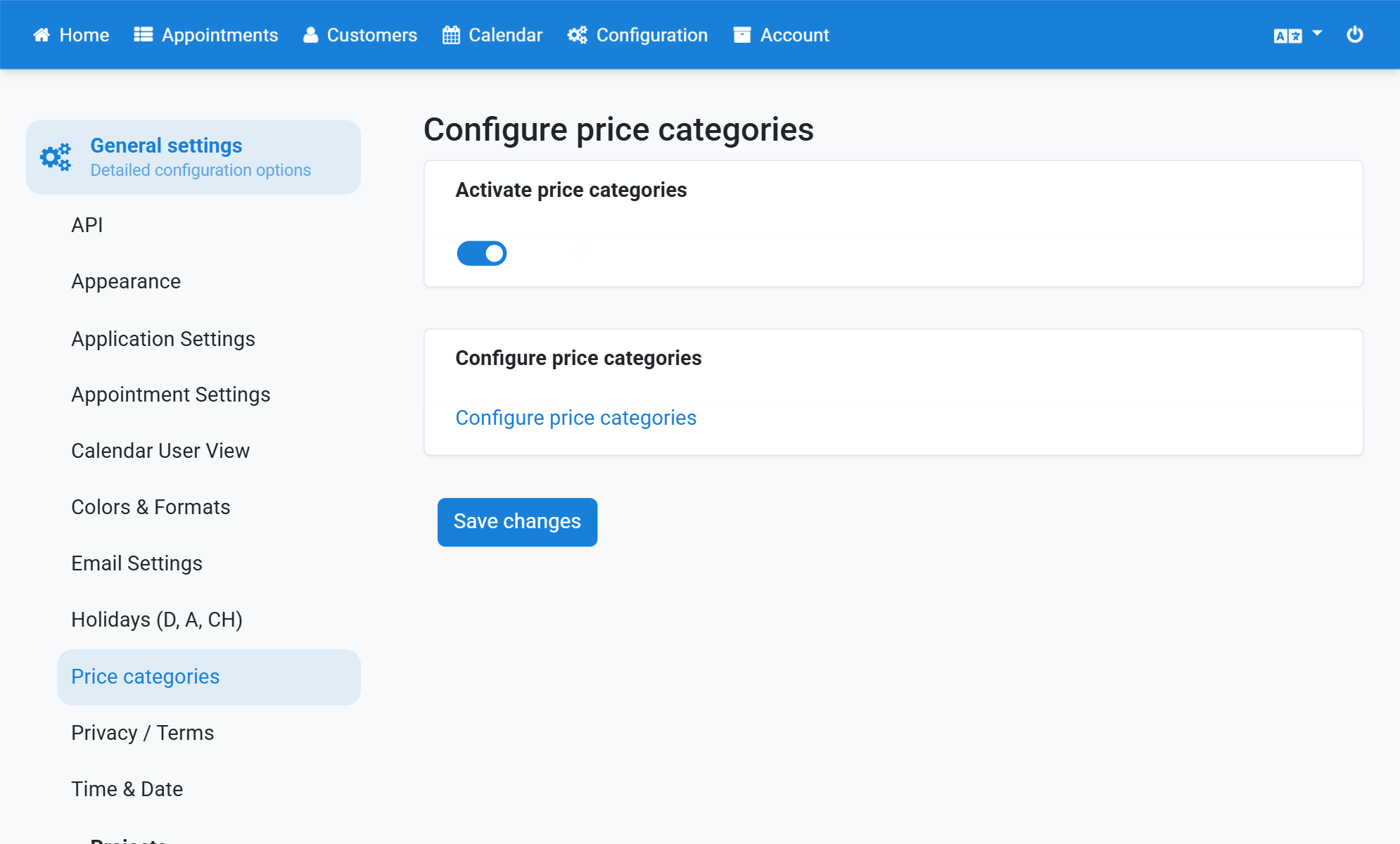
Click Configure price categories
4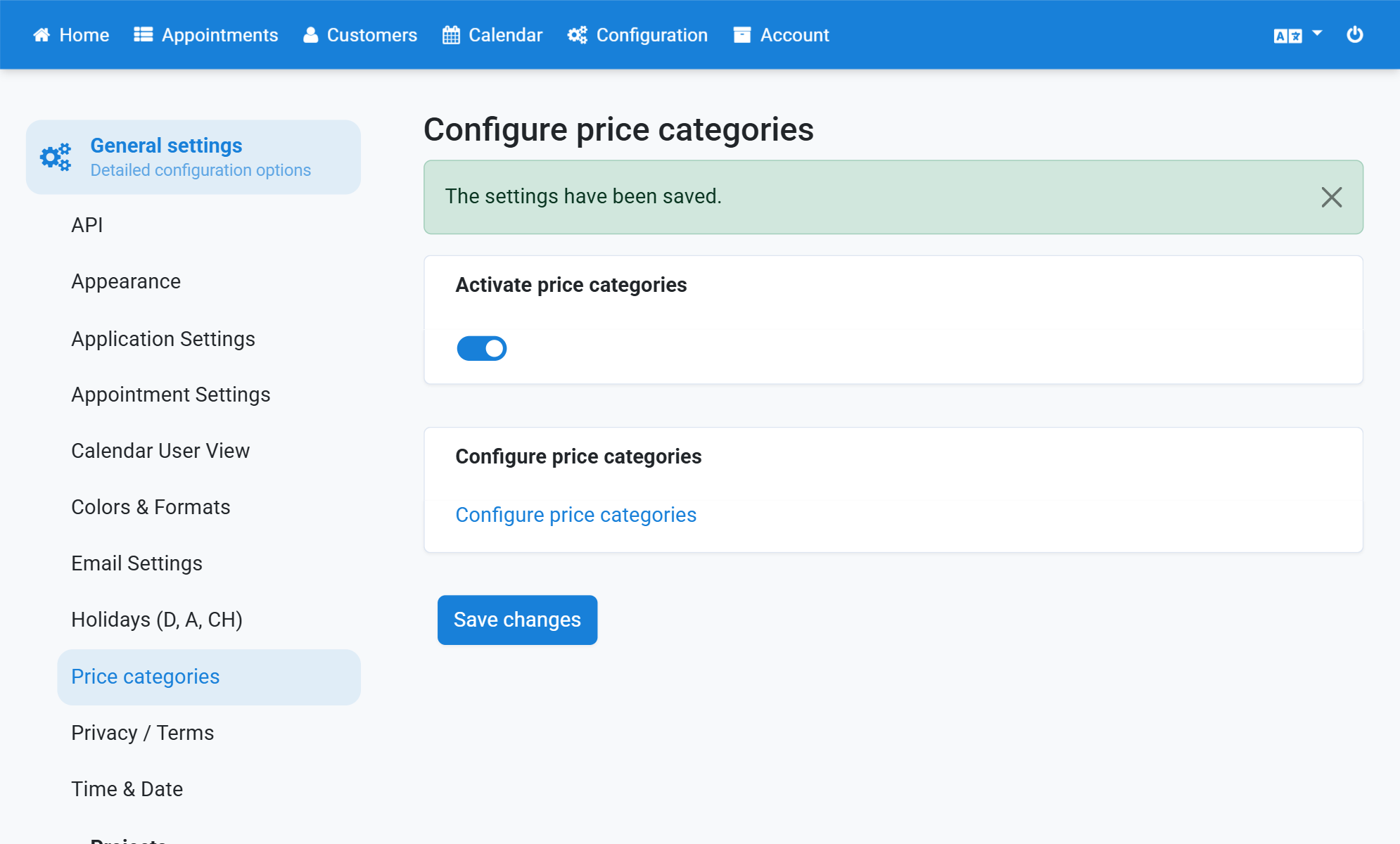
Enter a Name and an optional description and pick an optional colour
5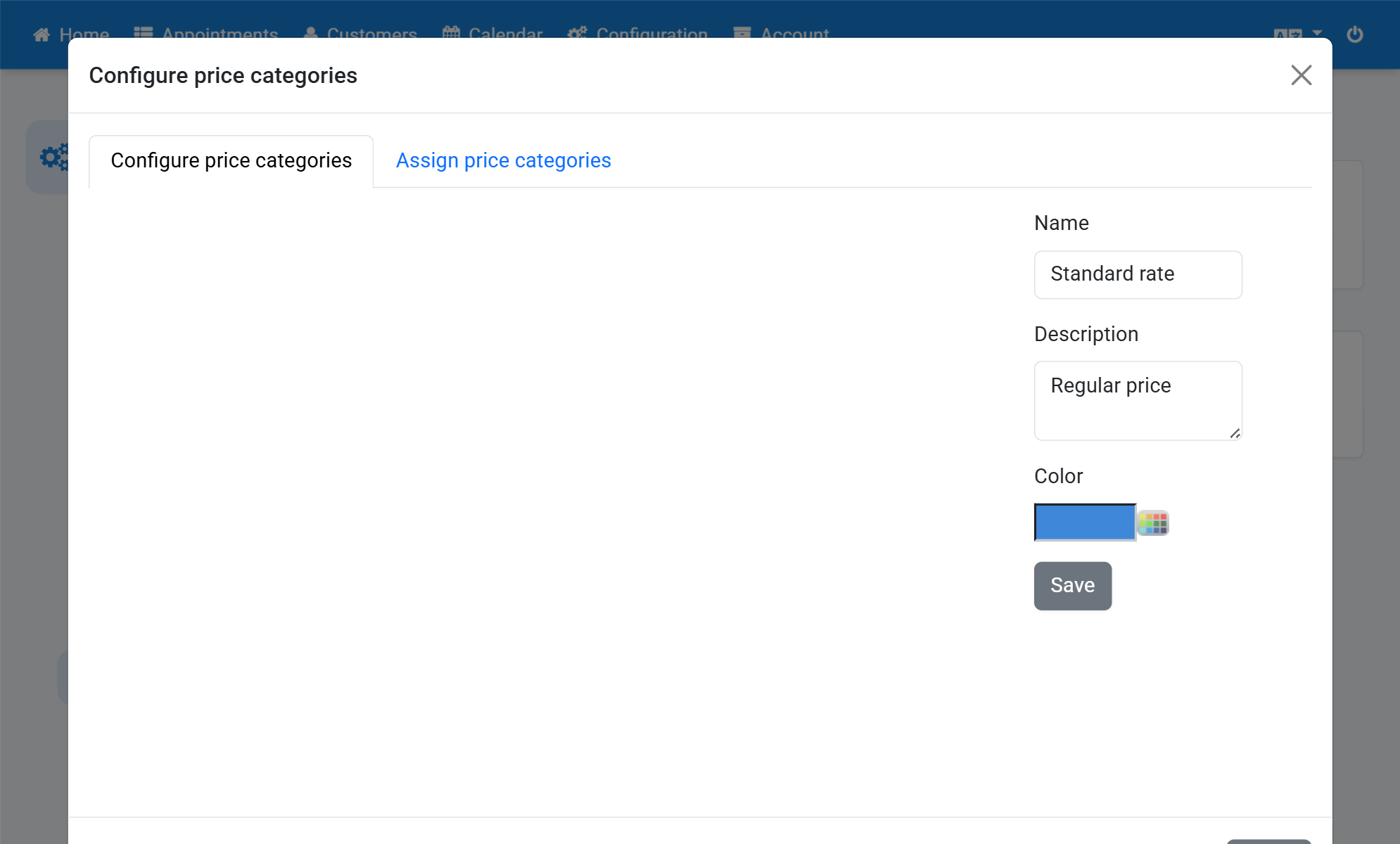
After you have saved, the categories are listed
6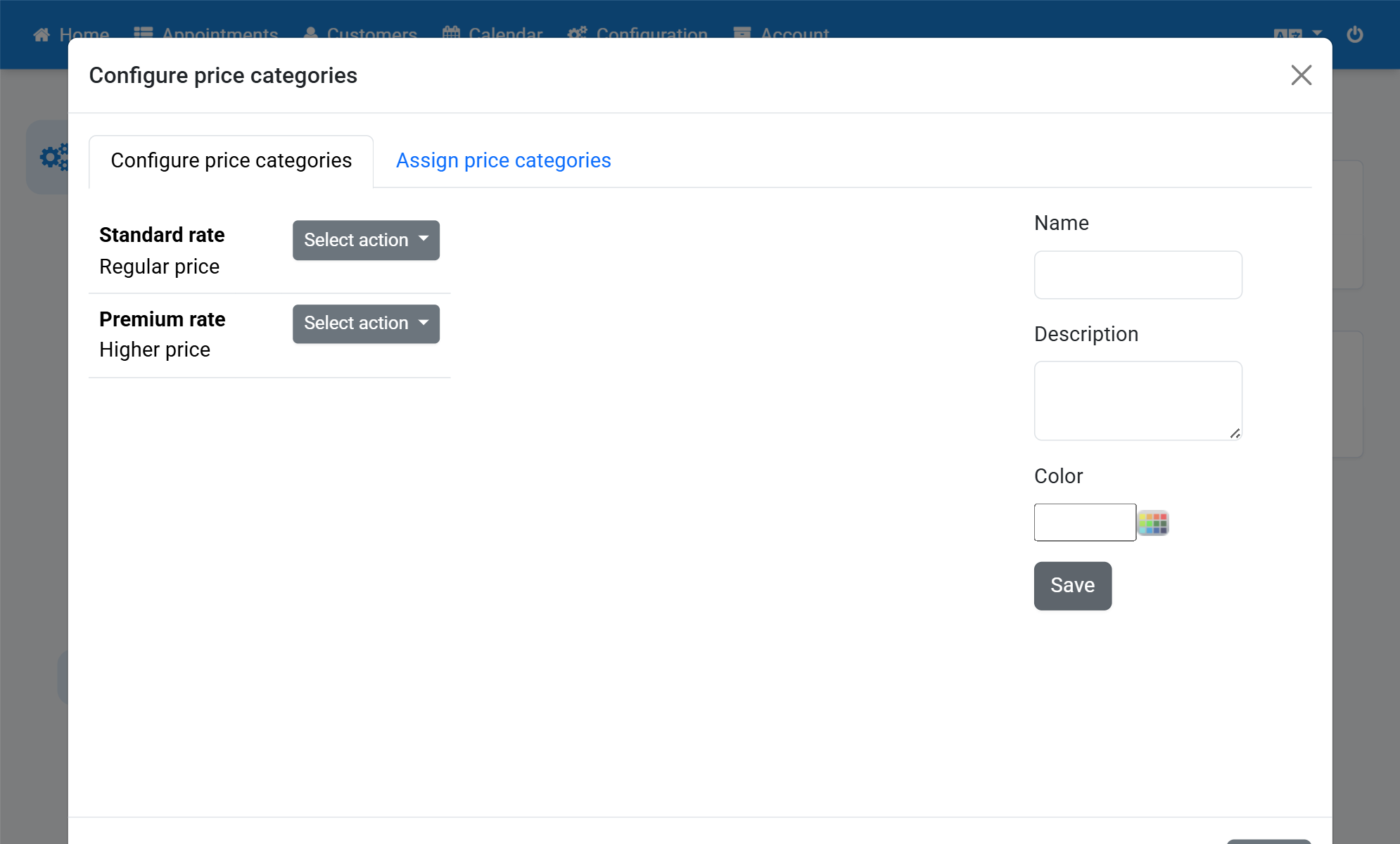
Under Select action choose the option Set prices
7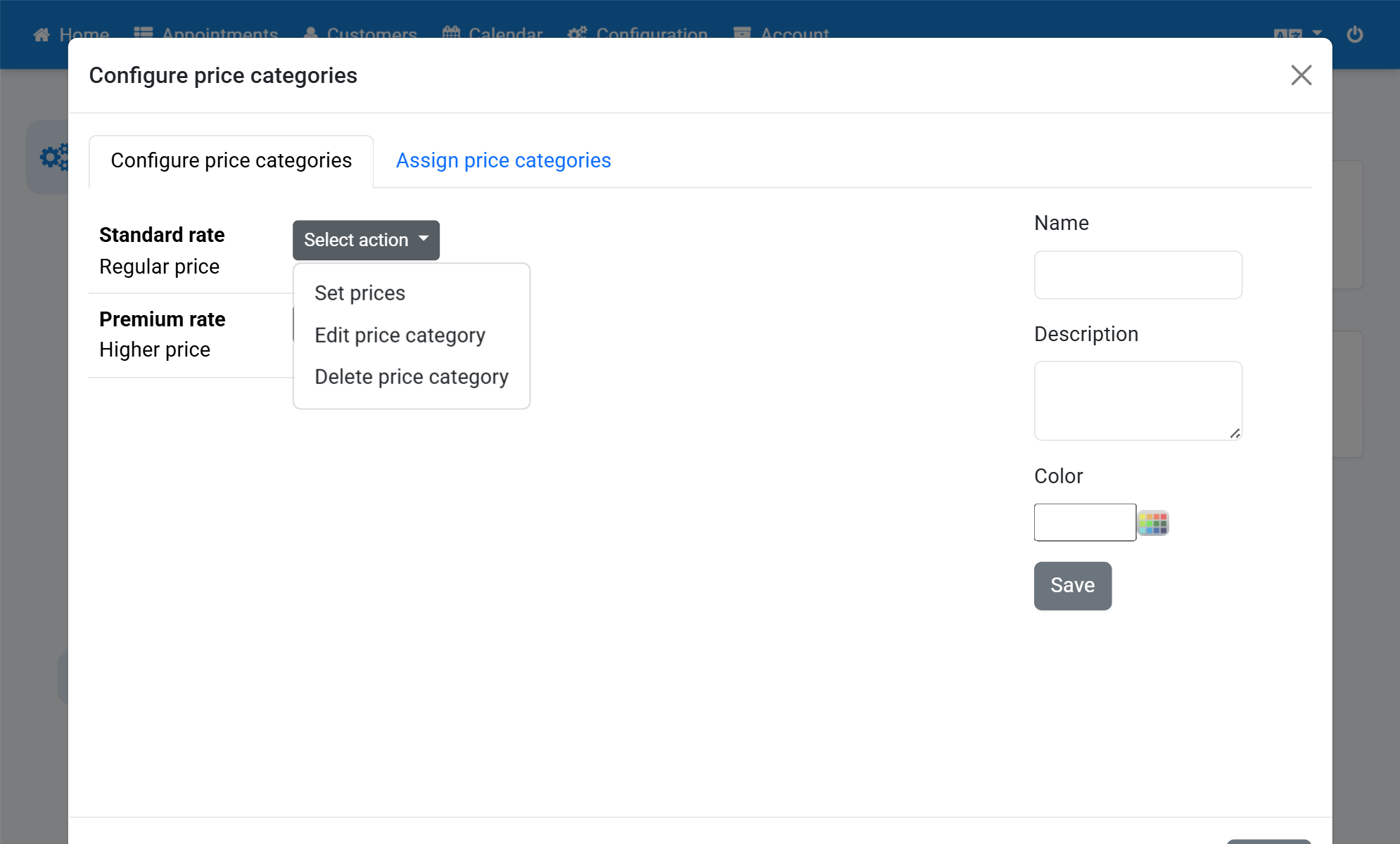
Enter a price for the appointment reasons
8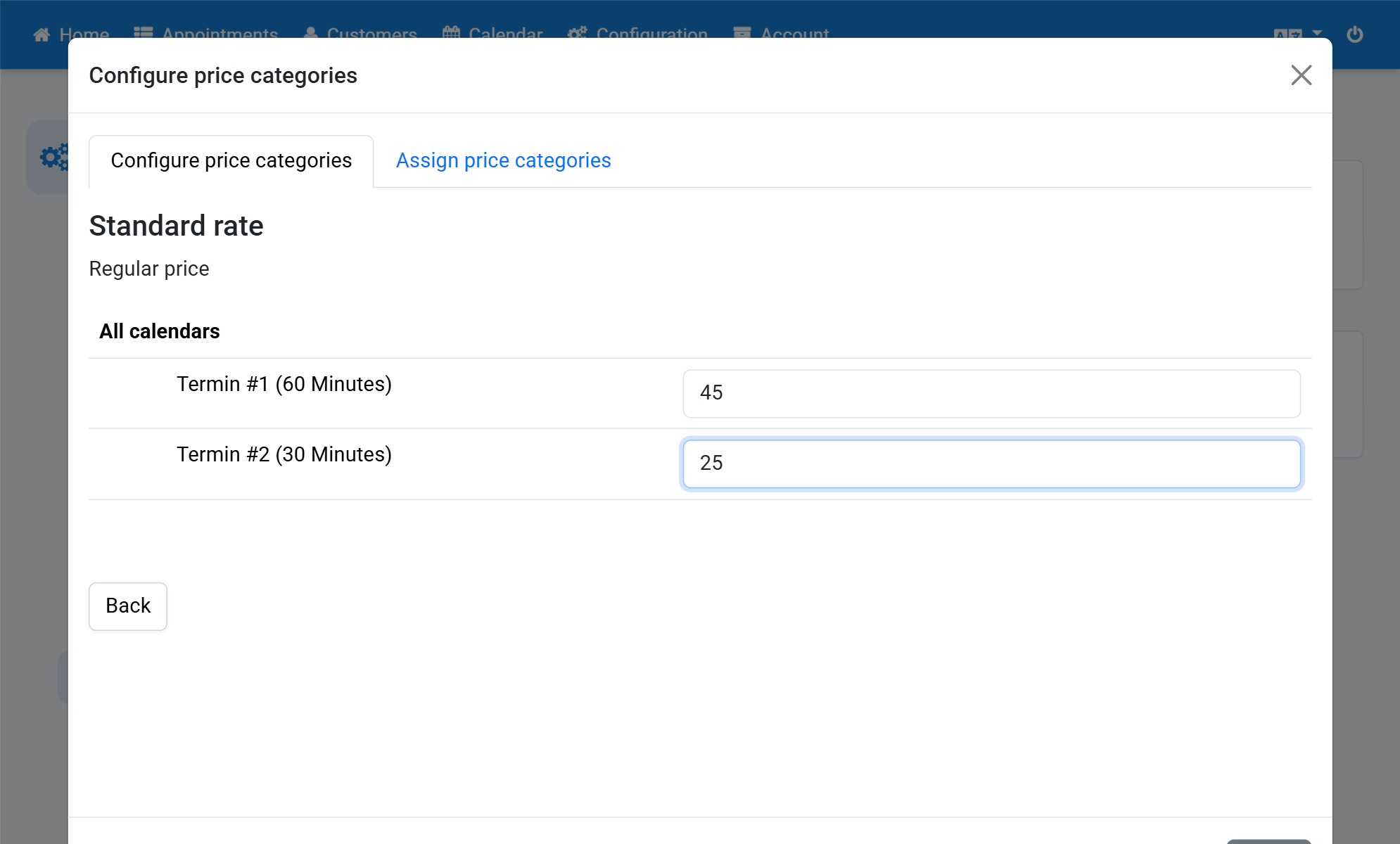
You can then use Assign price categories
9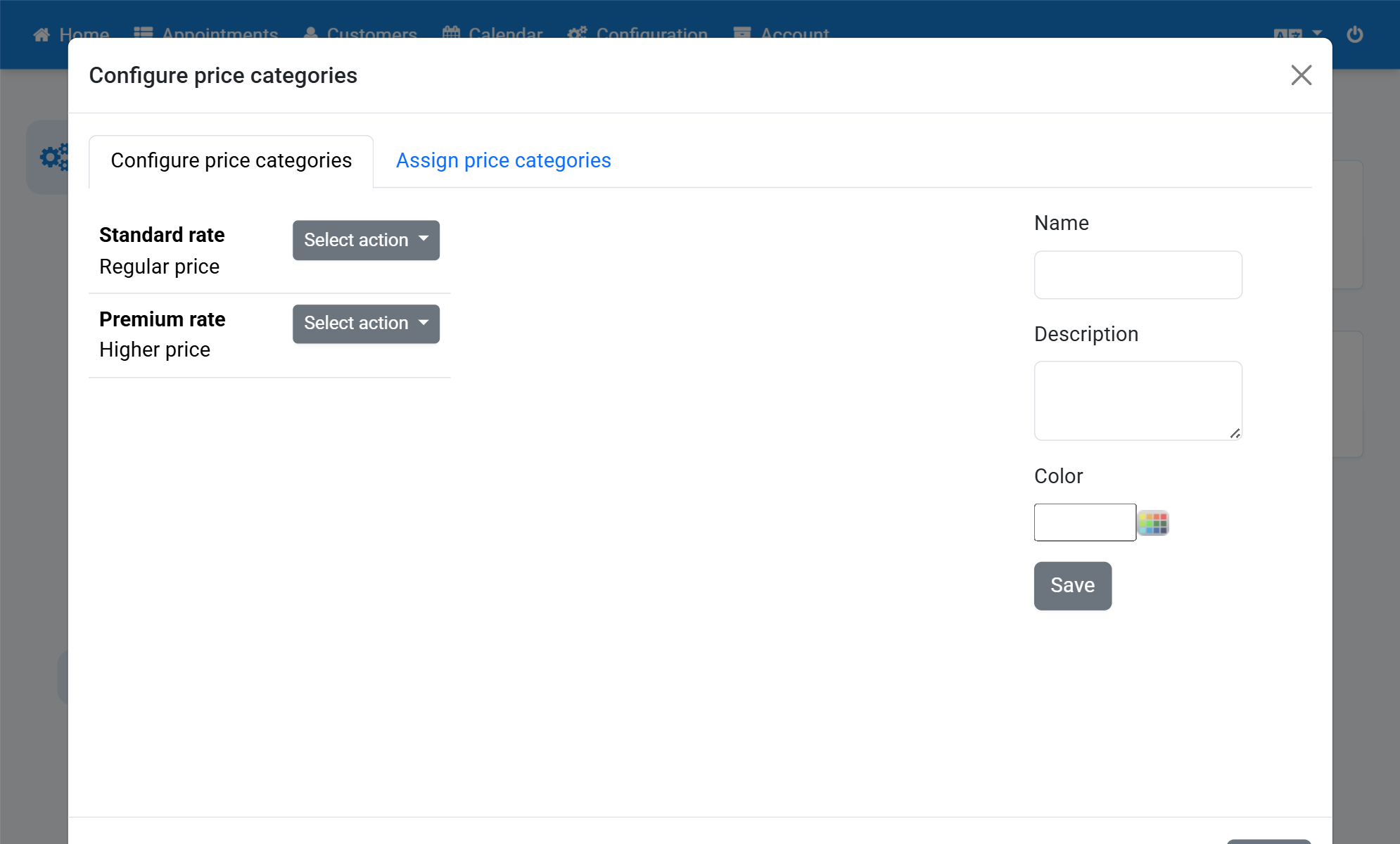
Select an appointment calendar
10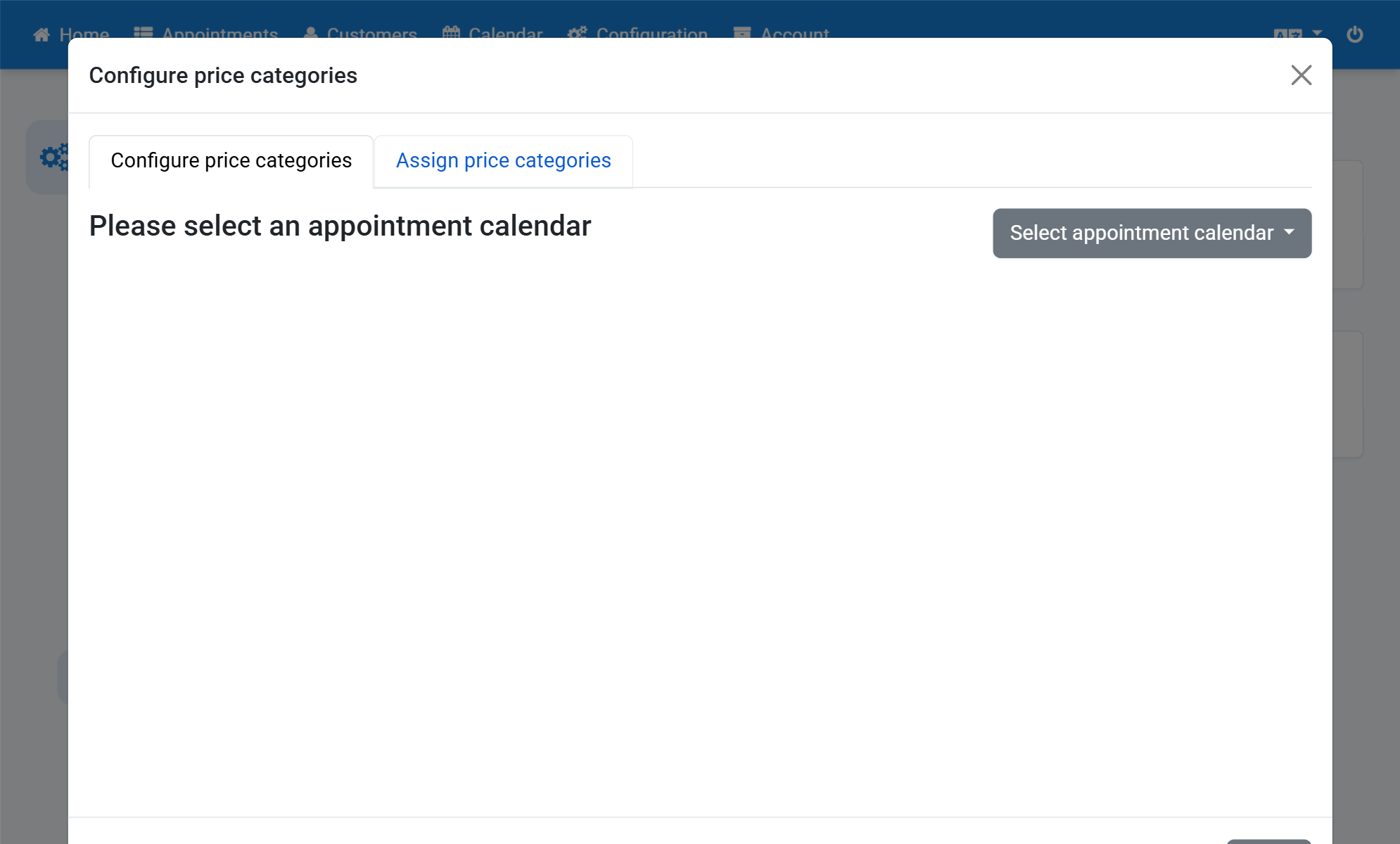
Select a price category for an appointment time
11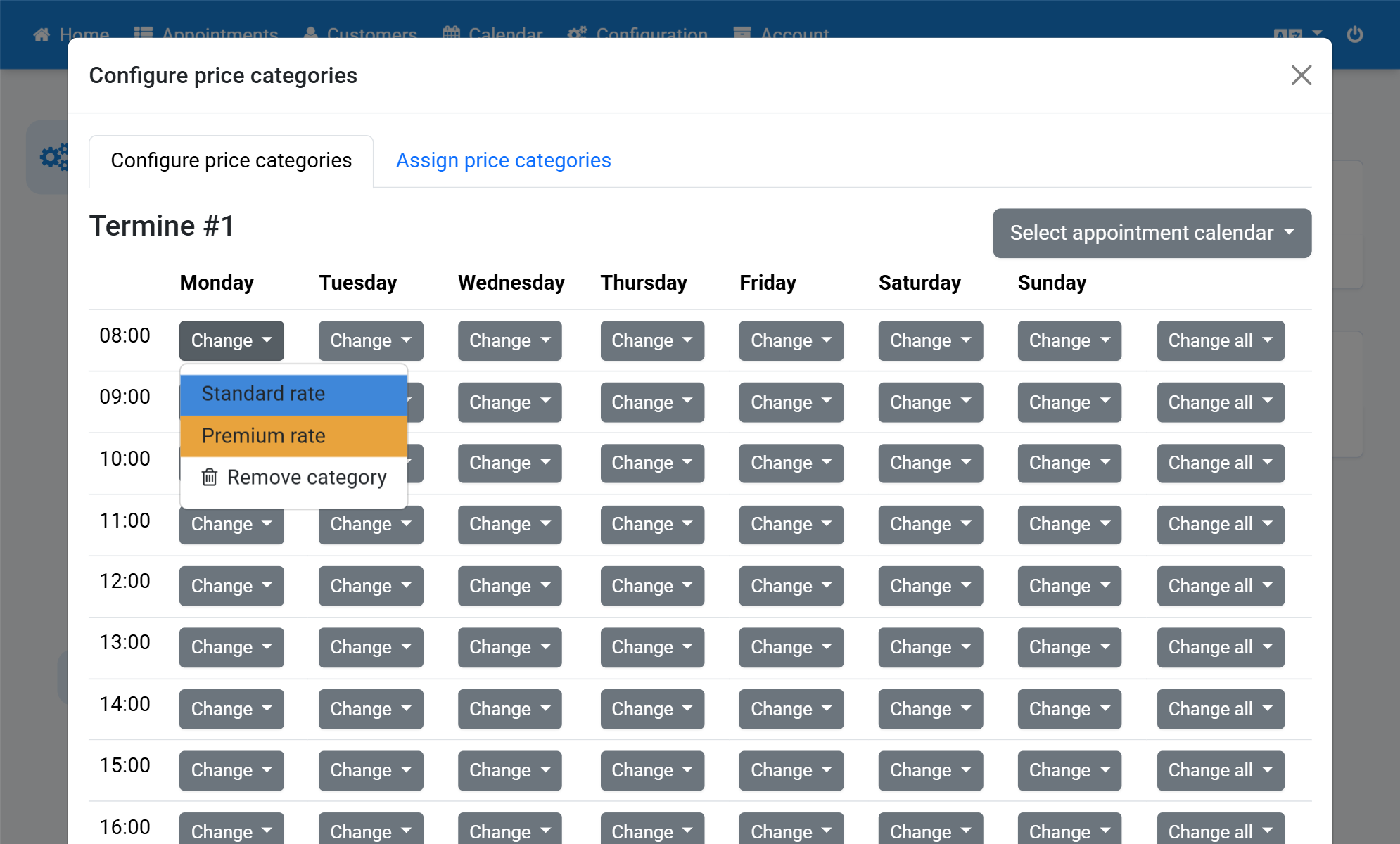
You can also set a price category for all days of the week
12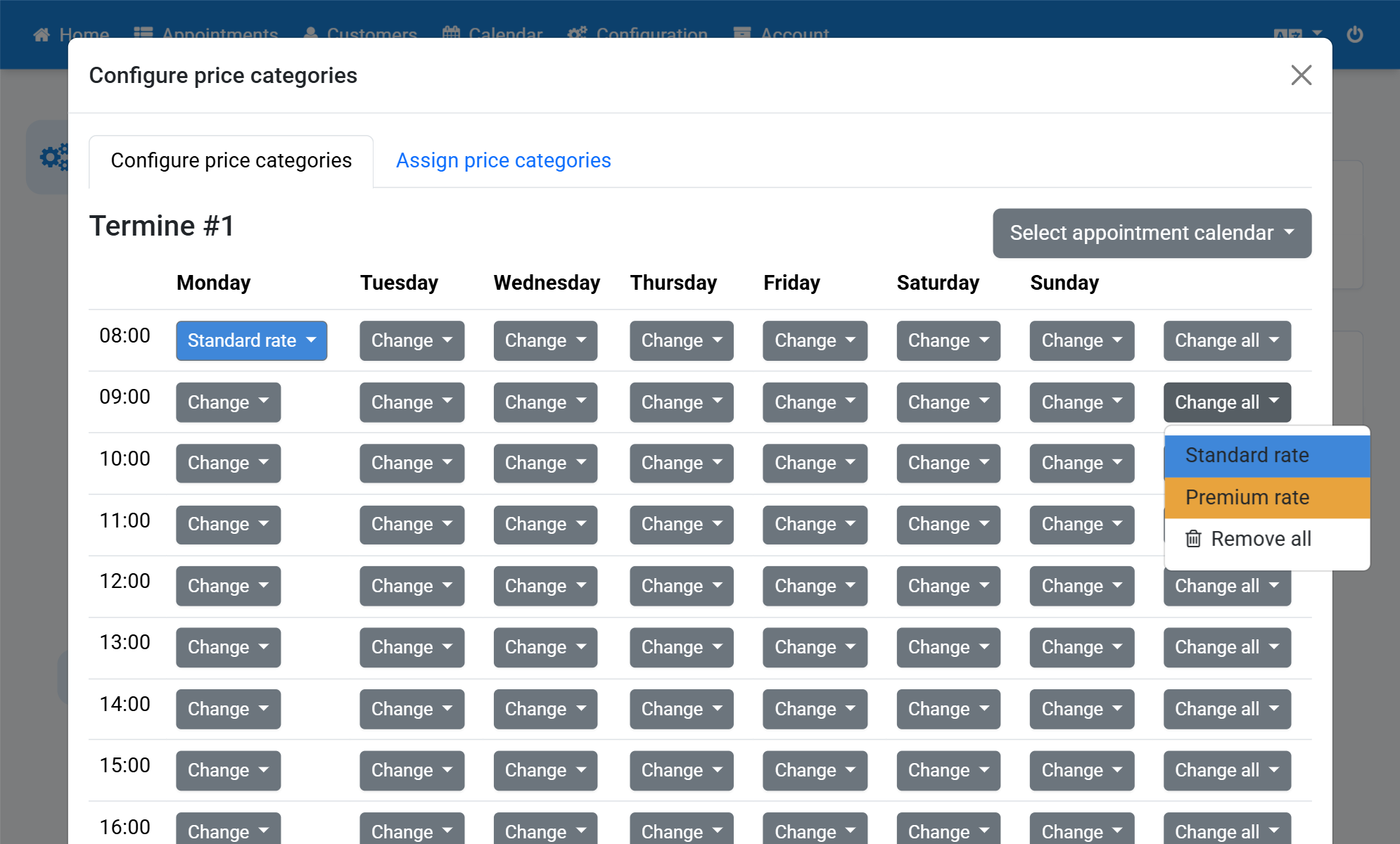
After you have set all price categories you can see the result under Calendar as well
13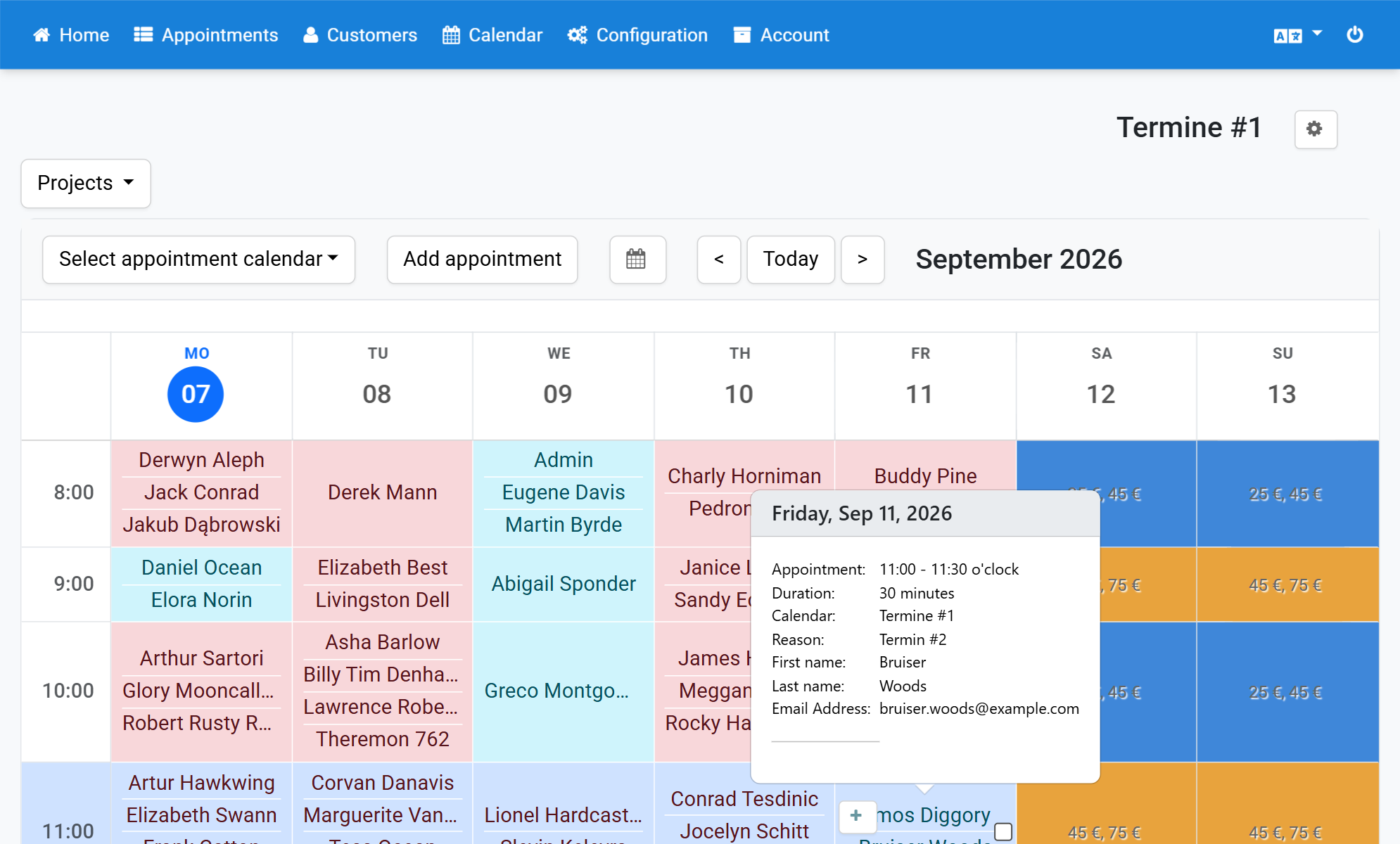
In the user view the prices are shown next to the appointment time
14