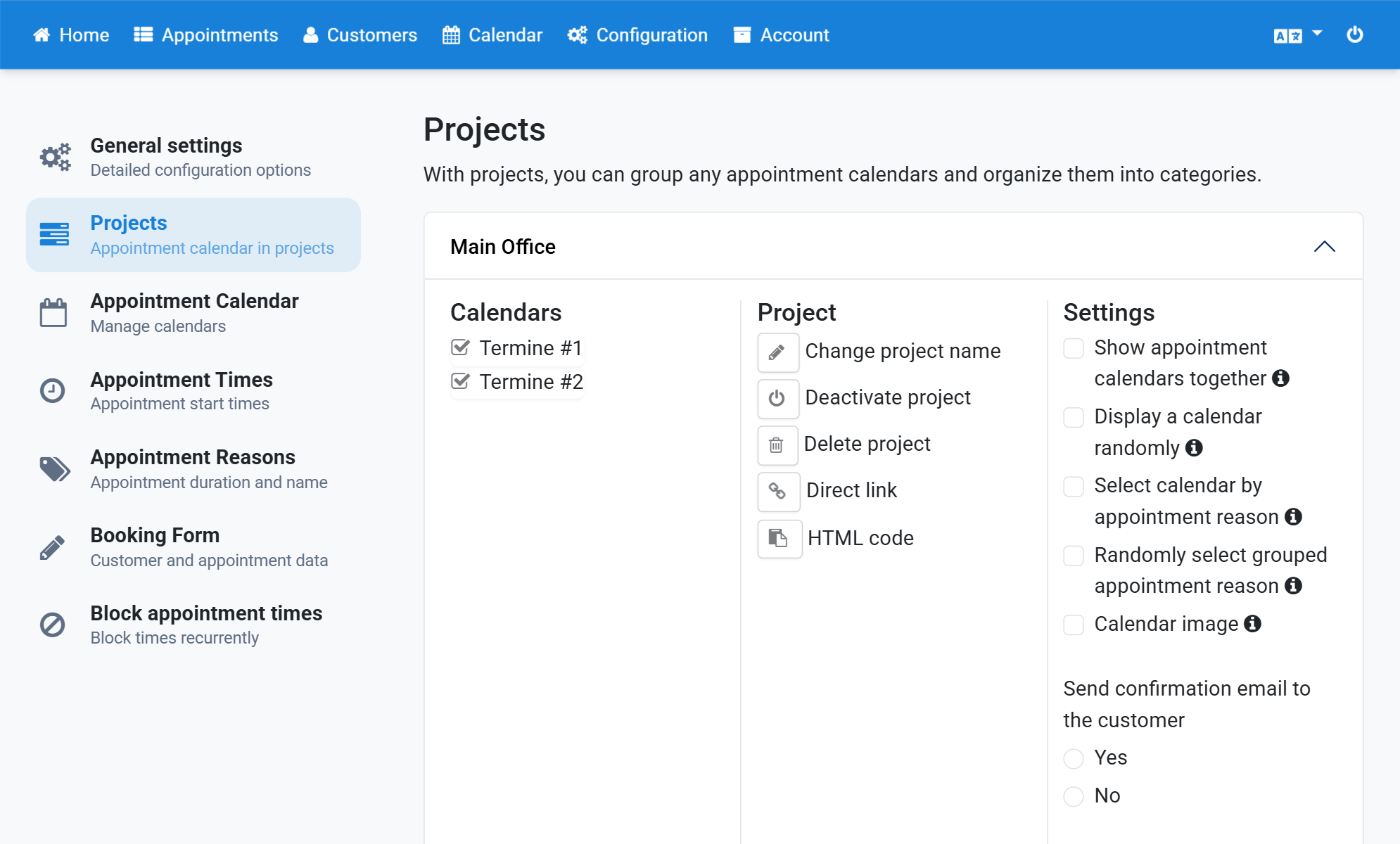
Show a Project's Appointment Calendars Together
Normally every project lists the calendars it contains. After choosing a calendar the customer picks an appointment in that calendar.
You can also offer all calendars in the calendar view. The customer then sees which calendar is free at which time.
- Click Configuration in the navigation bar.
- Click Projects in the subnavigation bar.
- Click the project.
- Tick Show appointment calendars together.
Screenshots
Click Configuration in the navigation bar
1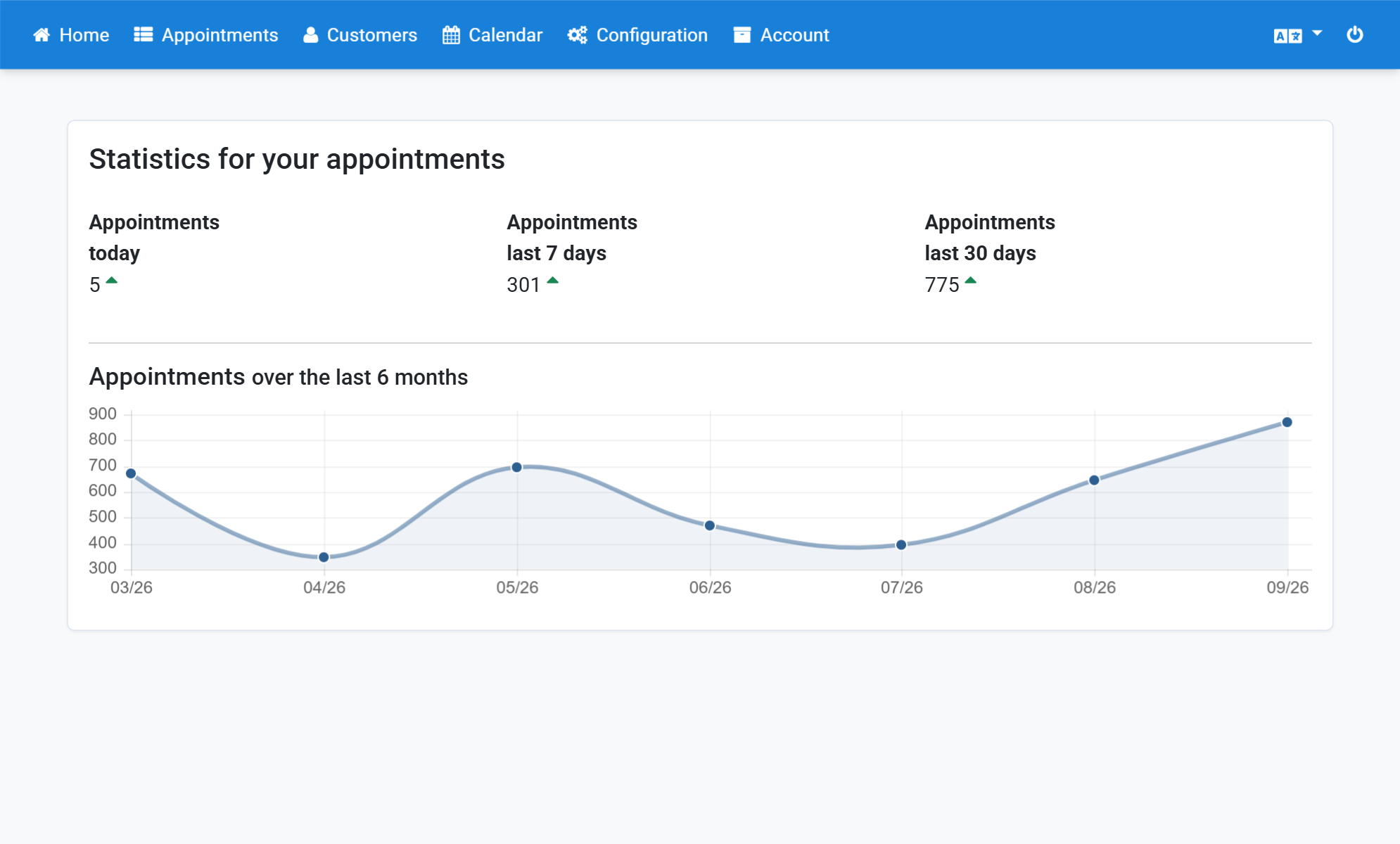
Click Projects in the subnavigation bar
2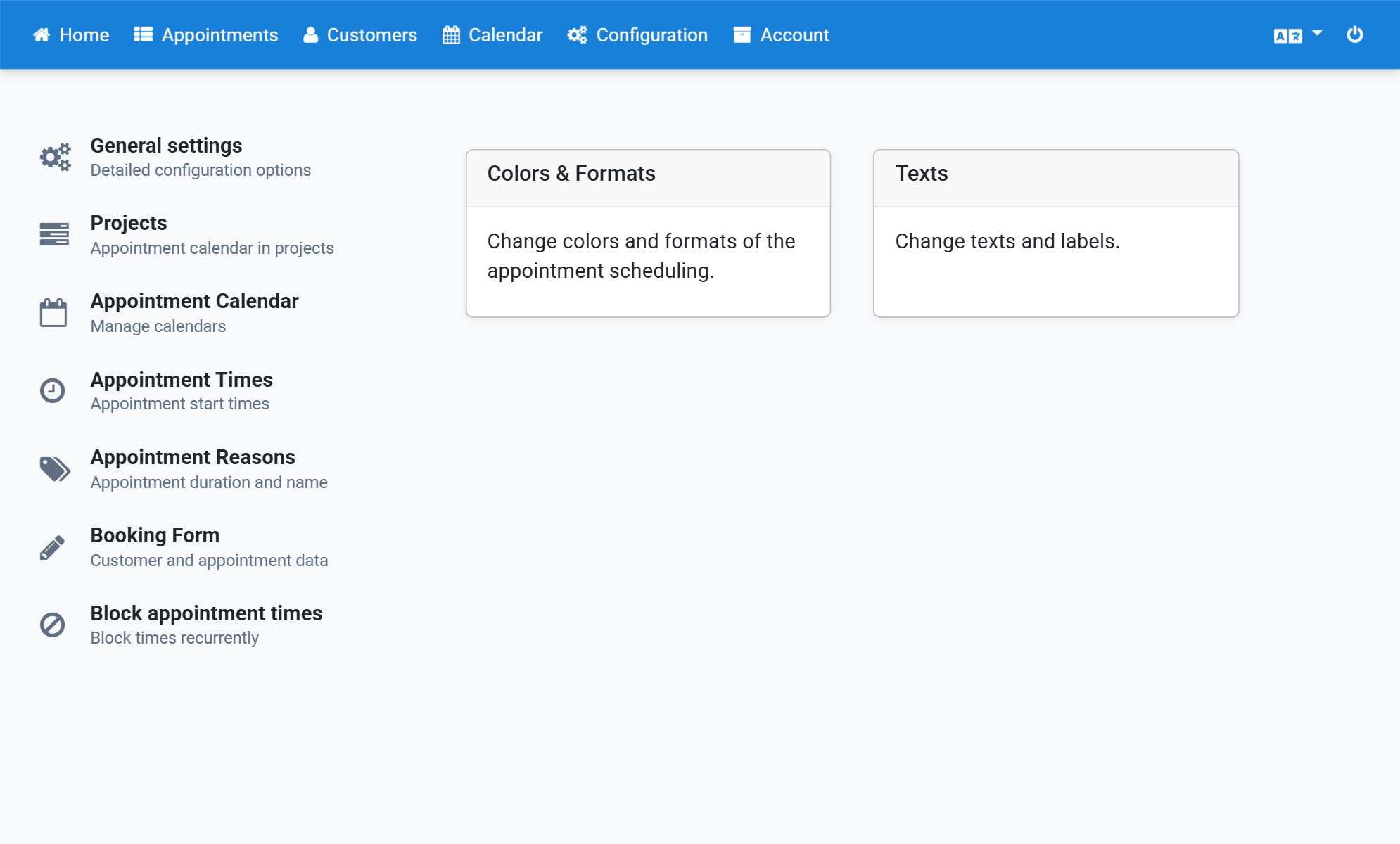
Click the project
3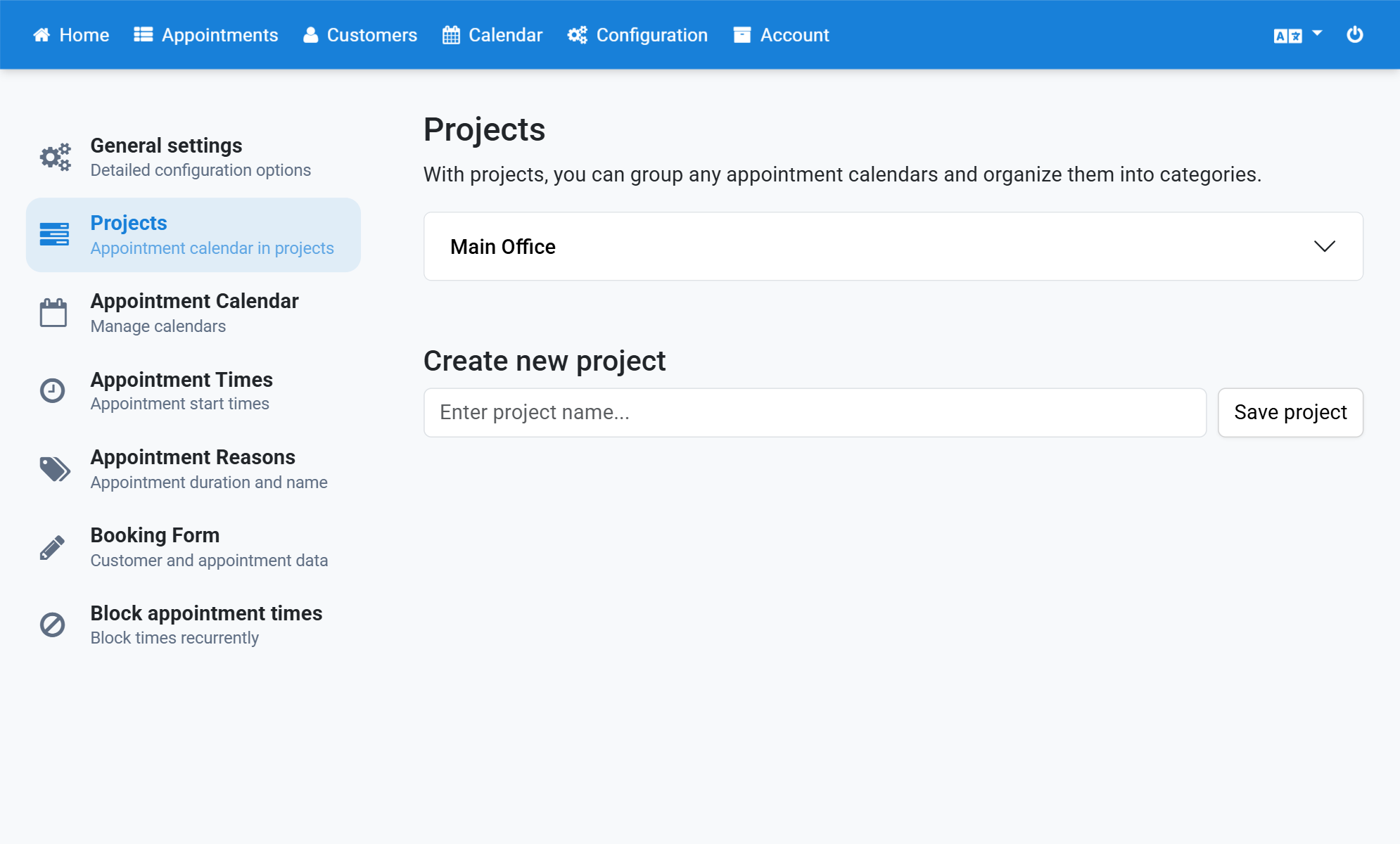
Tick Show appointment calendars together
4