Embed Appointment Scheduling in WordPress
This guide explains how to embed WordPress appointment booking in your website with the plugin. WordPress must already be installed in your hosting package or on your server.
- Search for Appointmind under Plugins > Add New in WordPress.
- Click Jetzt Installieren.
- Click Appointmind Kalender under Einstellungen.
- In Appointmind, open Configuration and then Appointment Calendar.
- Select and copy the calendar URL.
- Paste the calendar URL into WordPress and save the change.
- Create a new post and add a new element.
- Select Shortcode.
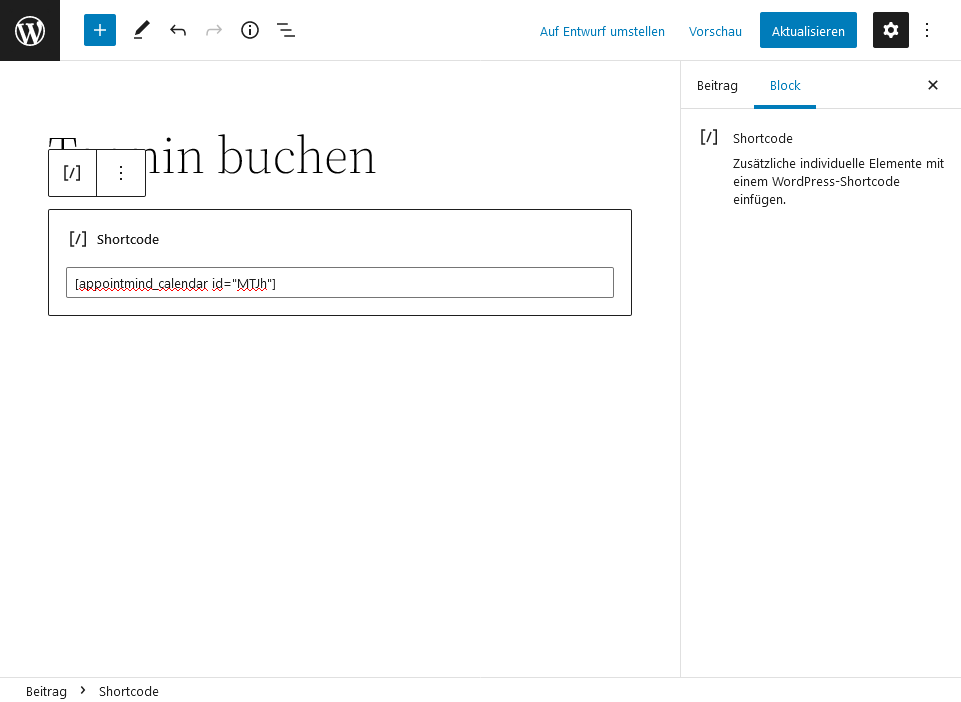
- Under Configuration/Appointment Calendar in Appointmind, select and copy the shortcode for your calendar.
- Paste the shortcode into WordPress and save the post.
Screenshots
Search for Appointmind under Plugins > Add New in WordPress
1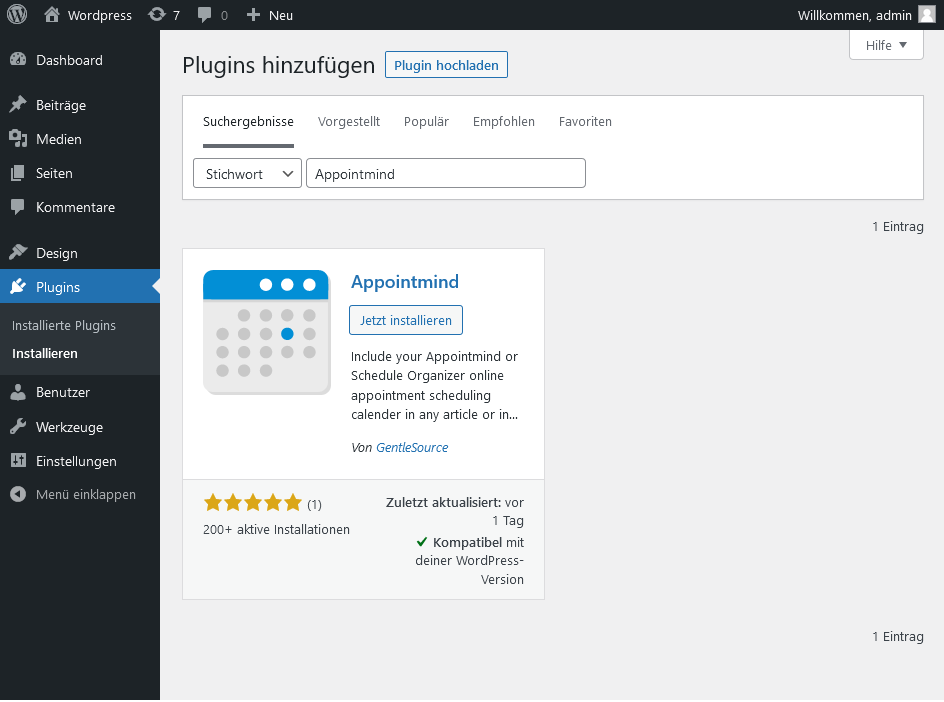
Click Jetzt Installieren
2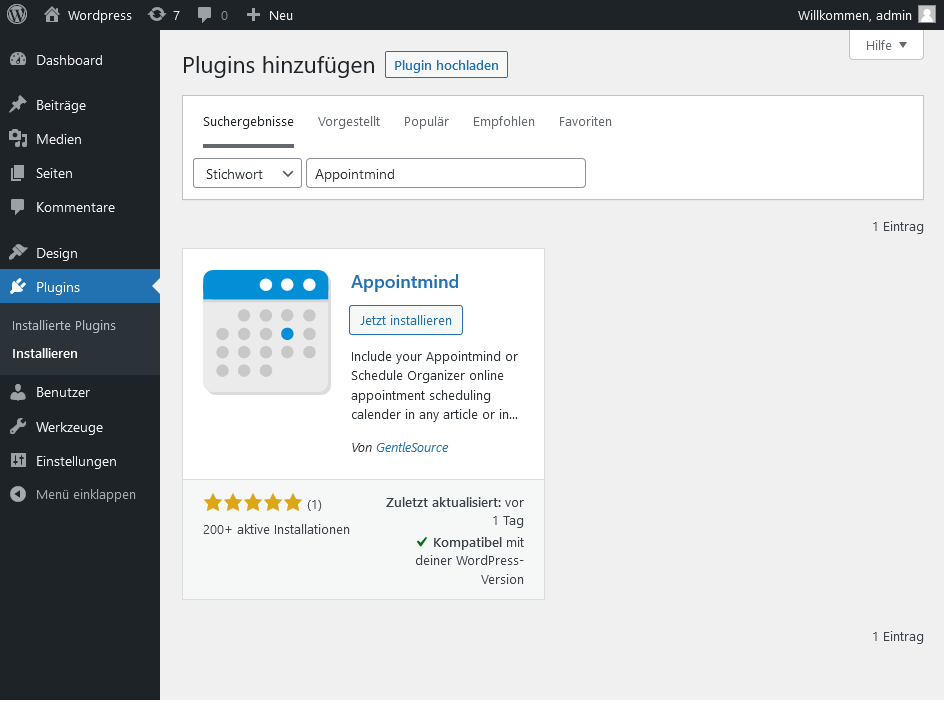
Click Appointmind Kalender under Einstellungen
3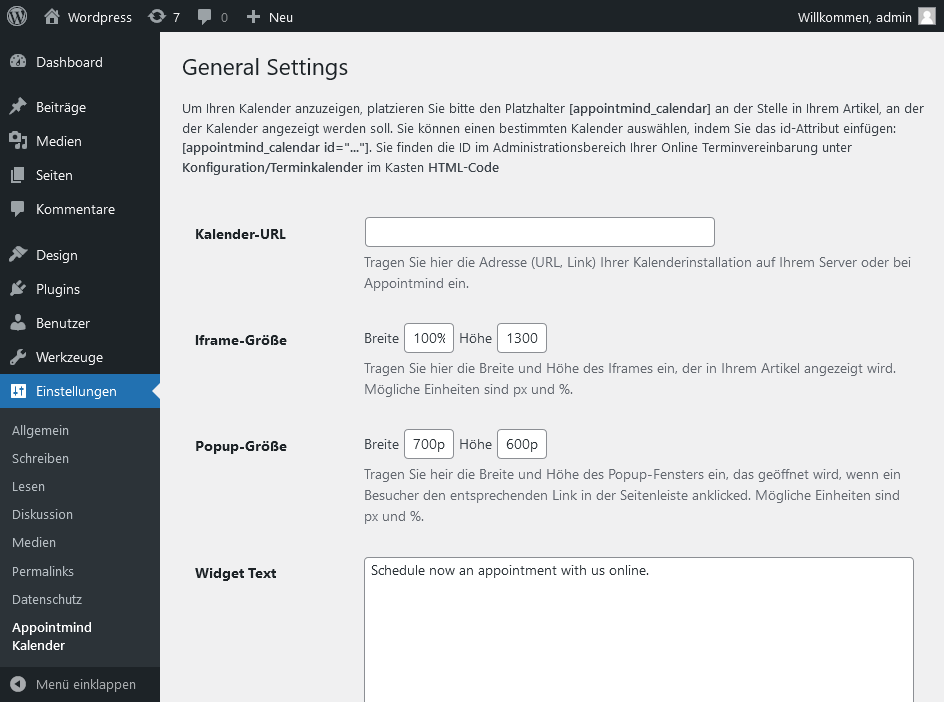
In Appointmind, open Configuration and then Appointment Calendar
4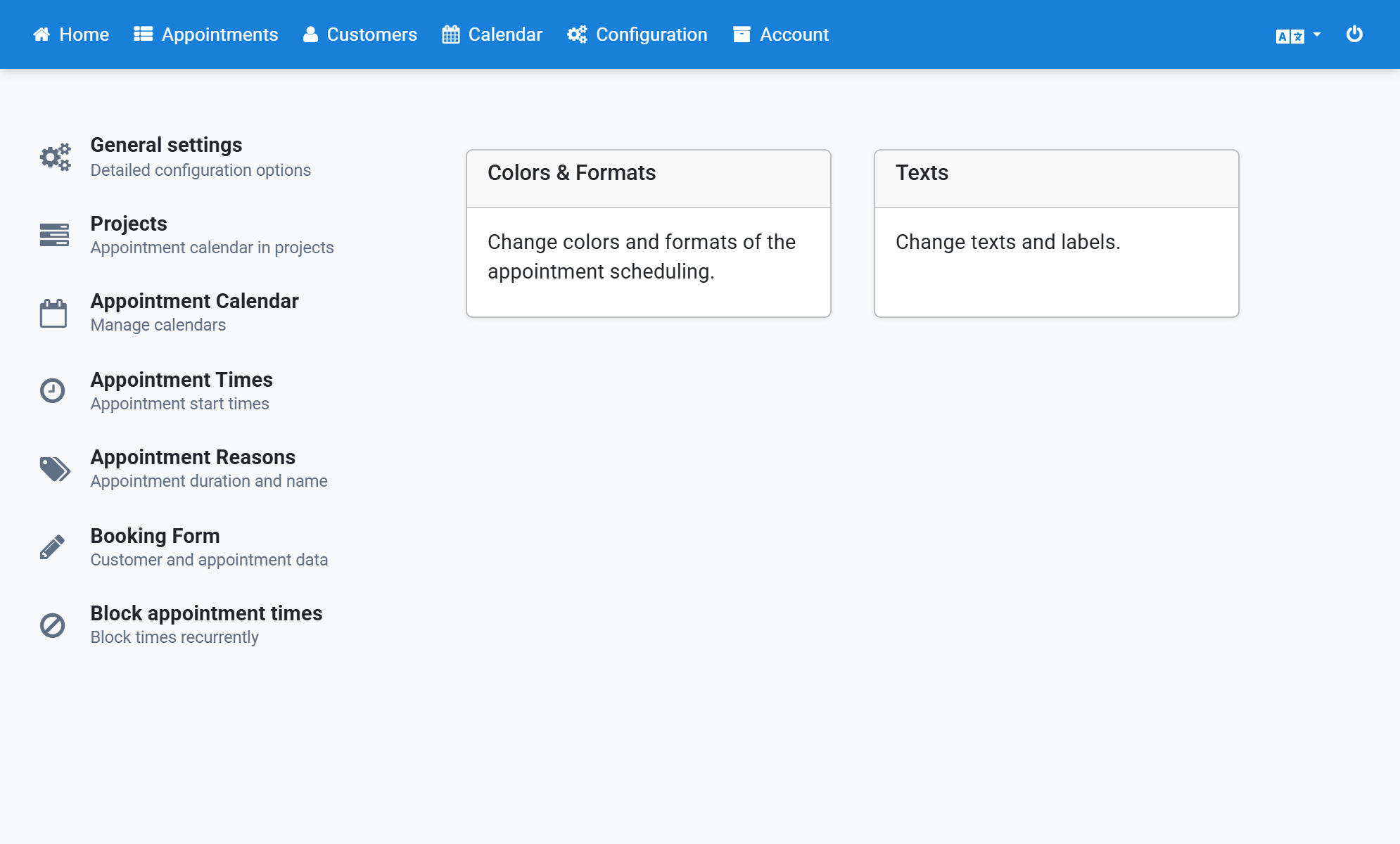
Select and copy the calendar URL
5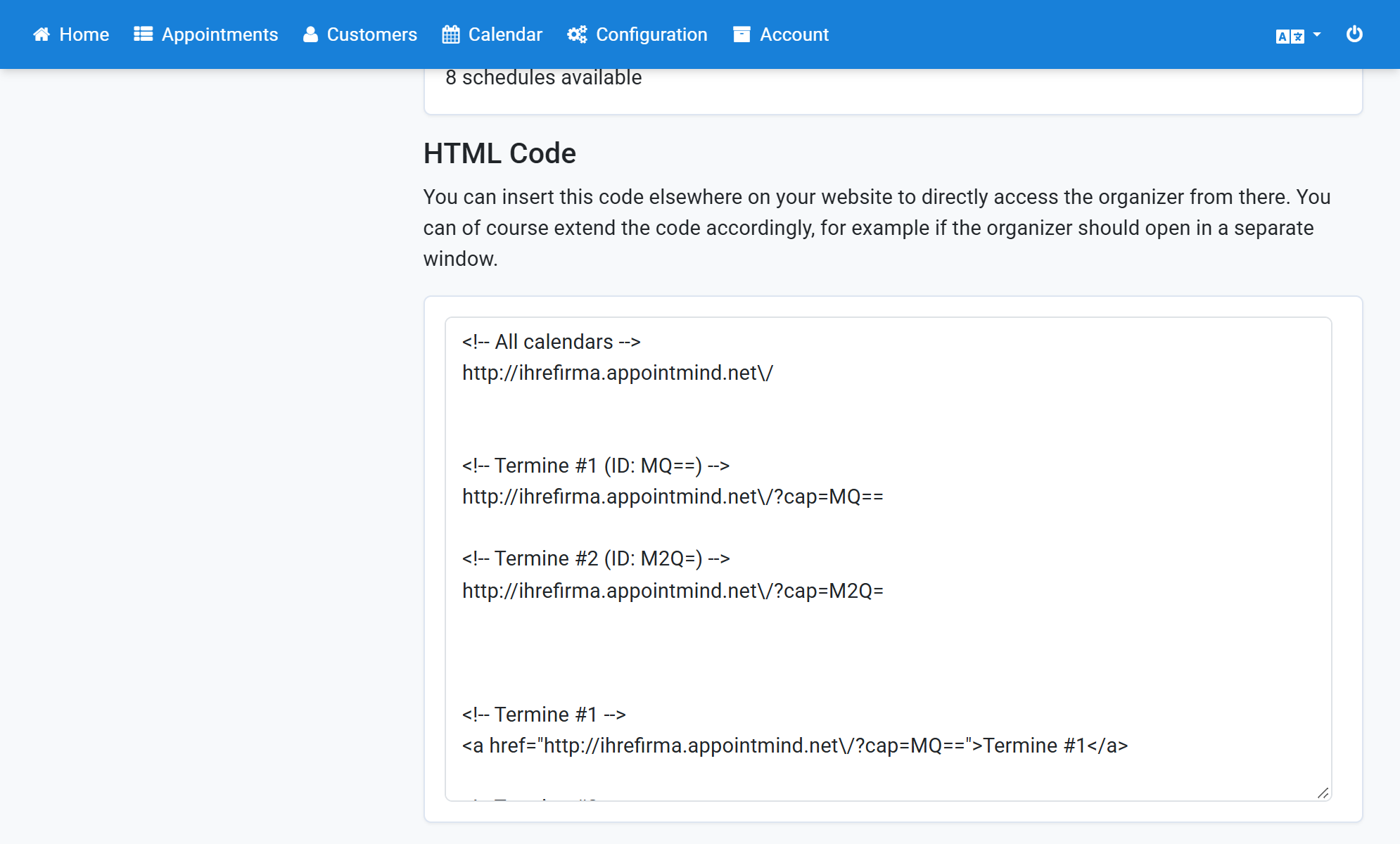
Paste the calendar URL into WordPress and save the change
6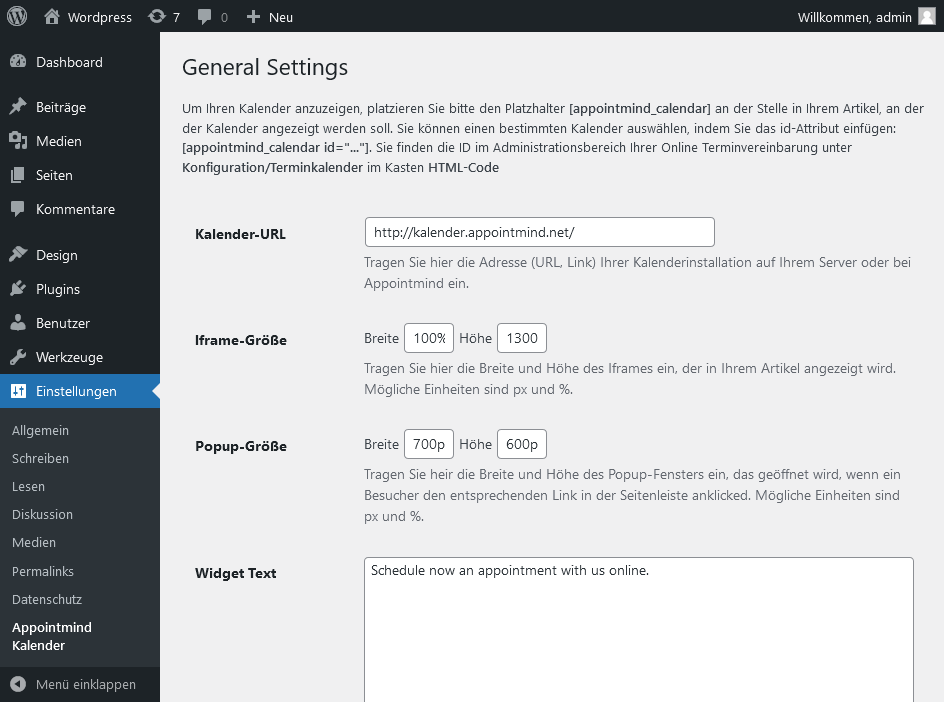
Create a new post and add a new element
7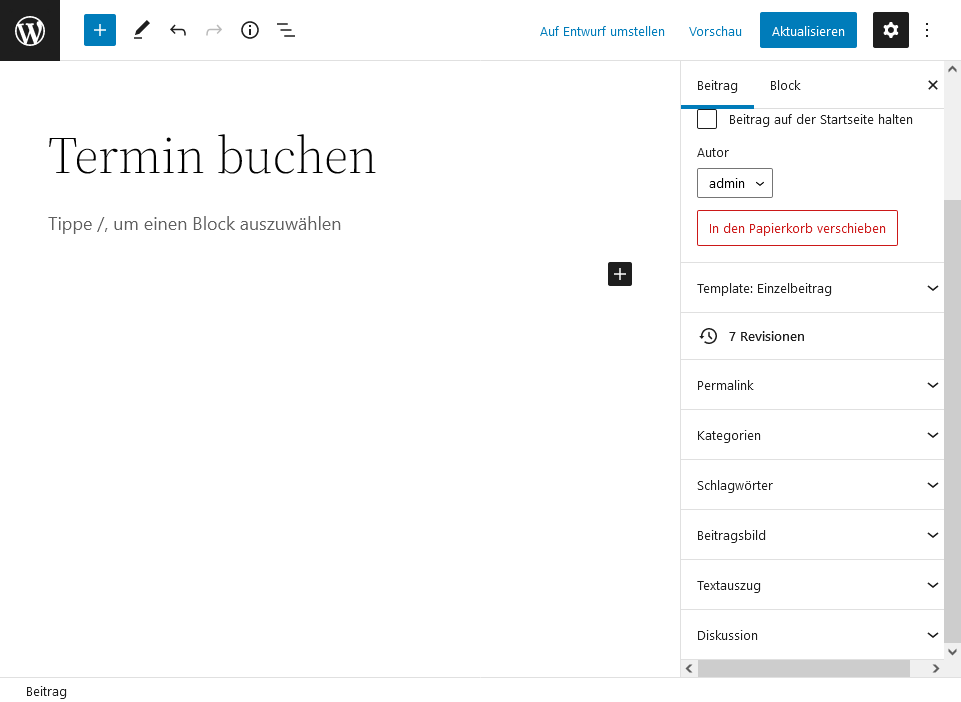
Select Shortcode
8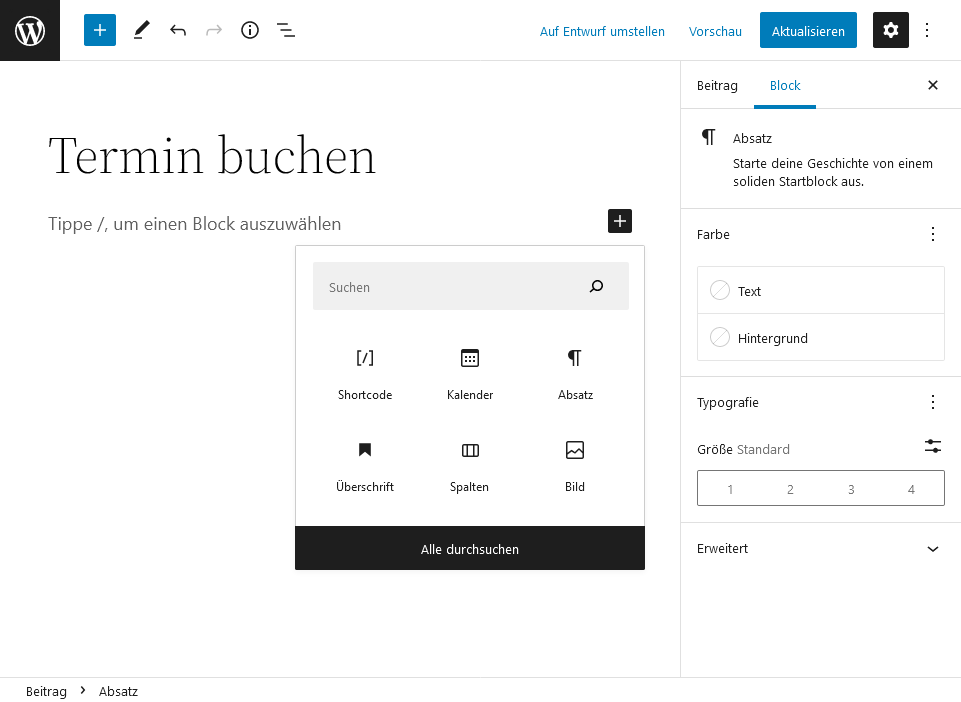
Under Configuration/Appointment Calendar in Appointmind, select and copy the shortcode for your calendar
9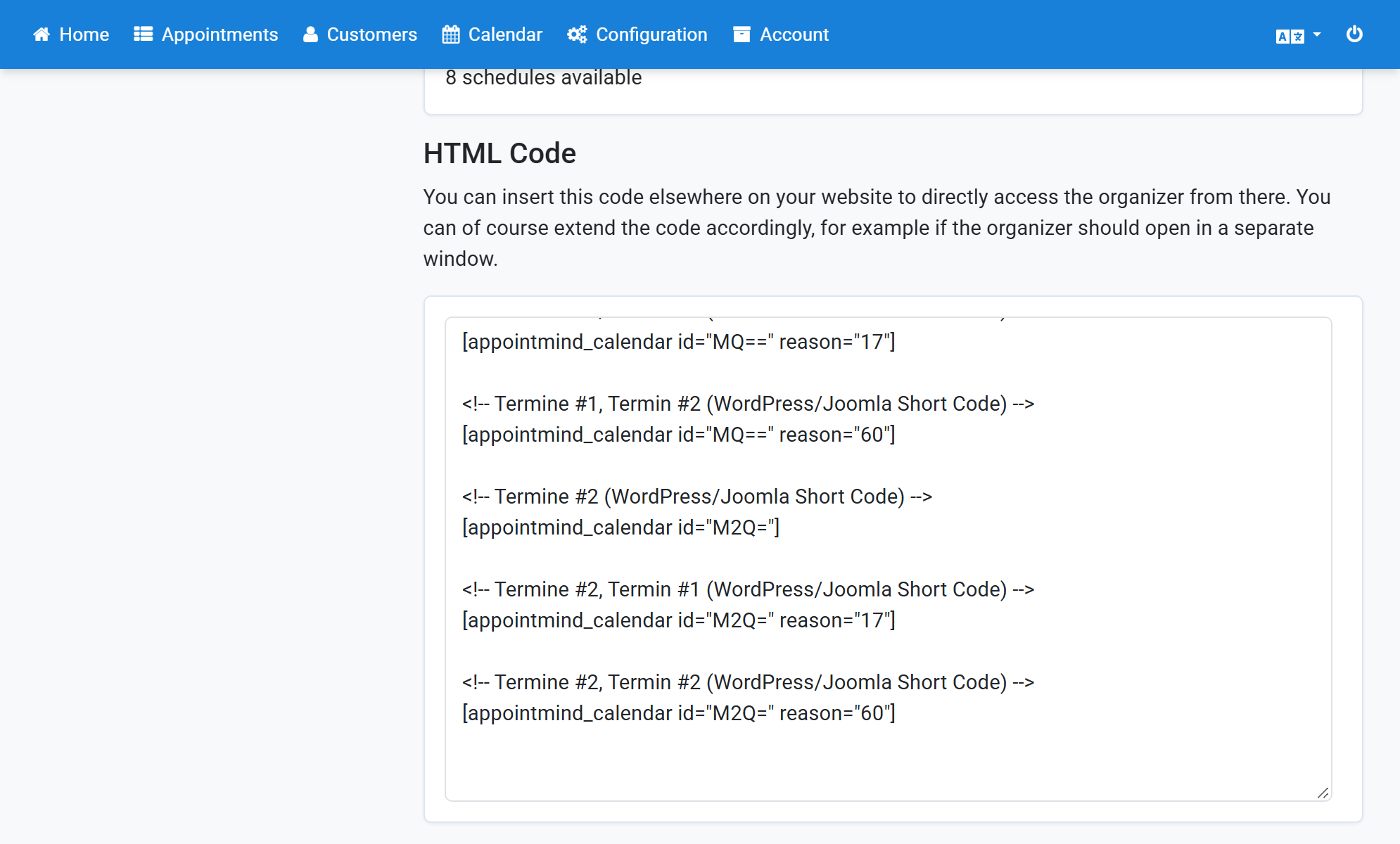
Paste the shortcode into WordPress and save the post
10