Private browsing mode and incognito mode
The most important thing first: when you have opened a website in private browsing or incognito mode, you are automatically signed out (logged out) and see the pages the way a visitor who is not logged in would see them.
To test the user view of your Appointmind calendar, we therefore recommend our customers to log out. Because anyone who is logged in does not get to see the same page as a regular visitor. Some content is displayed differently, which can lead to confusion.
So that you see Appointmind on your website like a regular visitor, we recommend browsing in private mode, which some browsers also call incognito mode. Below we explain what this mode is and how you activate it.
What is private browsing mode?
While browsing the web, the browser collects and transmits a lot of data. Cookies are a good example. They store data that is connected with the use of a page. This can be the user name or settings that have been made, for instance. When the page is visited again, this information is transmitted automatically through the cookie. However, this only happens during regular browser use. If the user is browsing in private mode, such data is not transmitted.
The situation is similar with the browser history. The history stores all the pages that have been visited so far. Often it is enough to type part of a web address for the browser to complete it automatically from the history data. If private browsing mode is active, depending on the system settings the history is not created at all or is deleted automatically immediately after the window is closed.
How to activate private browsing mode
By now almost all browsers are equipped with a private browsing mode. At least this is true for the more recent versions. If you are still browsing with a somewhat older version, the function may be missing.
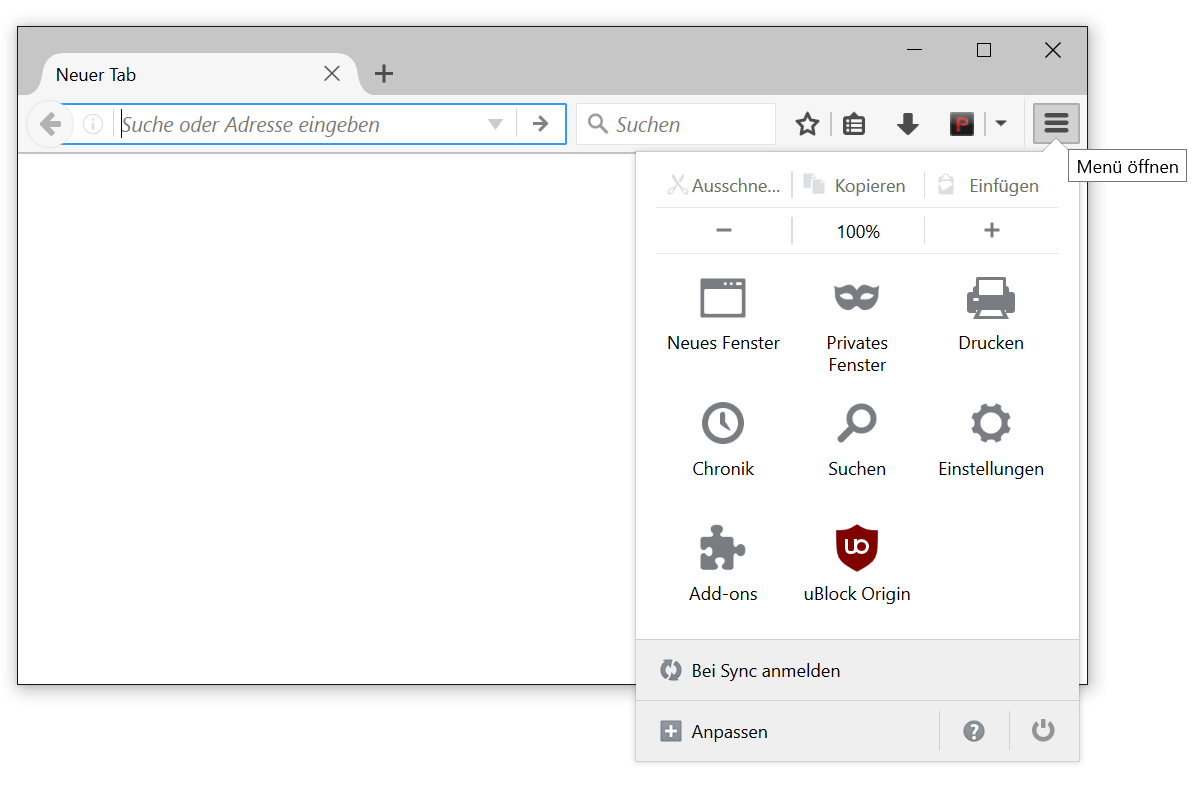
How it is activated differs from browser to browser. If you browse with Mozilla Firefox, for example, simply click on the menu item "File" and then select "New private window". In this newly opened window you then automatically browse in private mode.
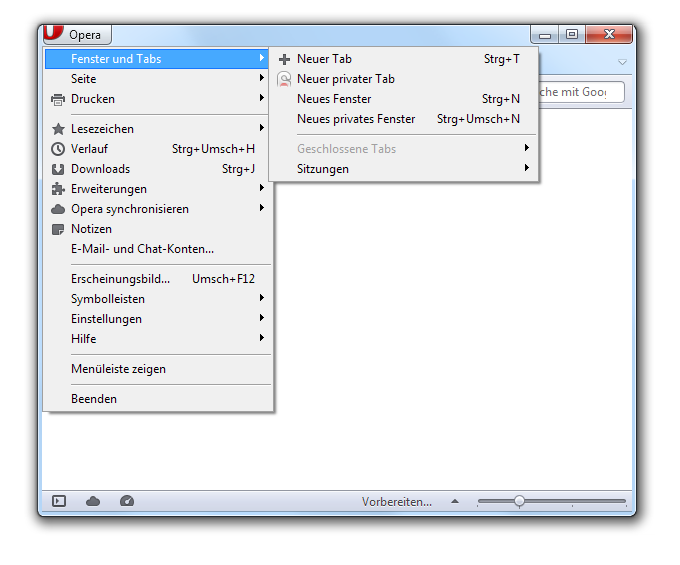
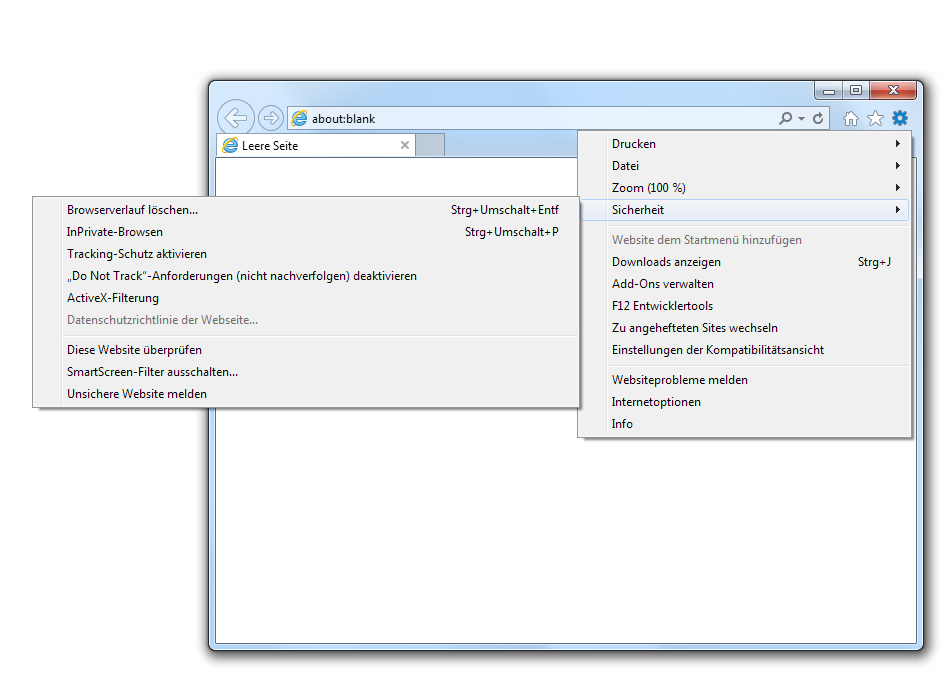
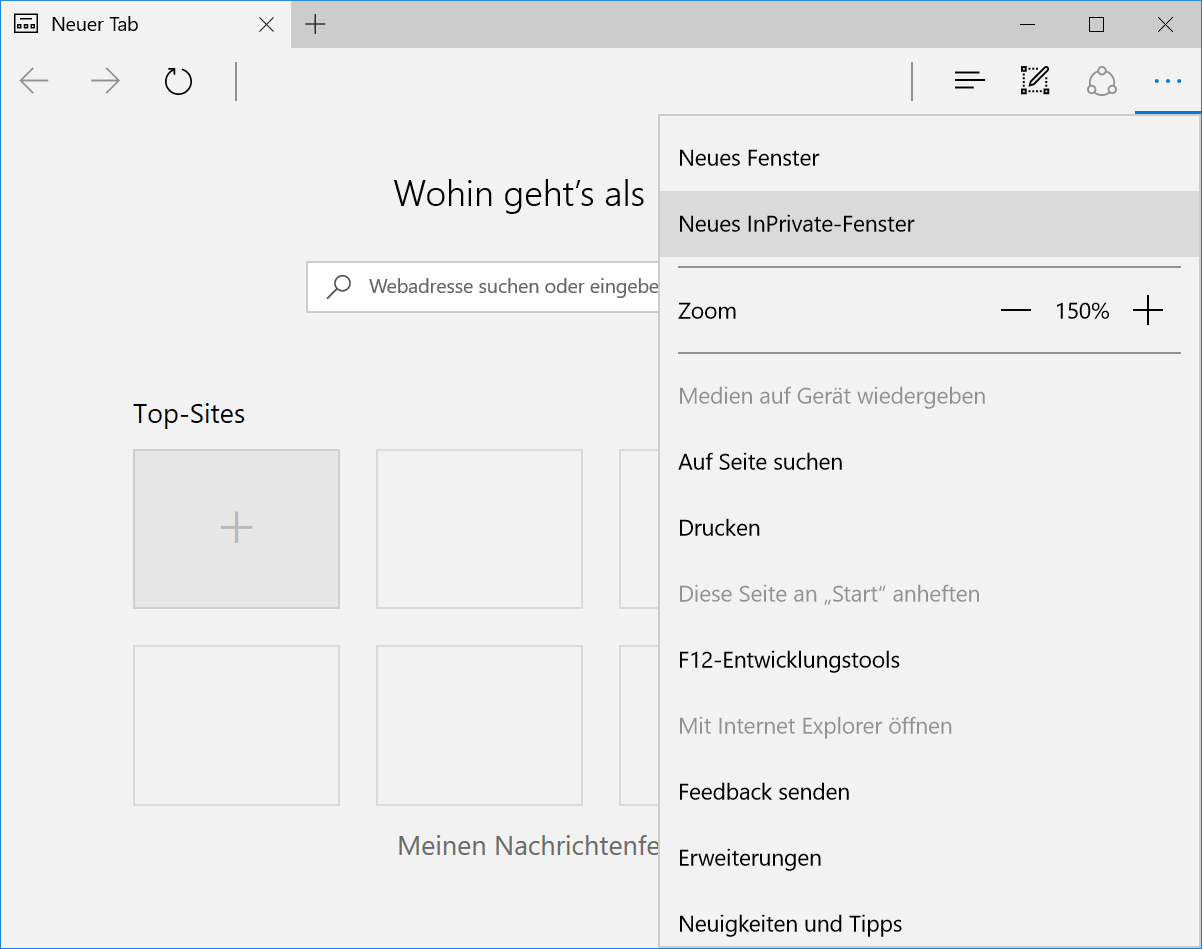
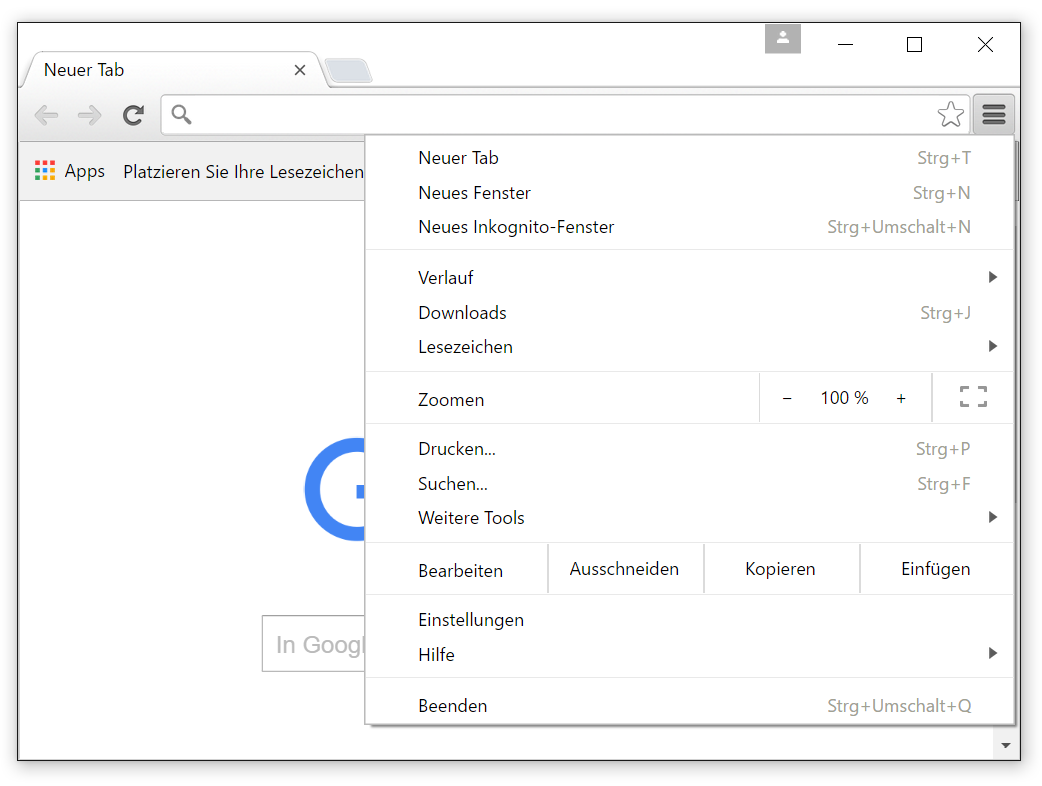
We have created the following overview for all common web browsers. The screenshots show how private browsing mode is activated in each of them.
Screenshots
Firefox - Private window
Internet Explorer 11 - InPrivate browsing
Edge - New InPrivate window
Chrome - New incognito window
Opera - New private tab